
Add, rename and delete
A component of a Pywr model is used by name in many places. The extension follows those names, so that adding, renaming and deleting a component does not leave the model broken.
Add a component
Section titled “Add a component”-
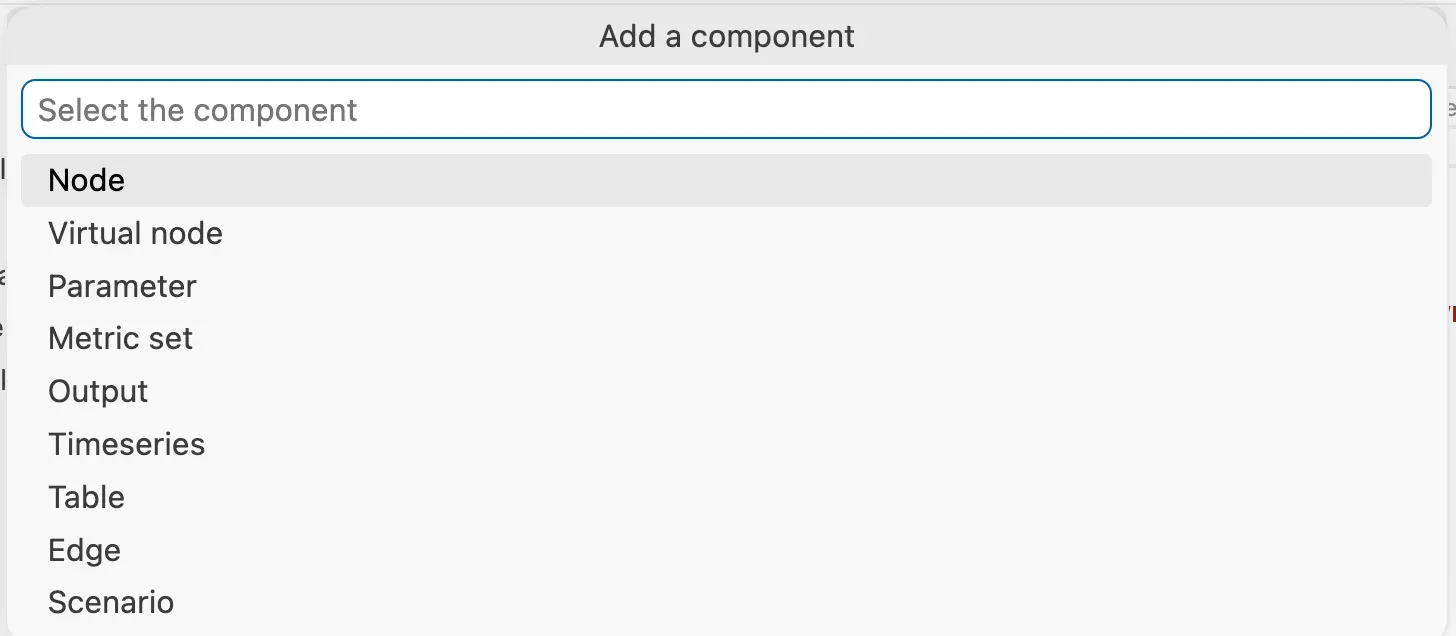
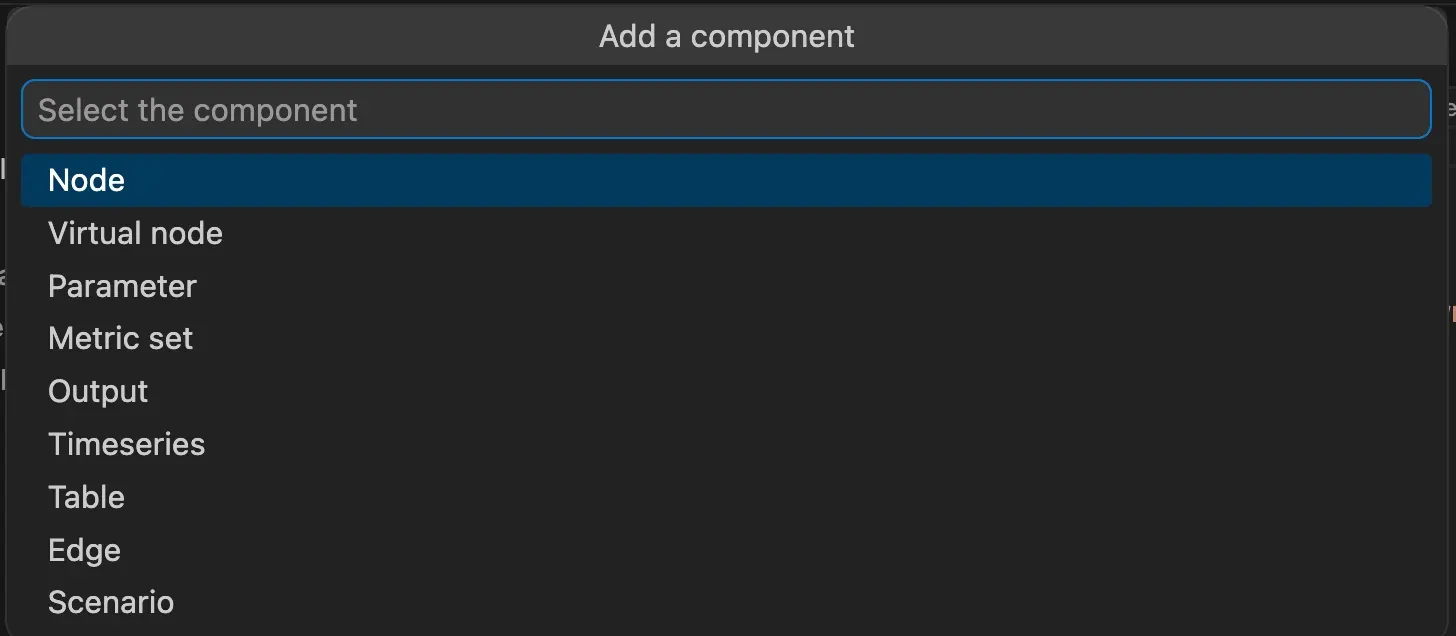
Run Pywr: Add a component from the Command Palette, or press Ctrl Alt P, then A.
-
Pick the kind of component.
-
Answer the questions that follow. They depend on the kind:
Component You are asked for Node, virtual node, parameter, recorder, timeseries A name and a type Edge The node it starts from, a slot when the node has more than one, and the node it goes to Output A type, the metric sets to save, a file name and, for CSV, the format Metric set What to include Table A type, how values are looked up, and the file Scenario A name and a size 

The component is added to the JSON file with the default values of its type, and its form opens so that you can change them.
You can also:
- press the + button next to a group in the Model view, to add a component of that kind
- run the command for one kind, such as Pywr: Add A New Parameter
- drag a node type onto the schematic
Rename a component
Section titled “Rename a component”-
Start the rename from wherever you are:
- hover the component in the sidebar and press the Rename button
- press F2 on its name, or on a place that uses it, in the JSON file
- press Rename in the toolbar of its form
- right-click the node on the schematic and pick Rename
-
Type the new name and press Enter. A name that is already used is refused.
The name is changed where the component is defined and in every place that uses it.
Find where a component is used
Section titled “Find where a component is used”Right-click a component in the sidebar and pick Find usages, or press Shift F12 on its name in the JSON file. Each place is listed with its line, and you can click one to go to it.
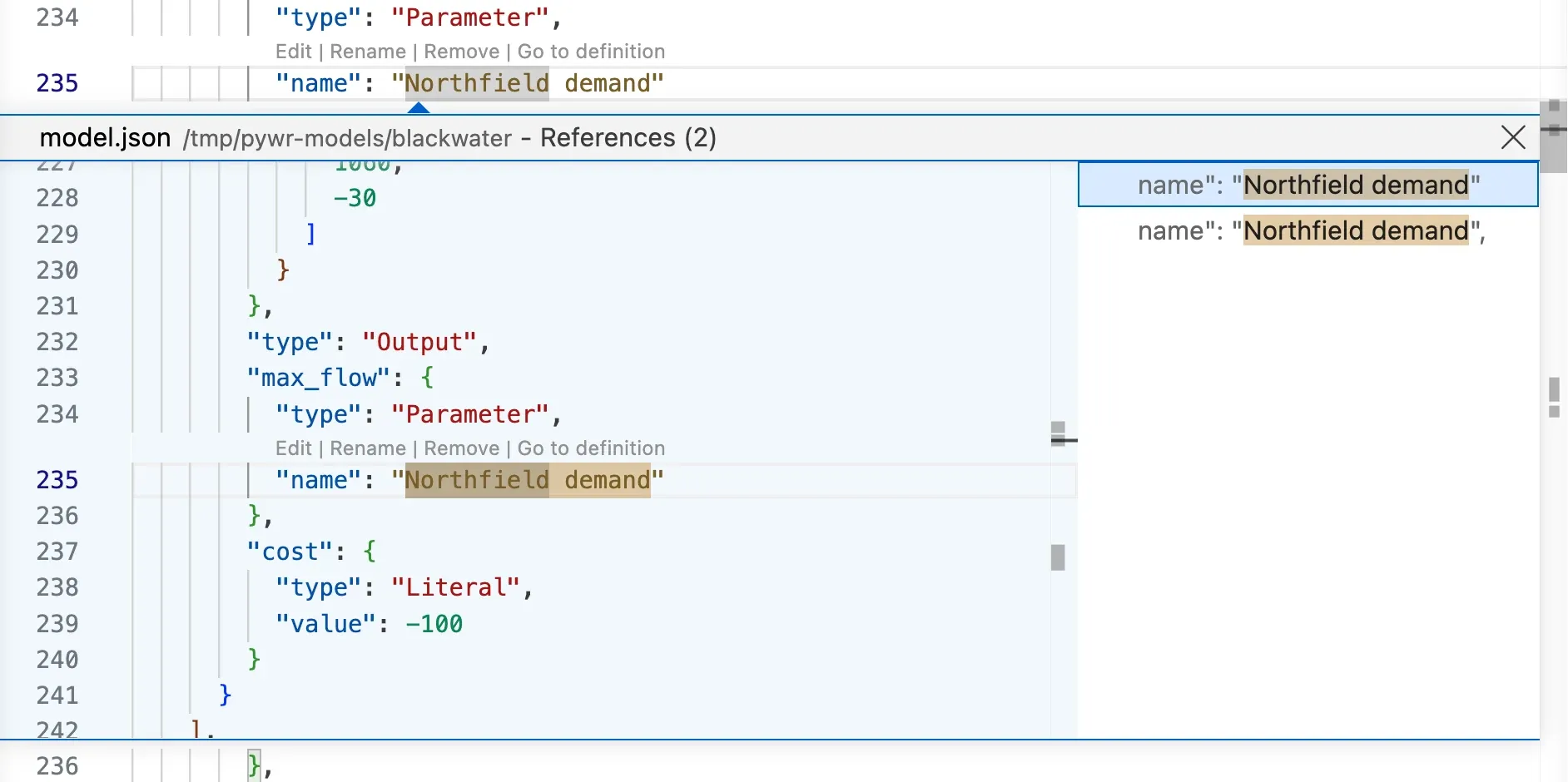
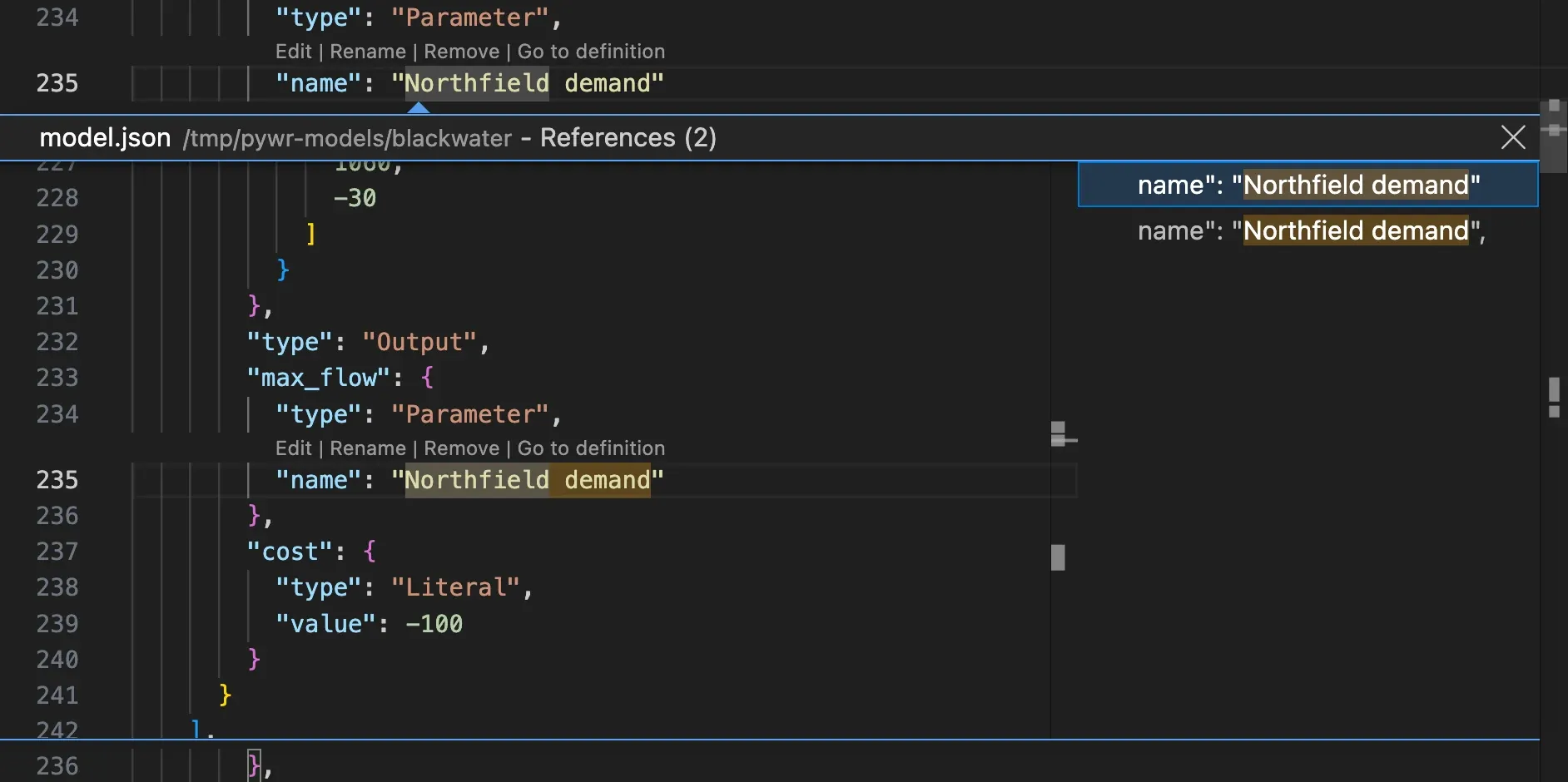
To see the chain of components, not only the names, use the Dependencies view.
Delete a component
Section titled “Delete a component”-
Hover the component in the sidebar and press the Delete button. You can also use the Delete button of its form, or select it on the schematic and press Delete.
-
Read the confirmation. When other components still use the one you are deleting, the message says how many, and offers to show you where.
-
Confirm to delete it.