
Search
The Model view of the Pywr sidebar has a filter to find any component of the model: a node, an edge, a parameter, a table and the others.
-
Press the search button at the top of the Model view. With the view focused, you can also press Ctrl F (Cmd F on macOS).
-
Type in the box that opens at the top of the window. While you type, the tree only keeps the components whose name or type matches, and each group shows how many of its components match. An edge matches by the names of its nodes.
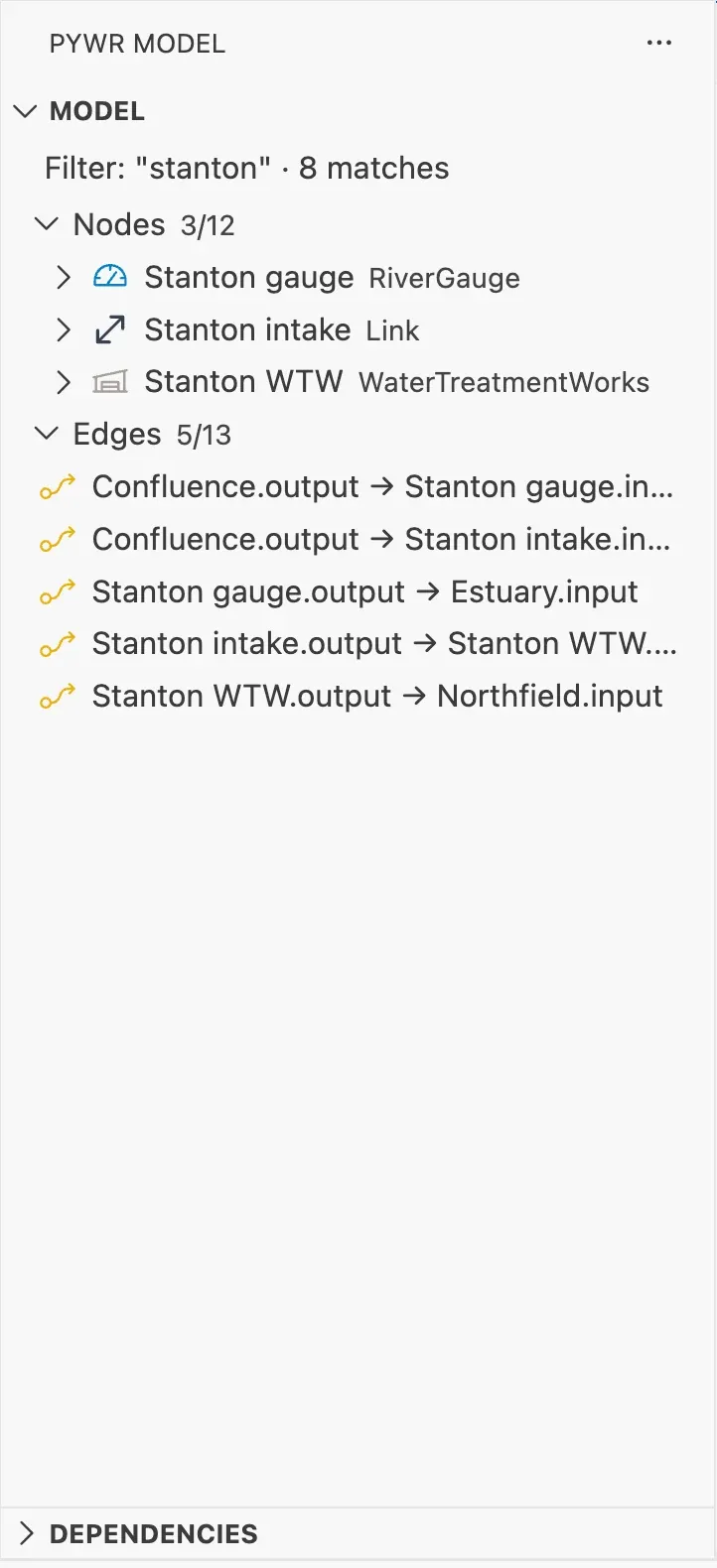
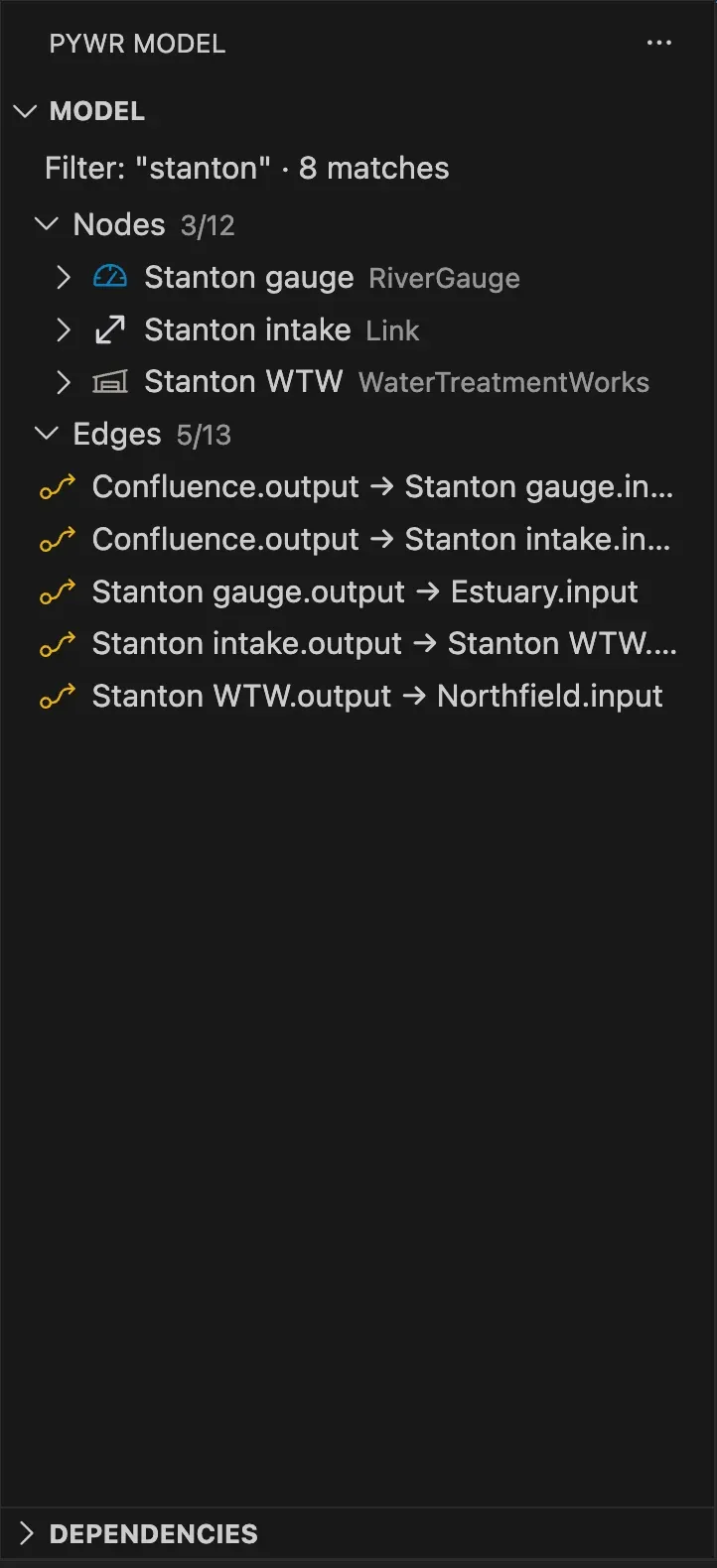
-
Press Enter to close the box. The tree stays filtered.
-
Click a component to open its form. When the schematic is open, a node or an edge is also shown on it. The buttons and the right-click actions of a component work as in the full tree.
Search the types only
Section titled “Search the types only”Start with type: to search the types and not the names. For example,
type:reservoir lists the reservoir nodes, including those whose name does not contain
“reservoir”.
Clear the filter
Section titled “Clear the filter”Press Clear the filter at the top of the view. The text you typed is remembered for each model.