
Edit with forms
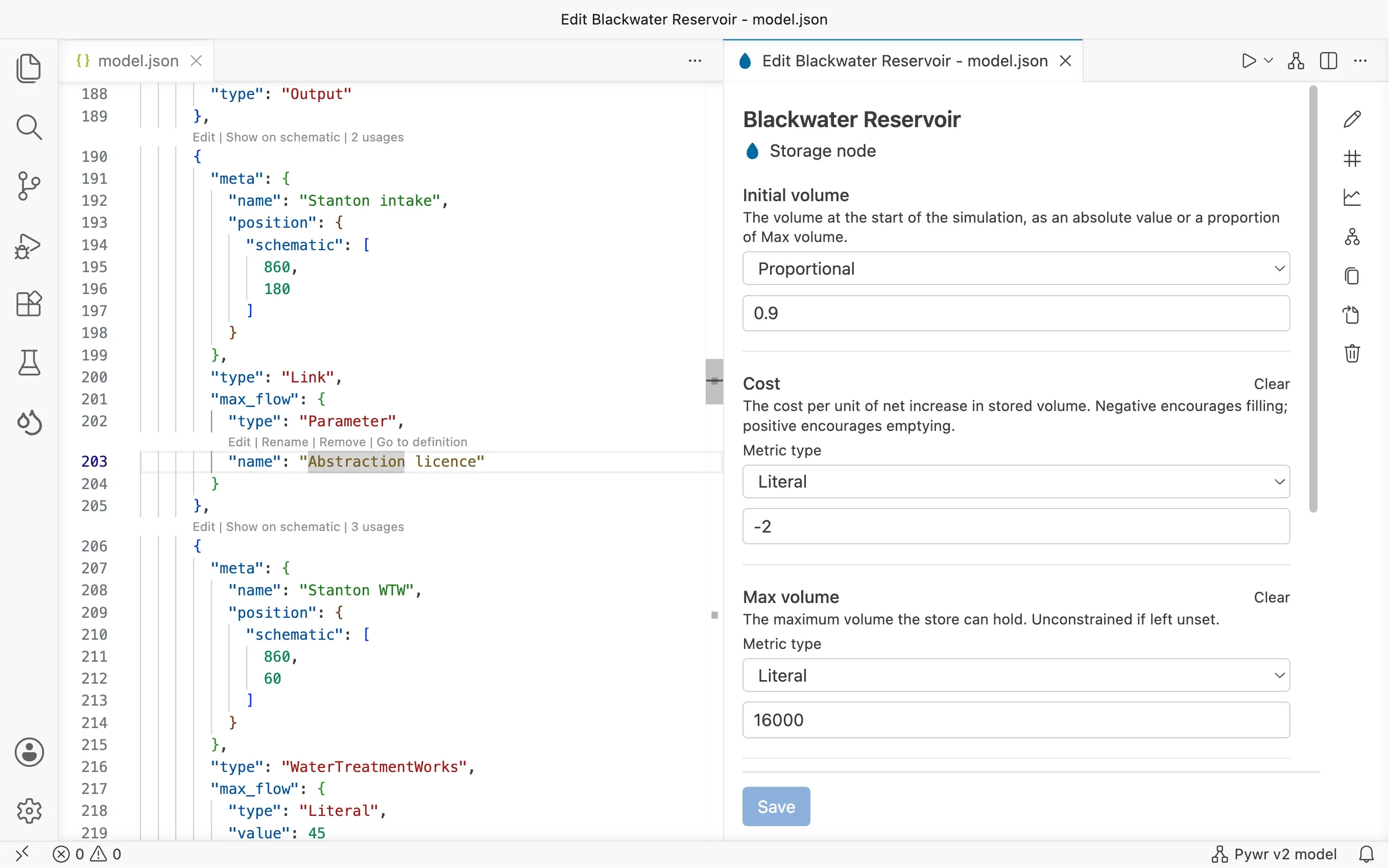
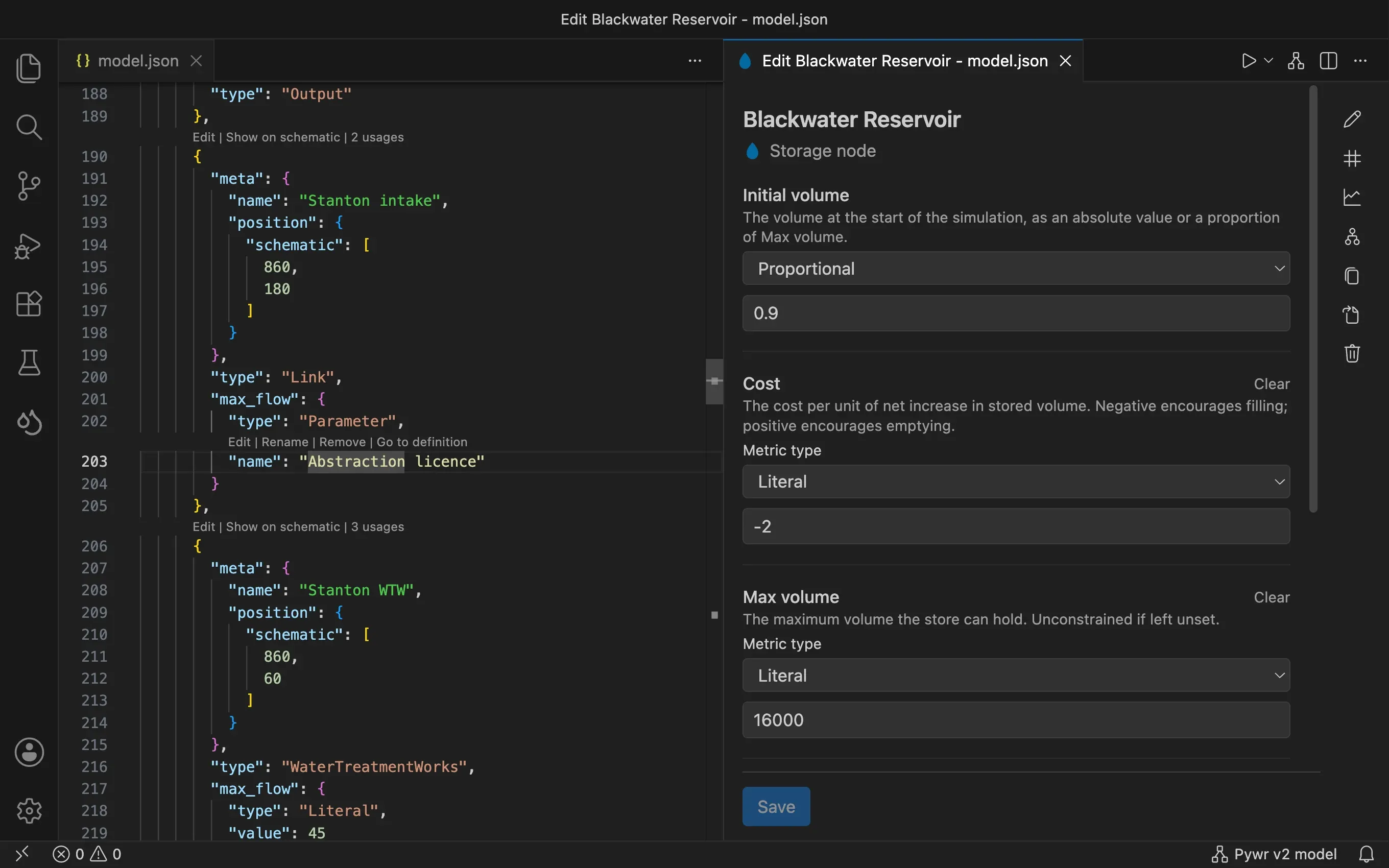
Every component of a model has a form with all its fields. A form checks what you type, shows you the data you are editing, and writes your changes into the JSON file when you save.
Open a form
Section titled “Open a form”Use any of these:
- Click a component in the Model view of the sidebar.
- Double-click a node on the schematic.
- Click Edit above a component in the JSON file.
- Run one of the Pywr: Edit … commands, such as Pywr: Edit Node, from the Command Palette and pick the component.
The form opens next to the JSON file.
Fill in the fields
Section titled “Fill in the fields”-
Change the fields you need. Each field has a short description under its name.
- A field that takes another component, such as a parameter or a node, has a list
of the names in your model. The buttons next to the list open the form of the
component you picked or show where it is defined in the JSON file. In a pywr v1
model, a parameter defined inline has a Move to named parameter button: the
parameter is added to the
parametersof the model, named after the component and the attribute (for exampleNode cost), and the field uses that name. - A field that takes a file has a file picker, and suggests the data files of your folder.
- A field that takes a Python class or function suggests those found in the Python files of your folder.
- An optional field you have not set shows + Set. Press Clear to remove a value you set.
- A field that takes another component, such as a parameter or a node, has a list
of the names in your model. The buttons next to the list open the form of the
component you picked or show where it is defined in the JSON file. In a pywr v1
model, a parameter defined inline has a Move to named parameter button: the
parameter is added to the
-
Where a value can come from different places, pick where from the list above it. A flow, for example, can be a number (Literal), a Parameter, a Timeseries or the value of another node. The fields under the list change to match.
-
Press Save. The form is checked and your changes are written into the JSON file. When something is wrong, the form lists what could not be saved and nothing is written. Save stays disabled until you change something.
See the data you are editing
Section titled “See the data you are editing”Preview charts
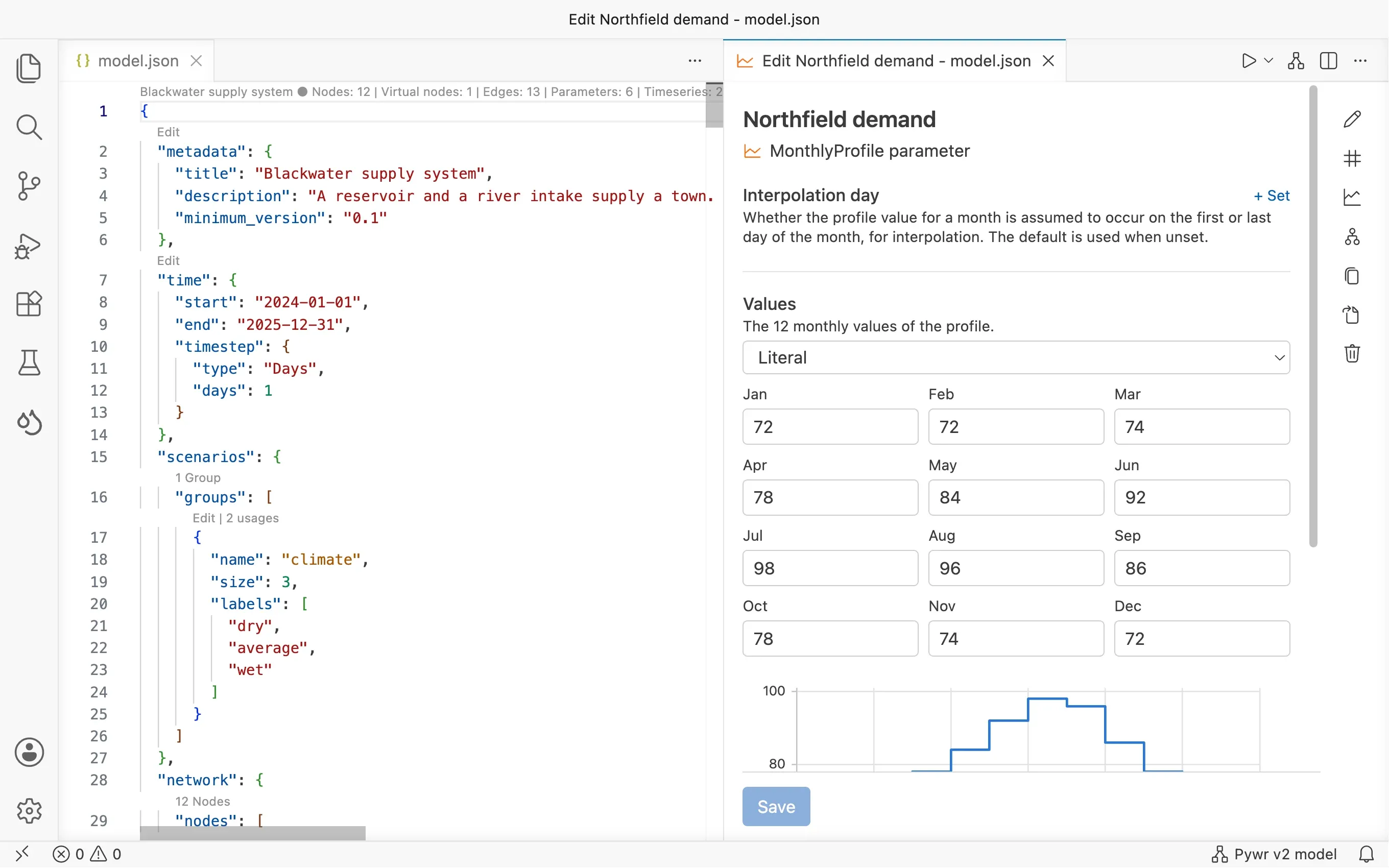
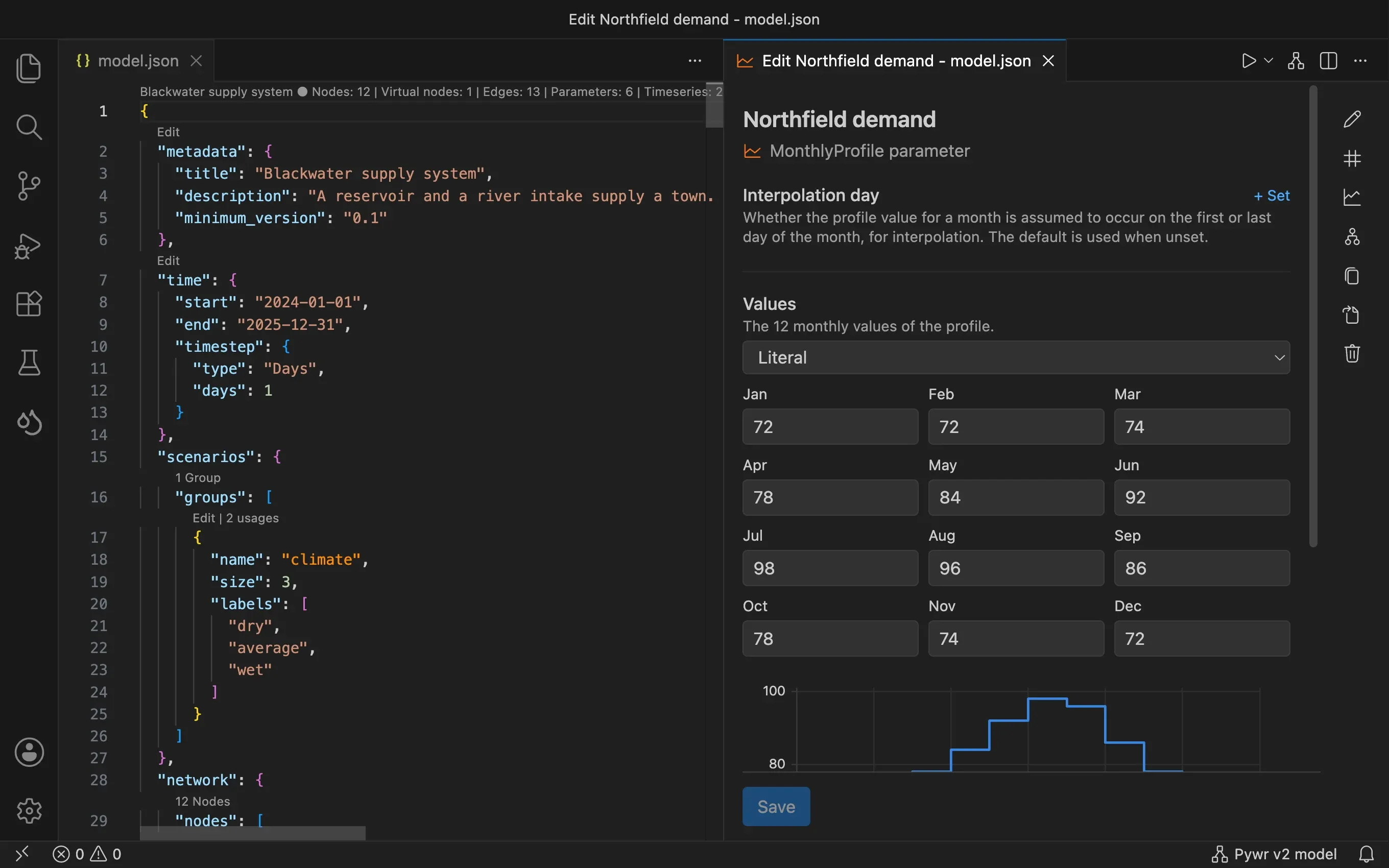
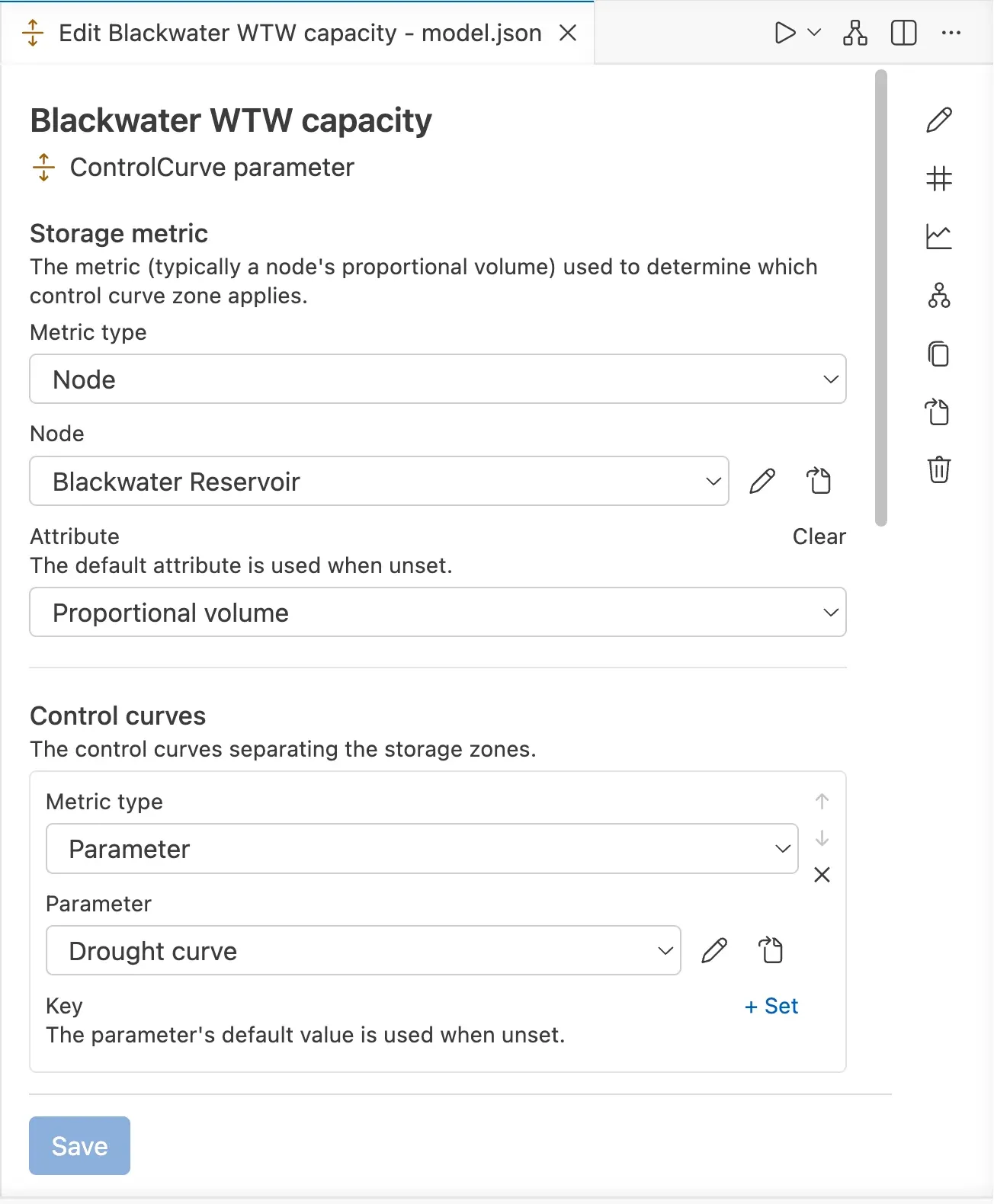
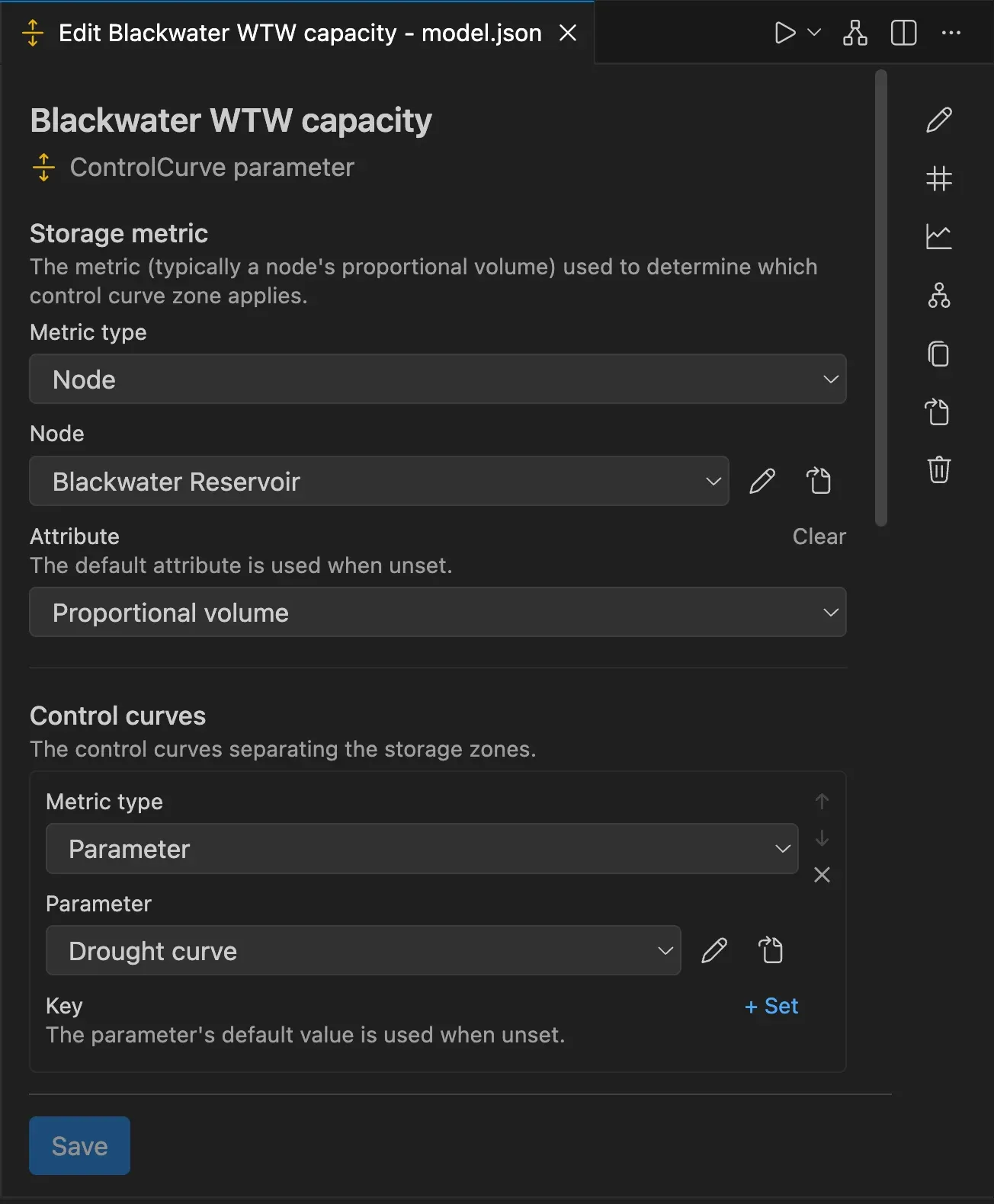
Section titled “Preview charts”A form draws the values it holds as you type them:
- profiles: monthly, weekly, daily and sub-daily
- control curves
- polynomials and interpolation points
- the bathymetry of a reservoir
File previews
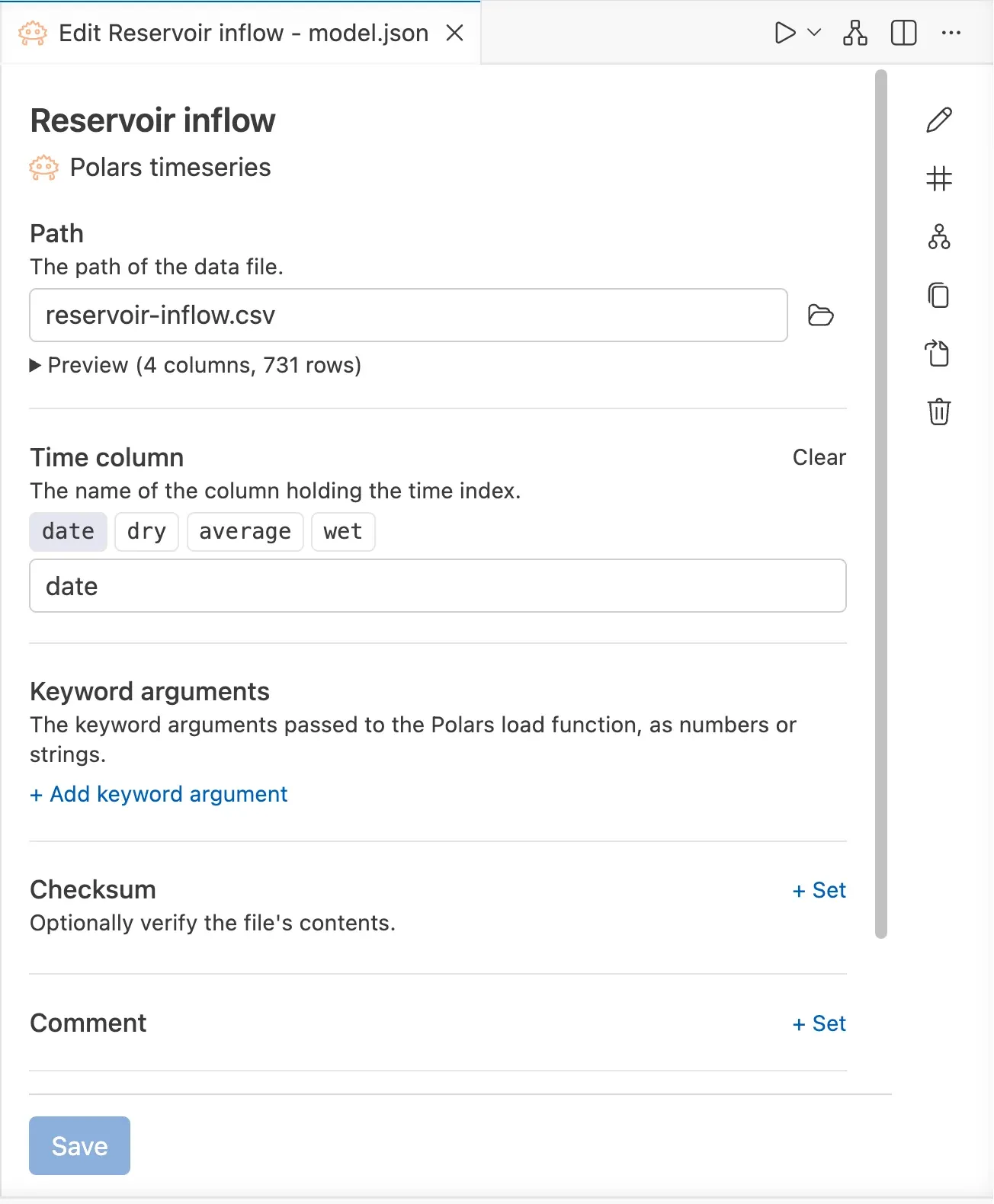
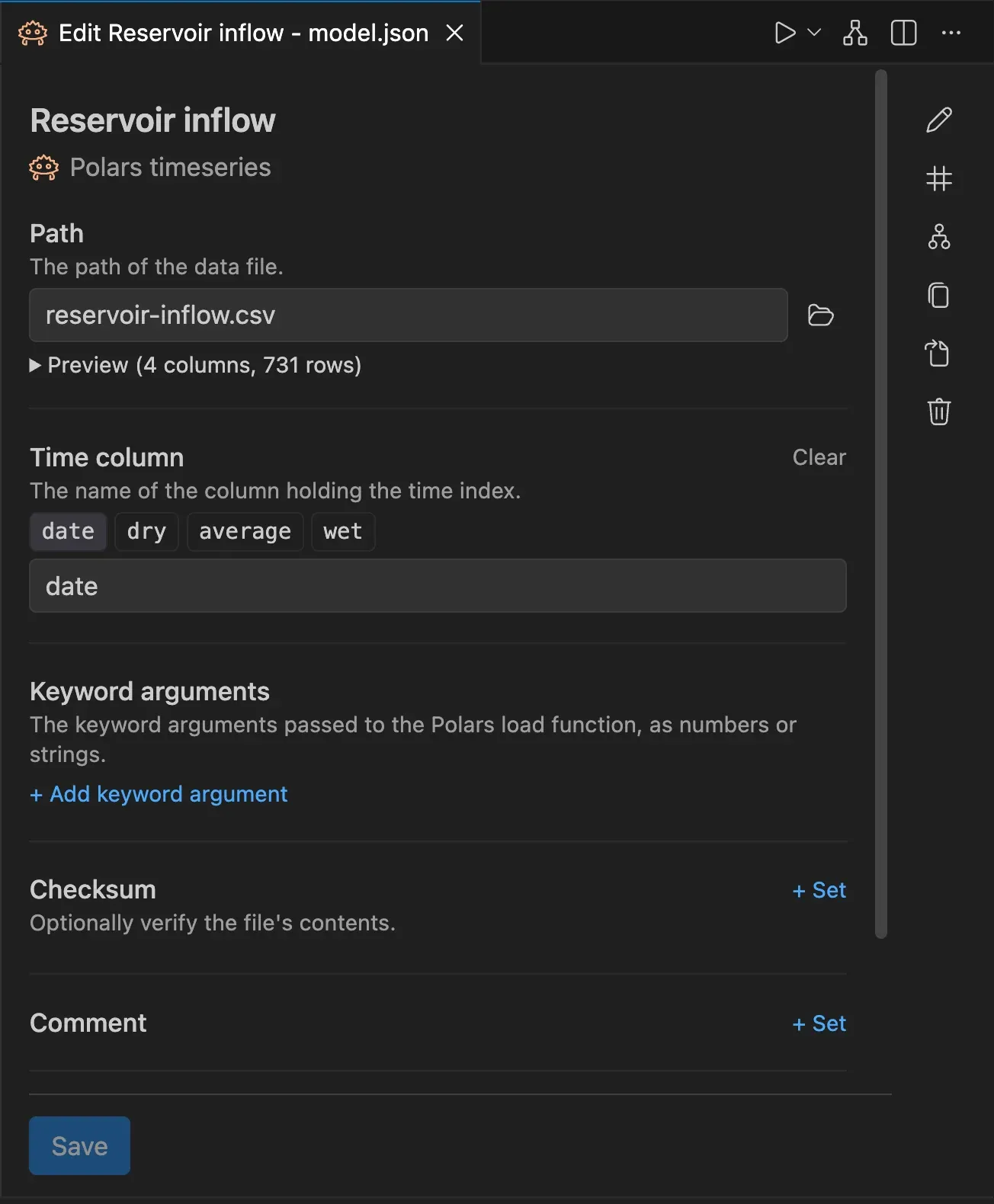
Section titled “File previews”The form of a table or a timeseries that reads a CSV file shows the columns and the first rows of the file, with a chart of its numeric columns. Only CSV files can be previewed.
Column suggestions
Section titled “Column suggestions”Where a field takes the name of a column, the form lists the columns of the file, so you can click a name instead of typing it.
The toolbar of a form
Section titled “The toolbar of a form”The buttons on the side of a form act on the component:
| Button | What it does |
|---|---|
| Rename | Renames the component everywhere it is used. |
| Find where it is used | Lists the places that use the component. |
| Chart the results | Charts the results of the node or the parameter. See Chart the results. |
| Show what it uses and what uses it | Opens the Dependencies view. |
| Copy the JSON configuration | Copies the JSON of the component. |
| Go to the JSON document | Shows the component in the JSON file. |
| Delete | Deletes the component, after showing you where it is used. |
Edit the model settings
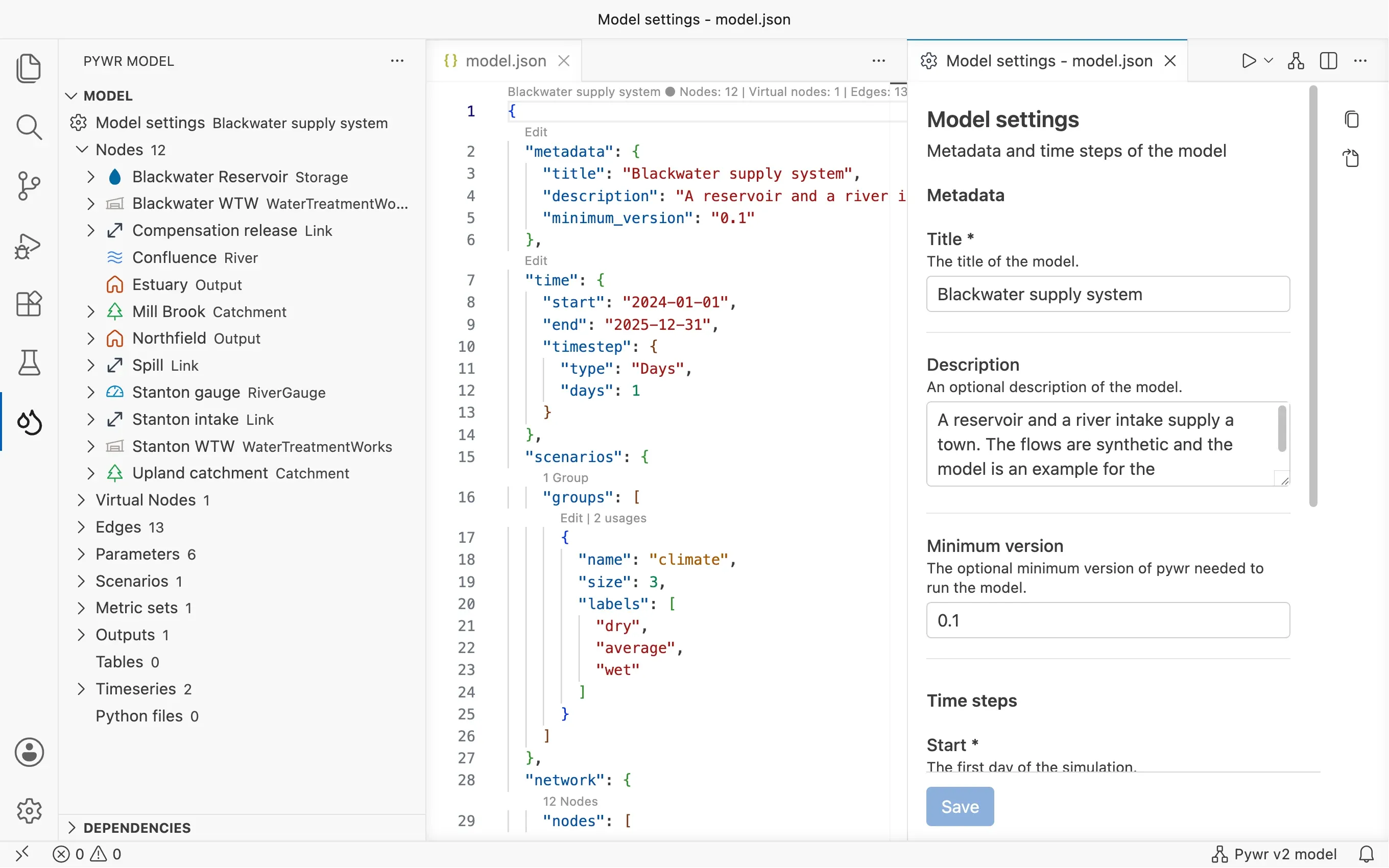
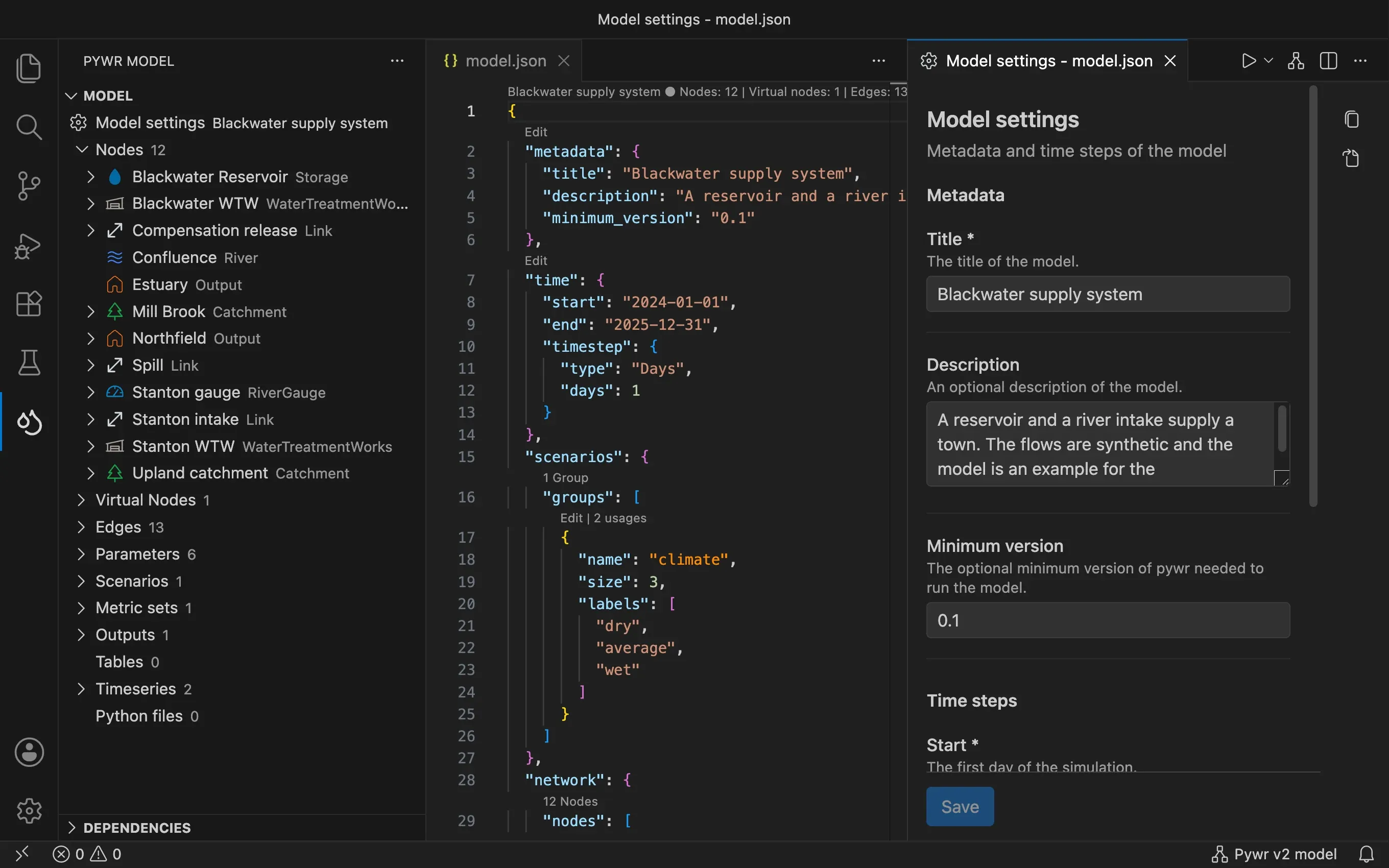
Section titled “Edit the model settings”The model settings are the title and the description of the model, and the period and the time step it runs for.
-
Click Model settings at the top of the Model view. You can also click the Pywr v2 model item in the status bar, click Edit above
metadataortime(timestepperin Pywr v1) in the JSON file, or run Pywr: Edit Model Settings. -
Set the title, the description, the start and the end of the run, and the time step, in days, in hours or as a frequency.
-
Press Save.
Pywr v1 The model settings of a Pywr v1 model also have the solver, with its arguments, and the scenario combinations to run. A Pywr v1 model also has a form for its included files: run Pywr: Edit Included Files, or use the button next to Python files in the Model view.
Which components have a form
Section titled “Which components have a form”- Pywr v2 Nodes, virtual nodes, edges, parameters, metric sets, outputs, timeseries, tables and scenario groups. The forms also edit the comment and the tags of these components and of an edge, and show the project files a component comes from when Pywr composed the model from several files.
- Pywr v1 Nodes, edges, parameters, recorders, scenarios and tables.