
QA report
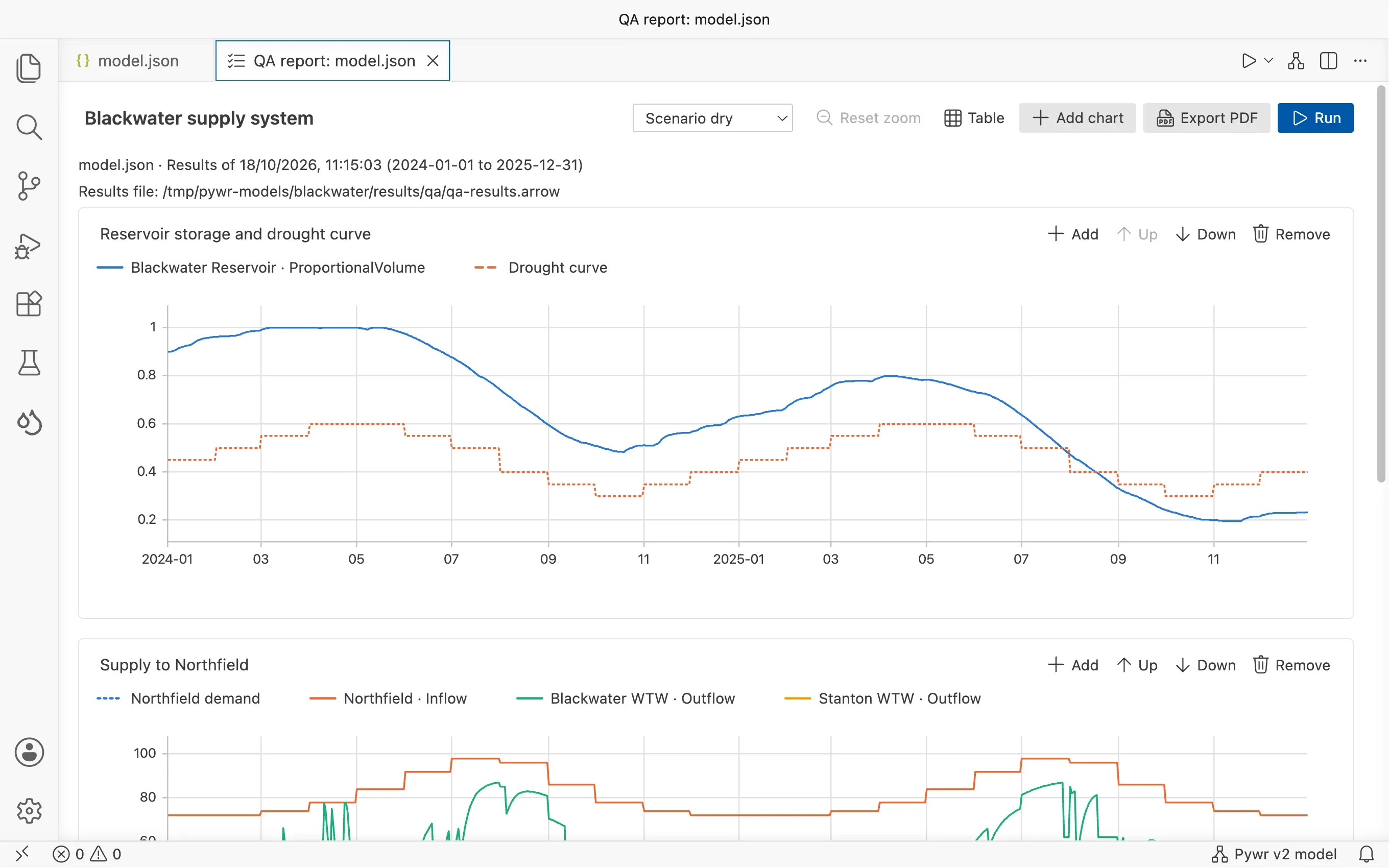
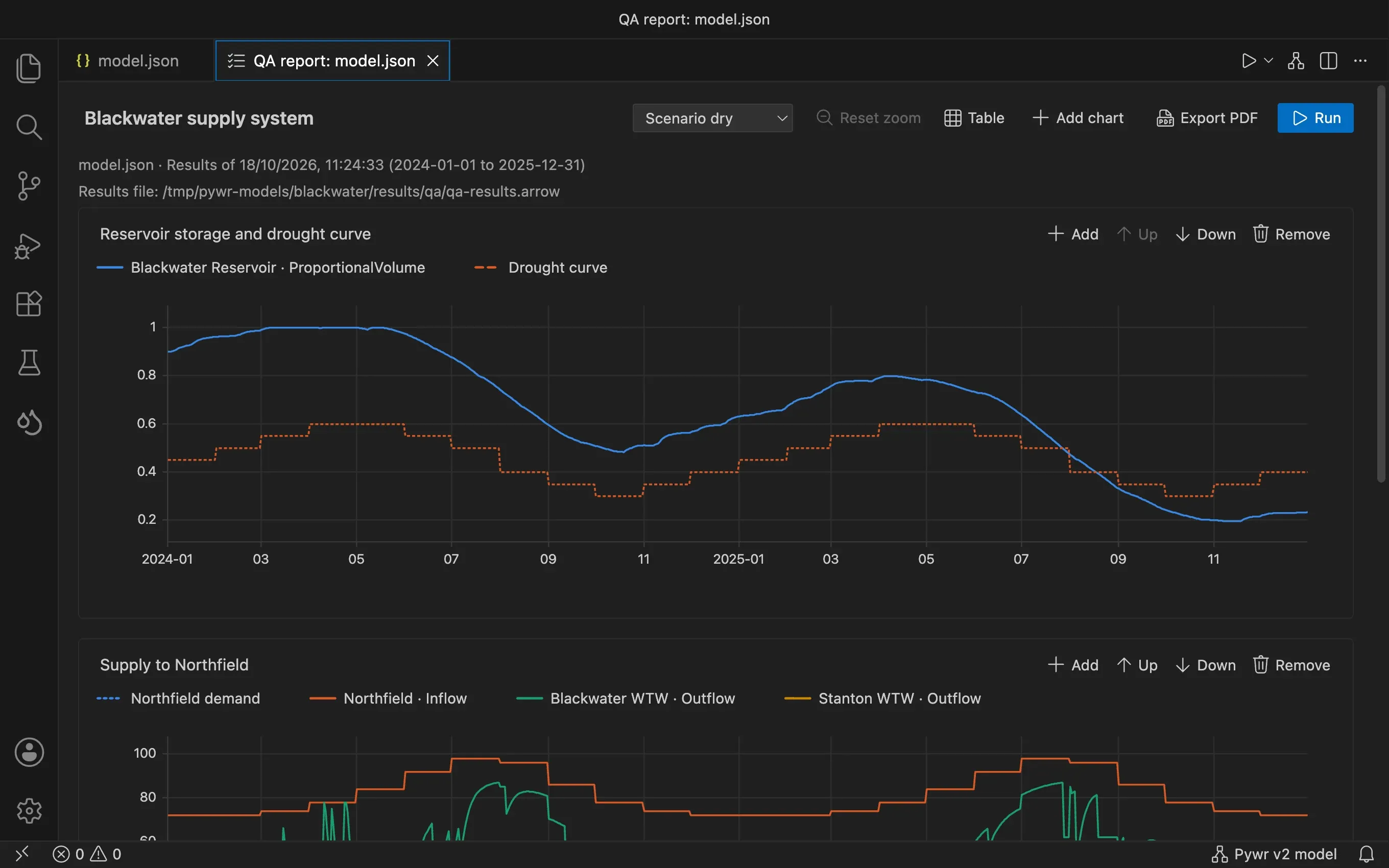
A QA report is a set of charts you define once for a model and draw again after every change. For example, the first chart shows the volume of a reservoir with its control curve, and the second one the flows downstream. If a change makes the reservoir empty, or a flow drop below its minimum, you see it straight away.
The QA report works for Pywr v2 and Pywr v1 models. What you can put on a chart, and how the report is run, differ a little between the two; this page says where.
Build the report
Section titled “Build the report”-
Open the model and press the QA report button, the checklist at the top right of the editor, or run Pywr: Open the QA report.
-
Press Add chart. A chart named Chart 1 is added: click its title to rename it. The title of the report, at the top left, is changed in the same way.
-
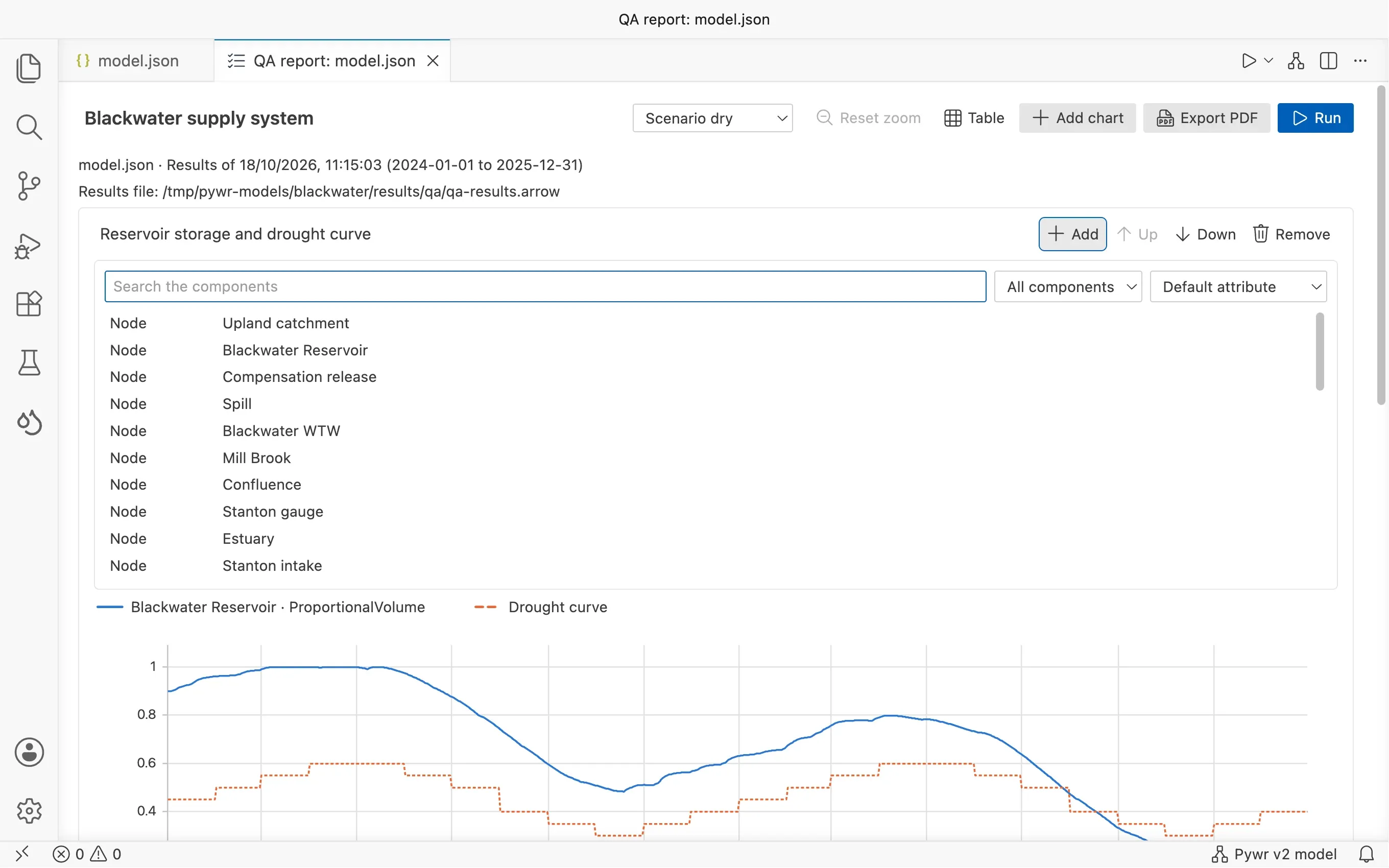
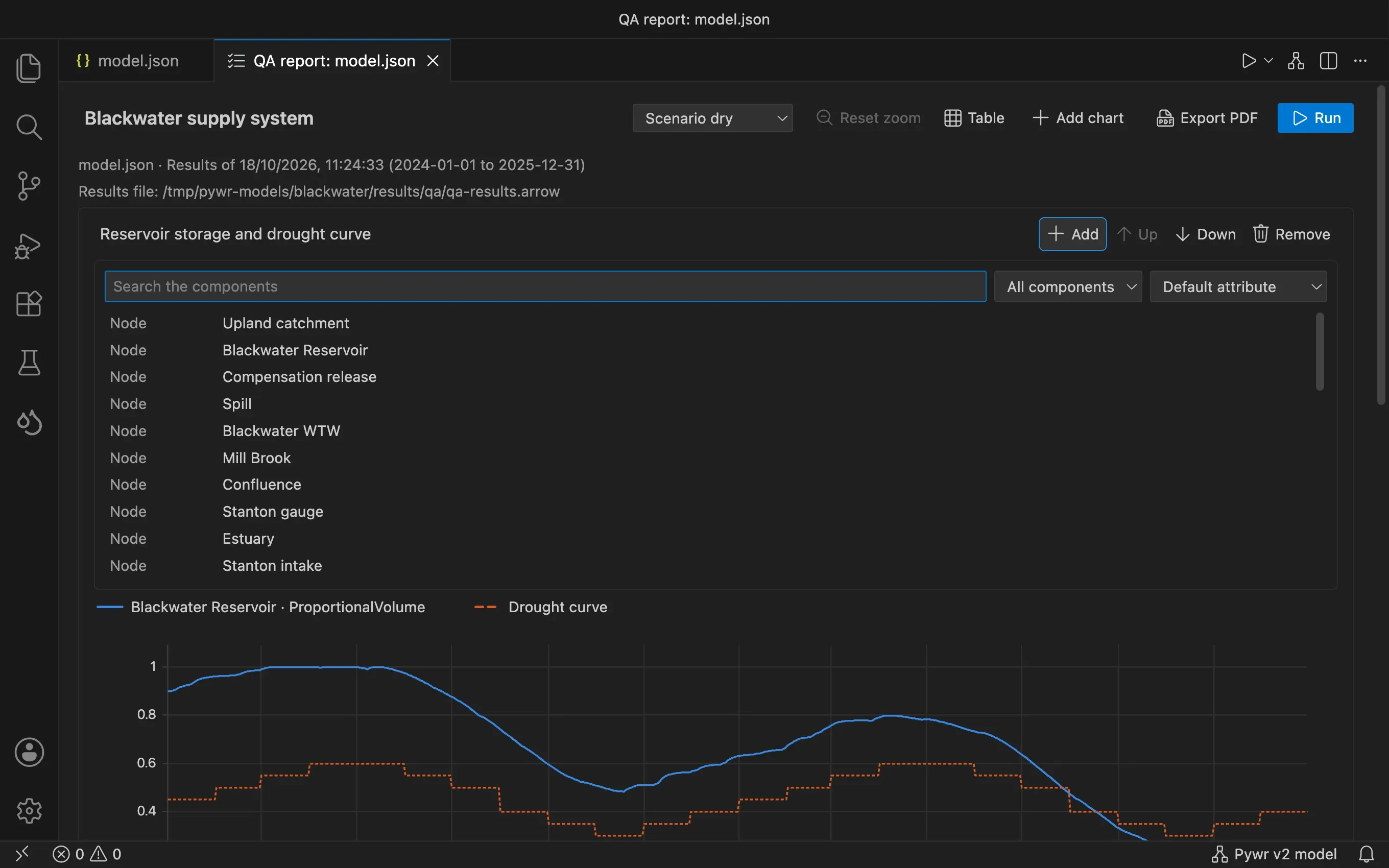
Press + on the chart to add components to it. Search by name, or pick a kind: nodes, virtual nodes, parameters or edges.
-
Pywr v2 For a node, pick the attribute to draw, such as the volume or the outflow, or leave the default one.
Pywr v1 You can add nodes and named parameters. A node shows its flow, or its volume when it is a storage node.
-
Add more charts in the same way. Use the arrows of a chart to move it up or down, and the bin to remove it.
You can also add a component from the sidebar: right-click a node, a virtual node, a parameter or an edge in the Model view, pick Add to the QA report…, then pick a chart or New chart….
Style the lines
Section titled “Style the lines”Click a line in the legend of a chart to change its colour, its style (solid, dashed, dotted or dash-dot) and its width. The lines you do not change get the next colour of the chart.
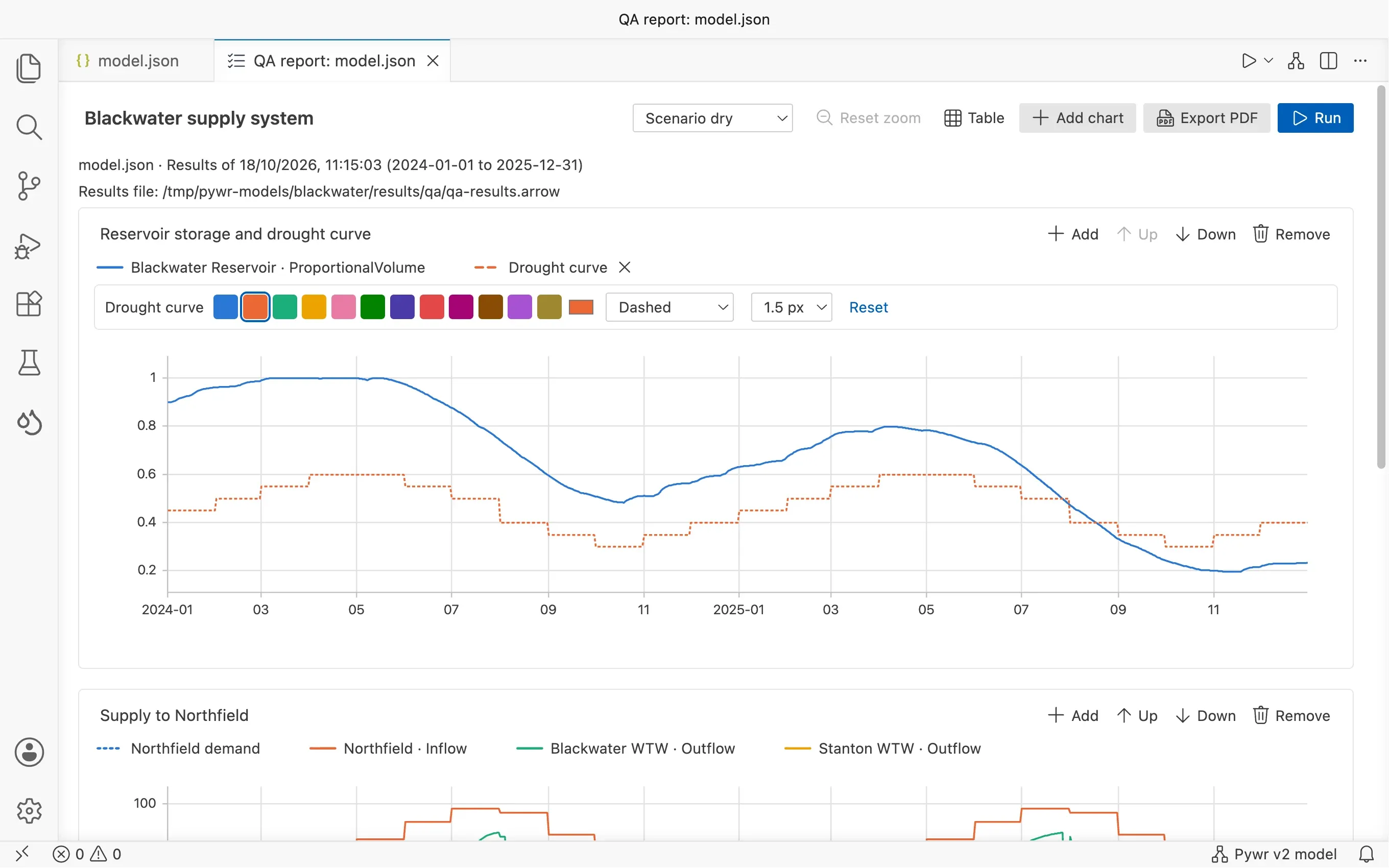
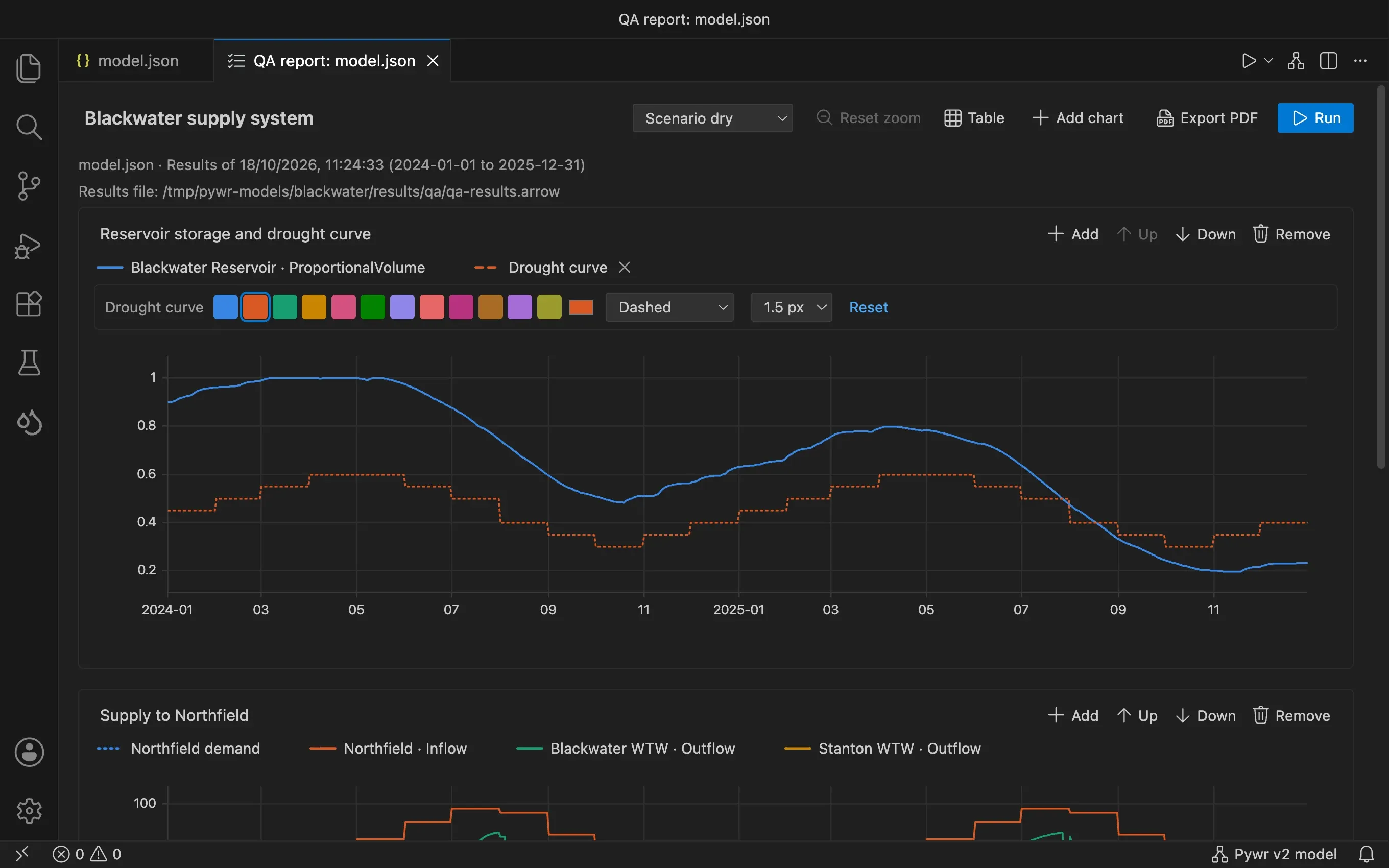
A dashed line is a good choice for a limit, such as a control curve or a minimum flow, so that it reads differently from the result it is compared with.
Run the report
Section titled “Run the report”-
Press Run.
The model is saved, then run to export only the components on your charts. Your model file is not changed.
- Pywr v2 The model does not write its own outputs during this run.
- Pywr v1 The model still runs its recorders,
but their files are saved in
results/qa, so that your results are not replaced. The components are exported with aTablesRecorder, which needs PyTables in your Python environment (pip install tables).
-
Wait for the run. The charts are drawn as soon as it finishes.
-
When the model has scenarios, pick the one to draw from the Scenario list.
-
Drag across a chart to zoom. All the charts zoom together, so that you can read the same period on each. Press Reset the zoom to see the whole run.
The run uses the solver and the scenarios of your last run with options.
When you add a component after a run, the report tells you to run again to draw it.
Share the report
Section titled “Share the report”- Press Export PDF to save the charts as a document, with the title of the report, the model, the scenario and the date of the results.
- The report is saved in a file next to the model:
model.qa.jsonformodel.json. Commit it with the model, and everyone who opens the model has the same charts. - The results of the report are saved in
results/qa, next to the model, and replaced at each run. You do not need to commit them.