
Explore the model
Click the Pywr icon in the activity bar to open the sidebar. It has two views: Model and Dependencies.
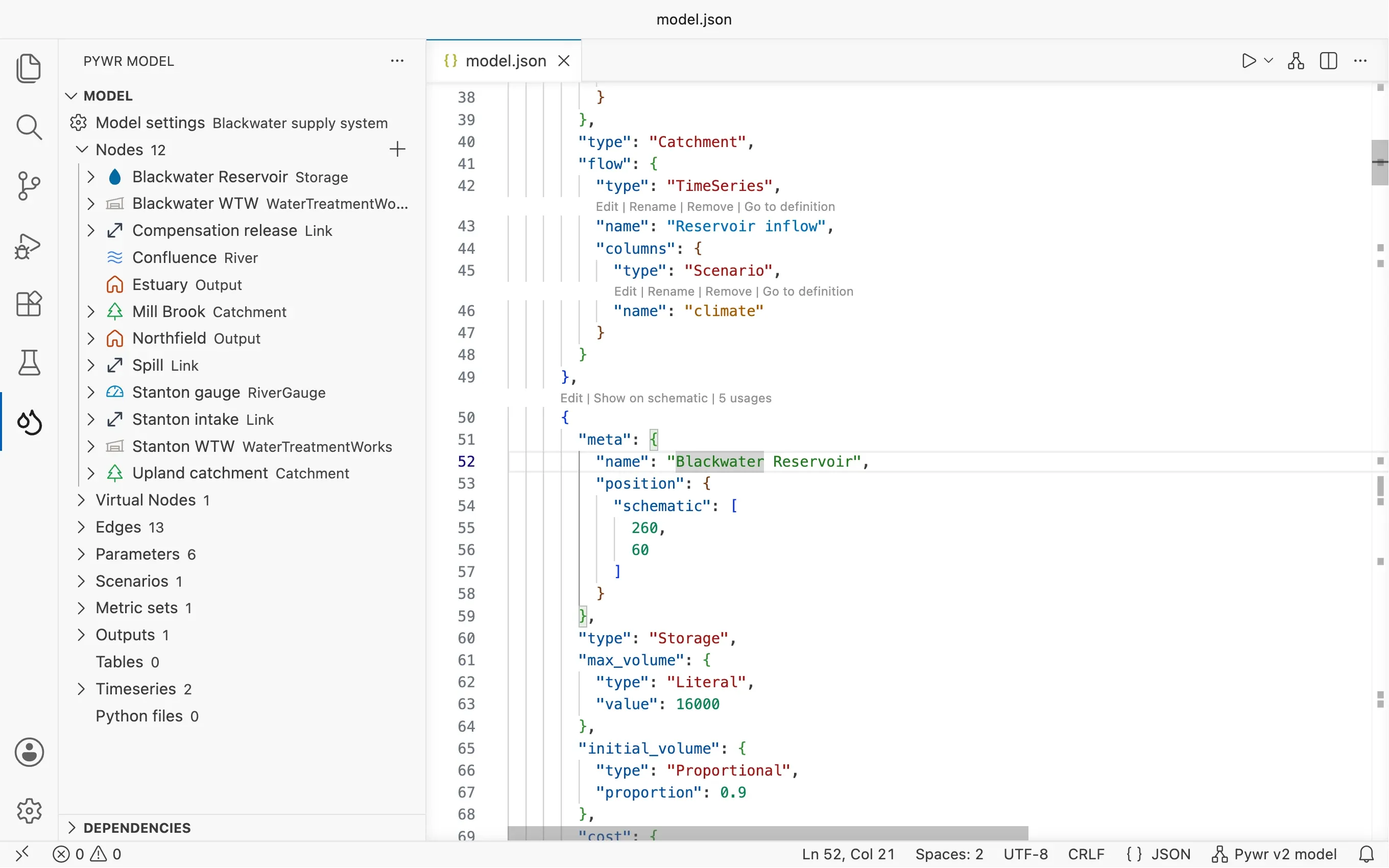
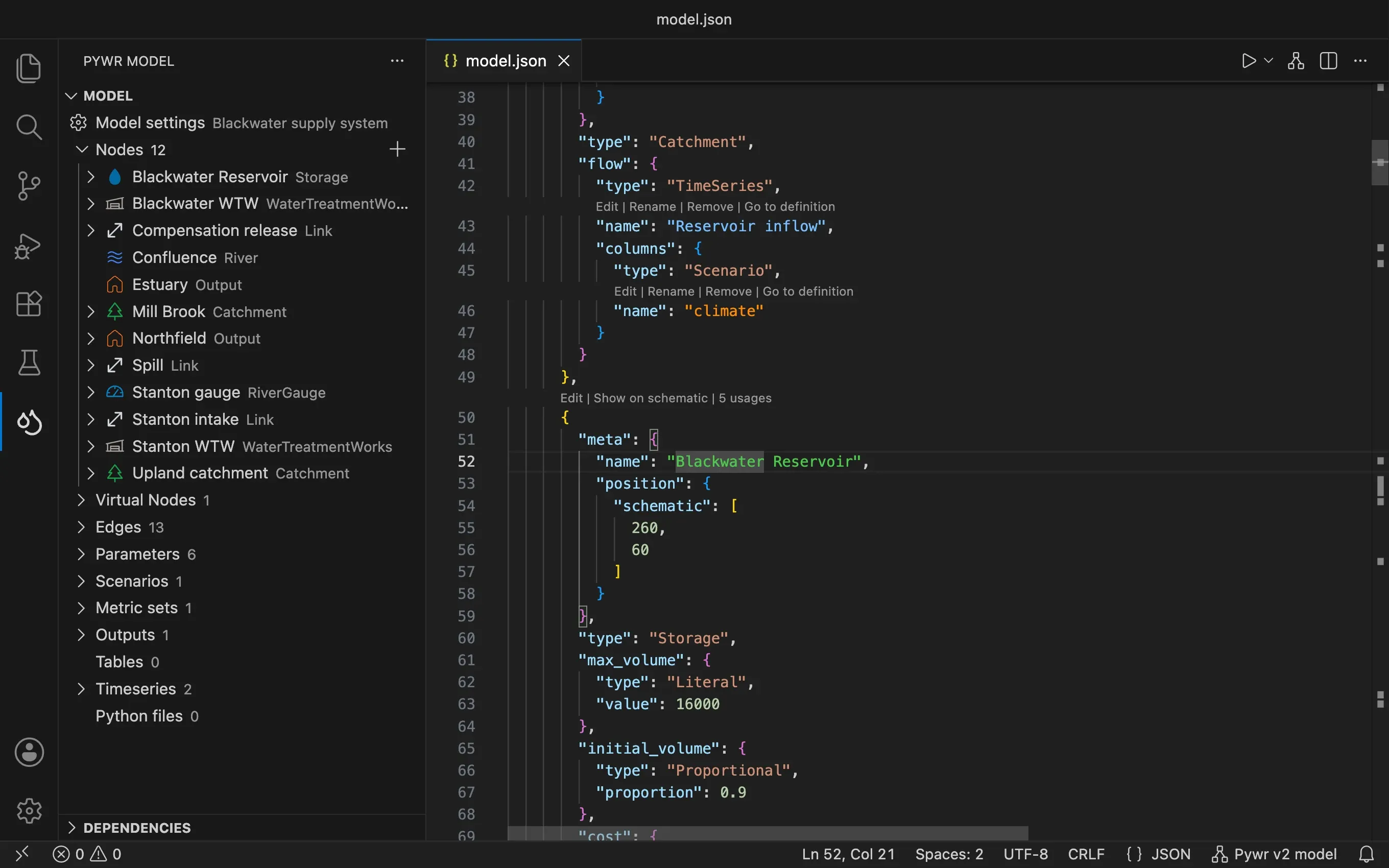
The Model view
Section titled “The Model view”The Model view lists the components of the model in groups, each with the number of components it holds:
- Pywr v2 Model settings, Nodes, Virtual nodes, Edges, Parameters, Scenarios, Metric sets, Outputs, Tables, Timeseries and Python files
- Pywr v1 Model settings, Nodes, Edges, Parameters, Recorders, Scenarios, Tables and Python files
Each component has an icon for its type, its name and its type. In this view you can:
-
Click a component to open its form.
-
Open a component with the arrow next to it to see its properties. Click a property to go to it in the JSON file.
-
Hover a component to read its JSON, and to show three buttons next to it: Rename, Go to JSON and Delete.
-
Right-click a component for all its actions:
Action What it does Edit Opens the form of the component. Rename Renames it everywhere it is used. Go to JSON Shows it in the JSON file. Find usages Lists the places where it is used. Show the dependencies Shows what it uses and what uses it. Show on schematic Selects the node, the virtual node or the edge on the schematic. Chart the results Charts the results of the node, the virtual node or the parameter. Add to the QA report… Adds it to a chart of the QA report. Delete Deletes it, after showing you where it is used. -
Add a component with the + button that shows when you hover a group.
The buttons at the top of the view create a New model, open the schematic, set the primary model, Refresh the tree and filter it.
Keep a model in the view
Section titled “Keep a model in the view”The view shows the model that is open in the editor. When you select a file that is not a model, such as a Python script or a CSV file, the view is empty. To keep a model in the view, make it the primary model of the workspace in one of two ways:
- Click the star at the top of the Model view. The star is full while the view shows the primary model. Click it again to unset the primary model.
- Right-click a JSON file in the Explorer and choose Set as the Primary Pywr Model.
When the file in the editor is not a model, or no file is open, the view shows the primary model. The status bar and the commands, such as the run and the schematic, use it too. If you open another model, the view shows that model while it is in the editor.
A workspace has one primary model. It is saved in the pywr.primaryModel setting, in
the .vscode/settings.json file of your folder.
The external data
Section titled “The external data”A model depends on files: CSV tables, timeseries and Python modules. The last groups of the Model view collect them.
- Tables lists the tables of the model, with the size of their file.
- Timeseries lists the timeseries. Pywr v2
- Python files lists the Python files the model uses, with the classes and the functions in each. Click one to go to it in the Python file.
Hover a table that reads a file and press Open in default app to open the file in the app your system uses for it, such as a spreadsheet.
See what a component depends on
Section titled “See what a component depends on”Before you change or delete a component, look at what it is connected to.
-
Right-click a component in the Model view and pick Show the dependencies. You can also use the button in the toolbar of its form.
-
The Dependencies view opens with two groups:
- Uses: the components this one needs.
- Used by: the components that need this one.
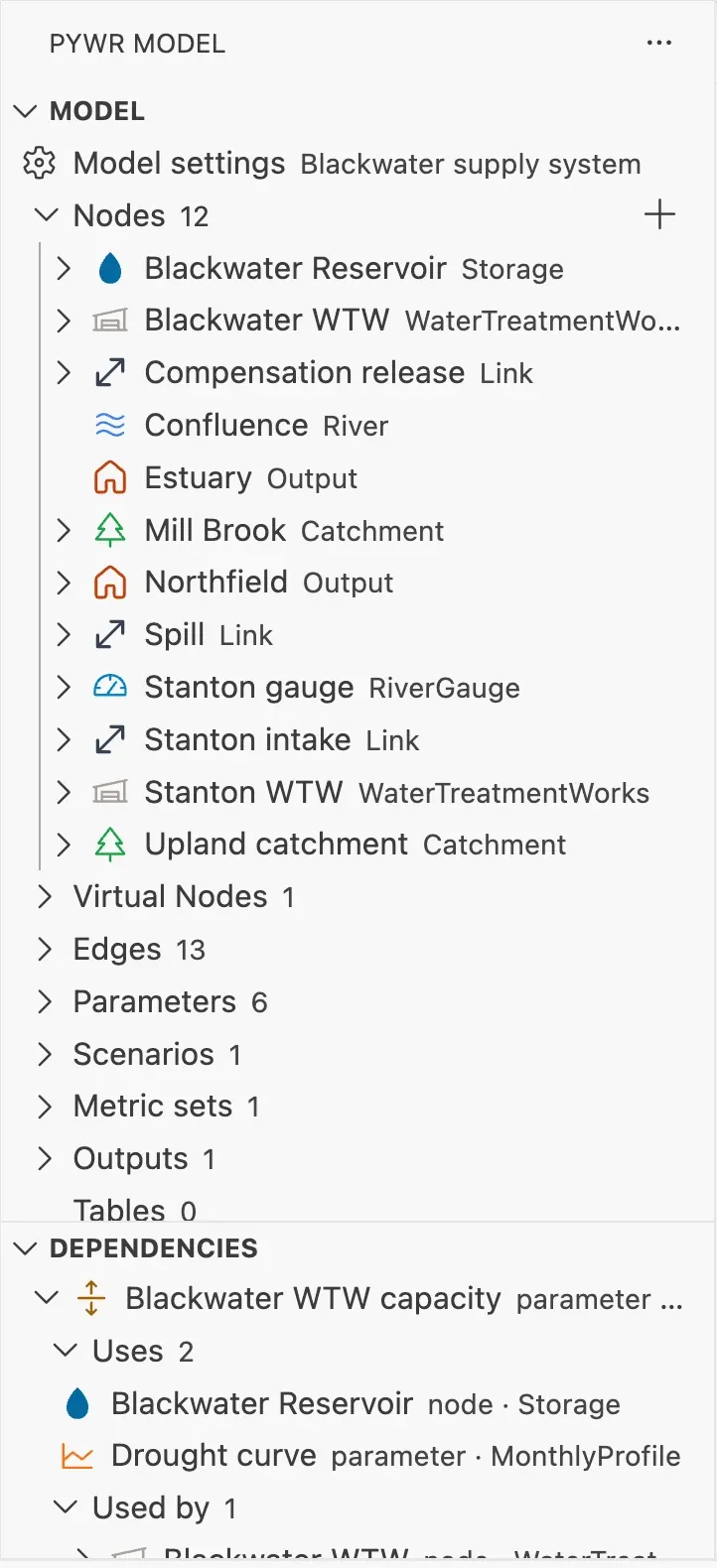
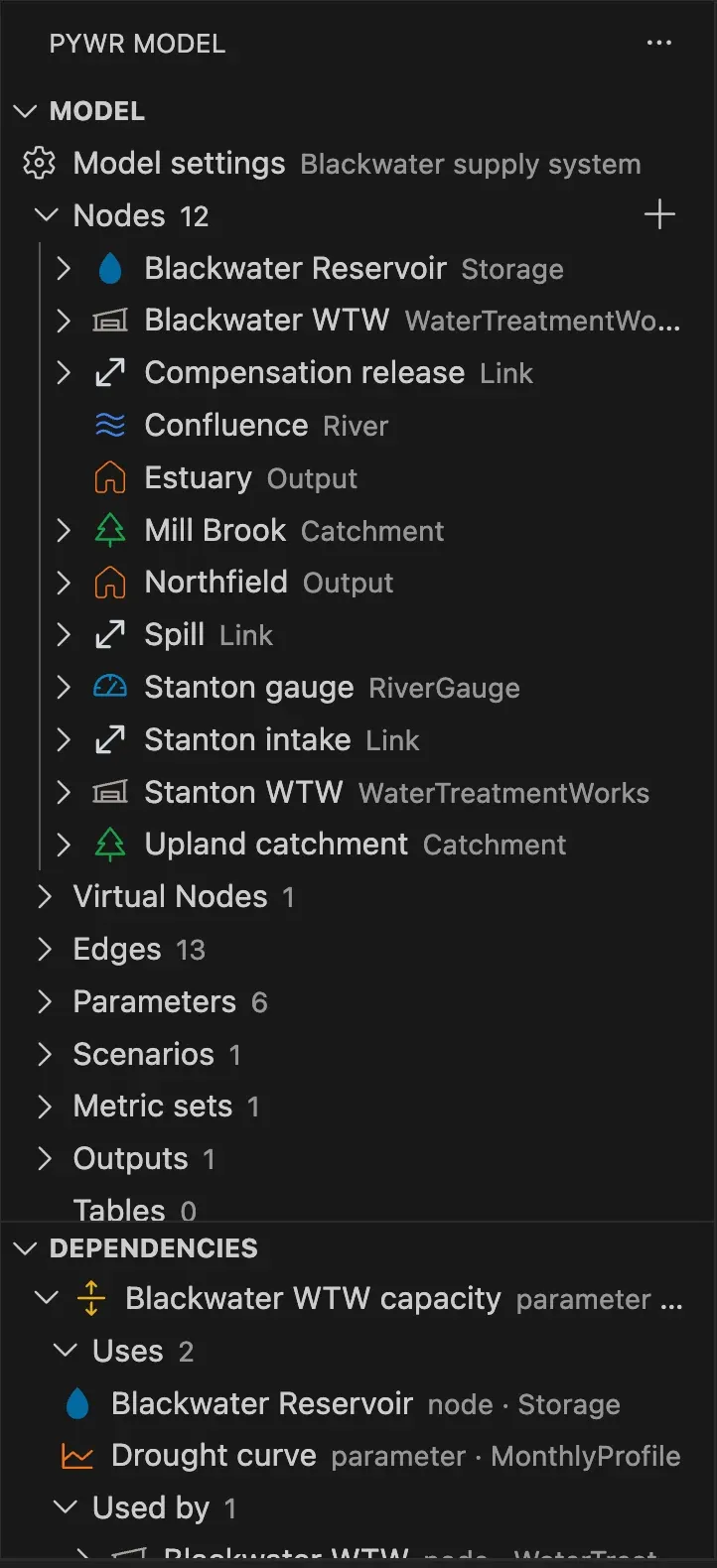
-
Open a component of either group to follow the chain one level further. A component that leads back to itself is marked circular.
-
Click a component to open its form.
To list only the places where a name appears, right-click the component and pick Find usages instead.
Keep the views in step
Section titled “Keep the views in step”The views follow each other:
- Select a node or an edge on the schematic and it is selected in the Model view.
- Select one in the Model view and the schematic moves to it.
To make the tree also follow the cursor of the JSON editor, turn on the
pywr.tree.followCursor setting.
By default, the tree is expanded when you open a model. For a large model, turn off
pywr.expandTreesOnOpen to open it collapsed.