
Your first model
This tutorial takes about ten minutes. You create a small model from a template, look at it on the schematic, change a value with a form, run it and chart the results. It uses a Pywr v2 model; the steps are the same for Pywr v1.
Before you start, install the extension.
1. Create the model
Section titled “1. Create the model”-
Create an empty folder for the model and open it in VS Code with File > Open Folder….
-
Open the Command Palette with Ctrl Shift P (Cmd Shift P on macOS) and run Pywr: New model.
-
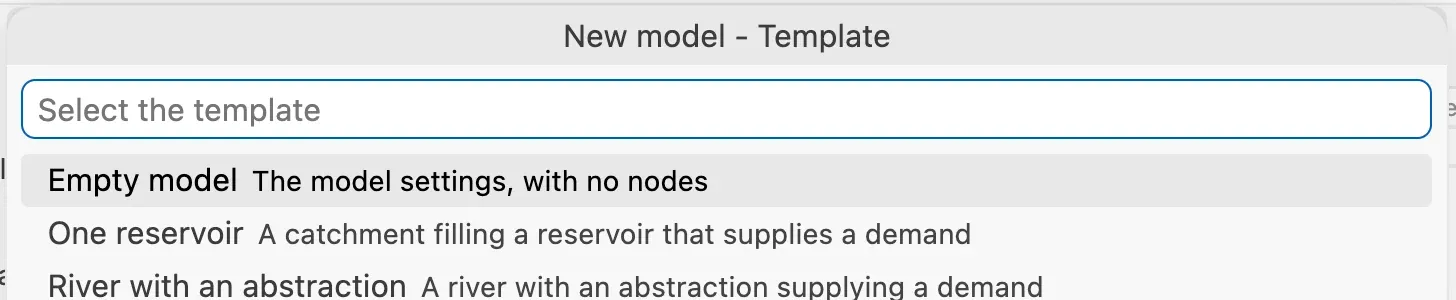
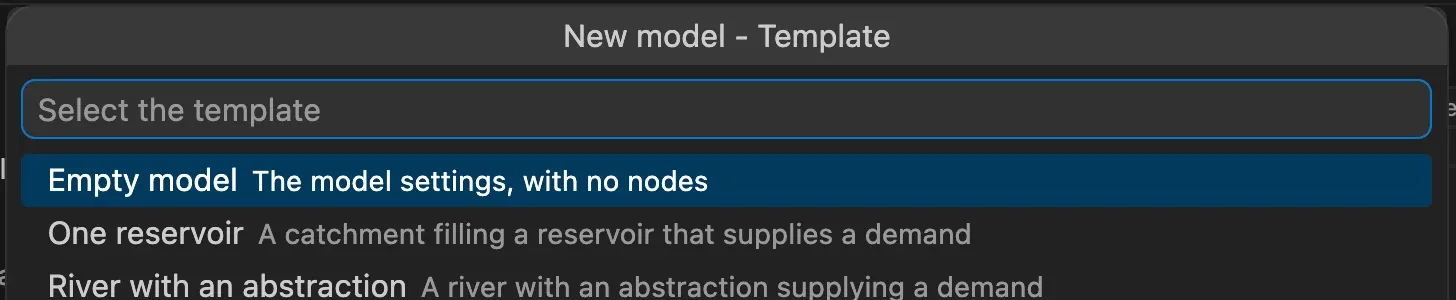
Pick Pywr v2 model, then the River with an abstraction template.
-
Save the file as
model.jsonin your folder.
The model opens in the editor and its schematic opens in a second tab.
2. Look at the network
Section titled “2. Look at the network”The template is a river that flows to the sea. An abstraction, limited by a licence, takes water from the river to supply a demand.
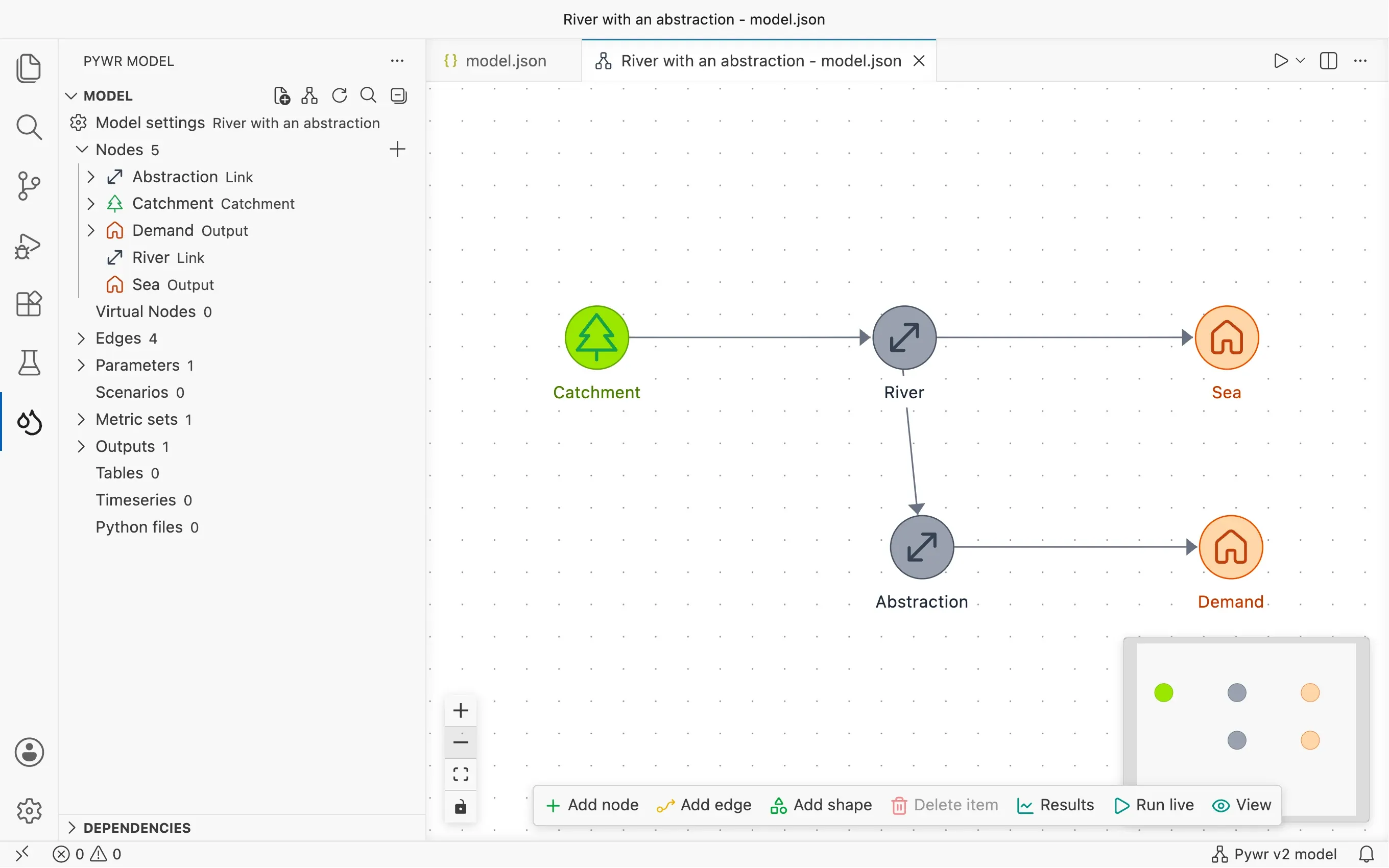
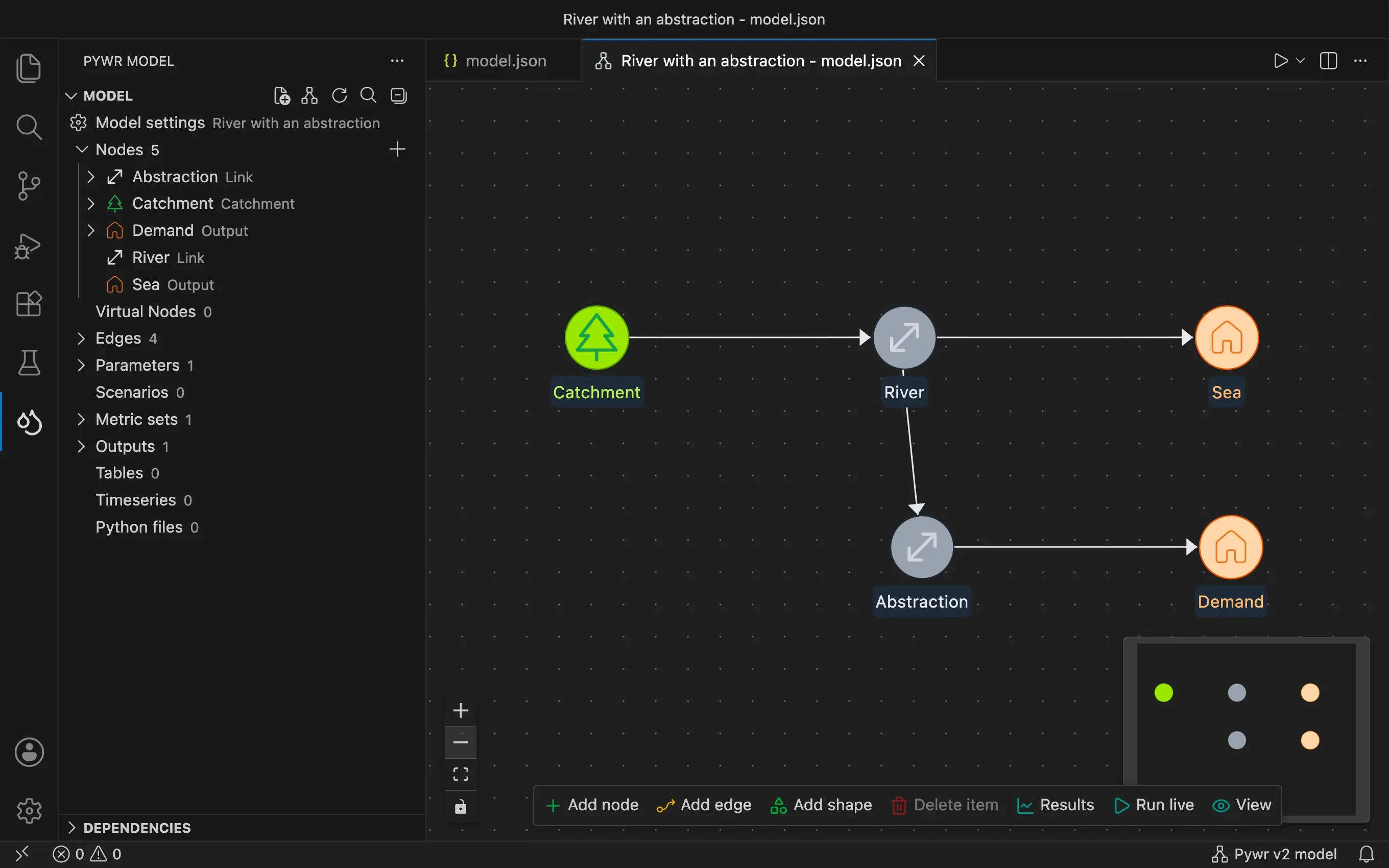
- Each circle is a node and each arrow is an edge. Water flows in the direction of the arrows.
- The Pywr sidebar on the left lists the same components: five nodes, four edges and one parameter.
- Drag a node to move it. Its new position is saved in
model.json.
3. Change a value with a form
Section titled “3. Change a value with a form”The abstraction can take up to 8 units of water a day. This limit is the parameter named Licence. Raise it to 12.
-
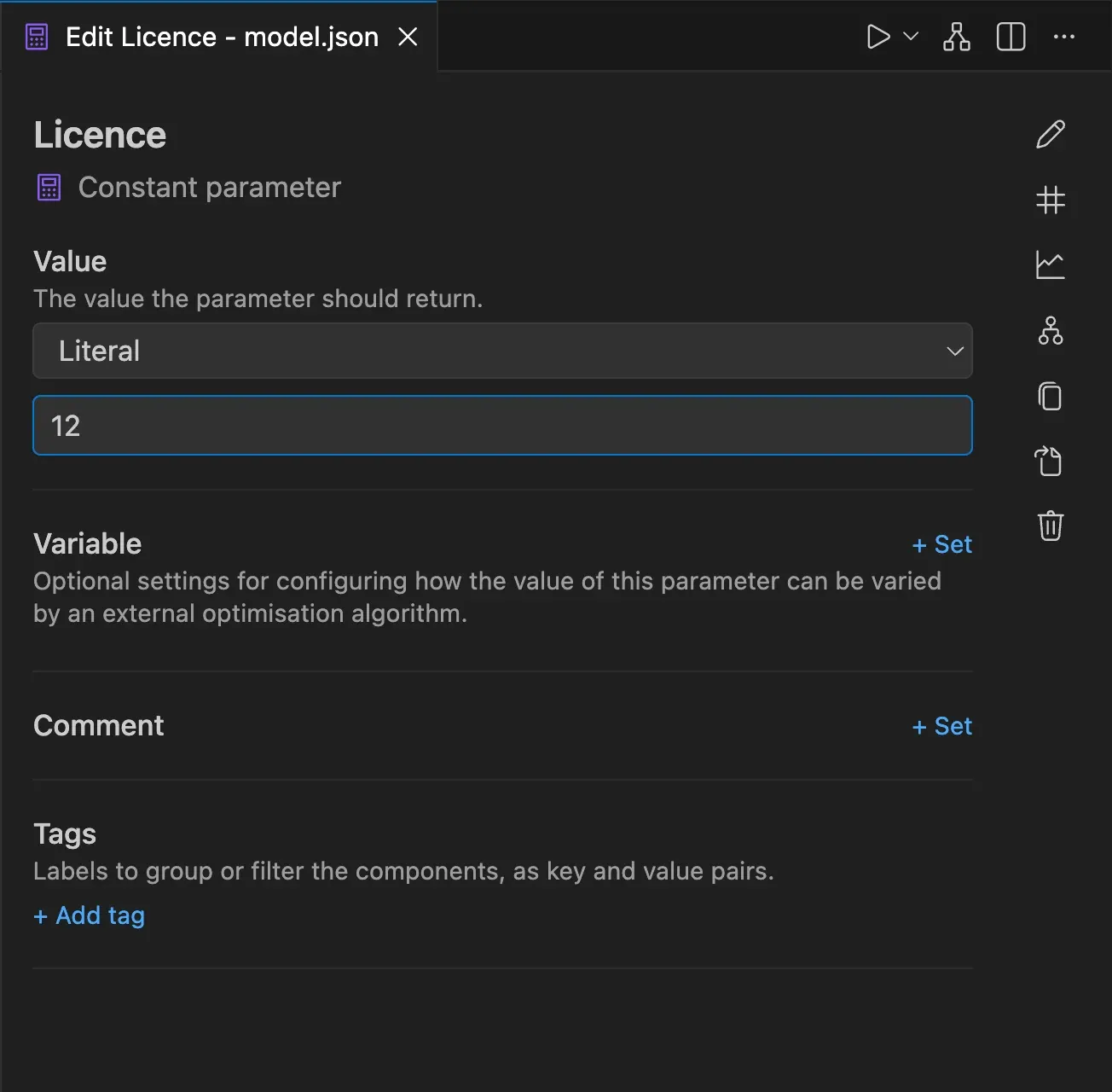
In the Model view of the sidebar, open Parameters and click Licence. Its form opens next to the editor.
-
Change the value from
8to12.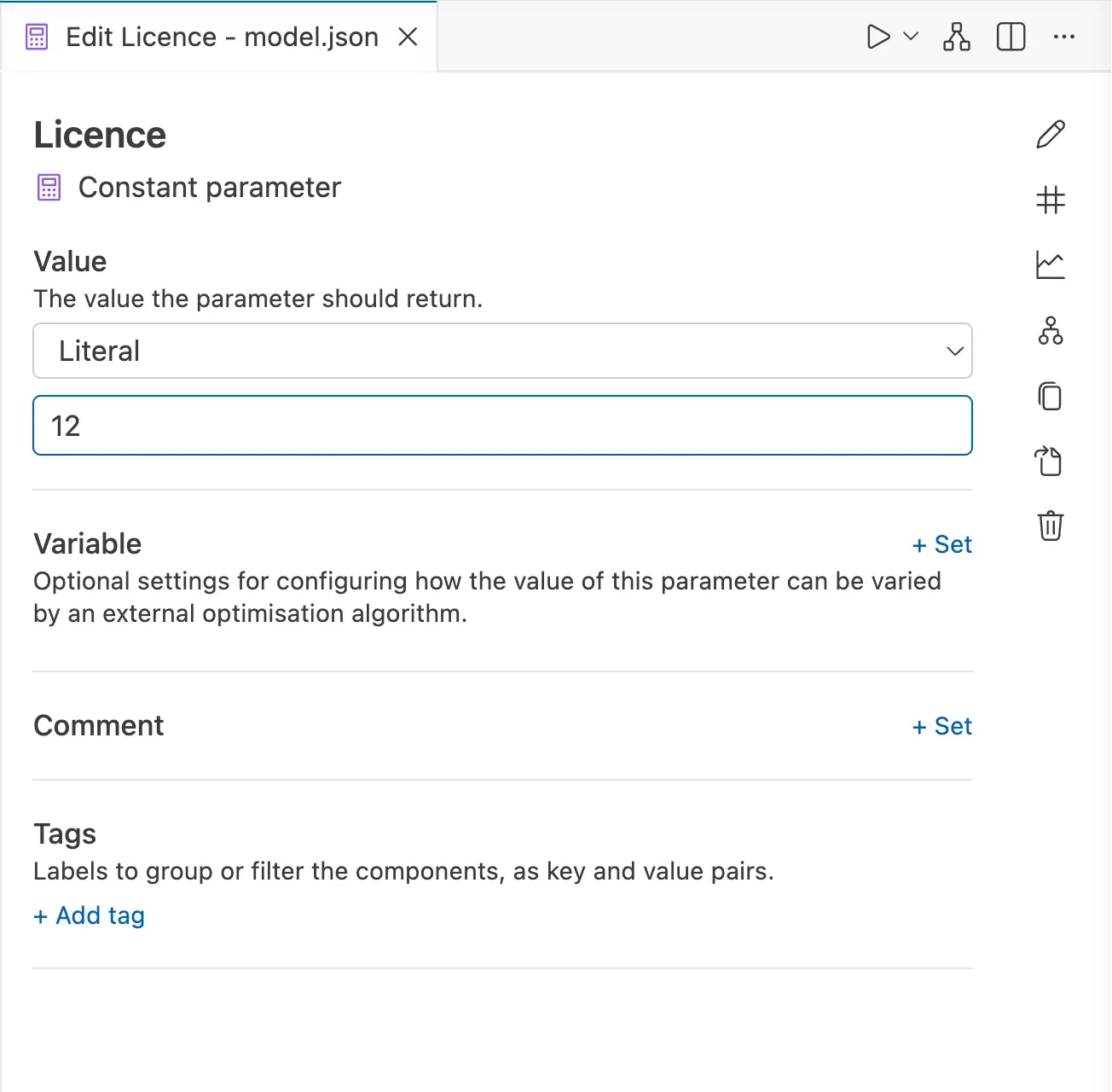
-
Press Save. The value changes in
model.json.
4. Run the model
Section titled “4. Run the model”Running a model needs a Python environment. If you have not created one yet, follow Set up Python to run models.
-
Click the tab of
model.json, or of its schematic. -
Press the Run button, the triangle at the top right of the editor.
-
Wait for the message that the run completed. For this model it takes a moment.
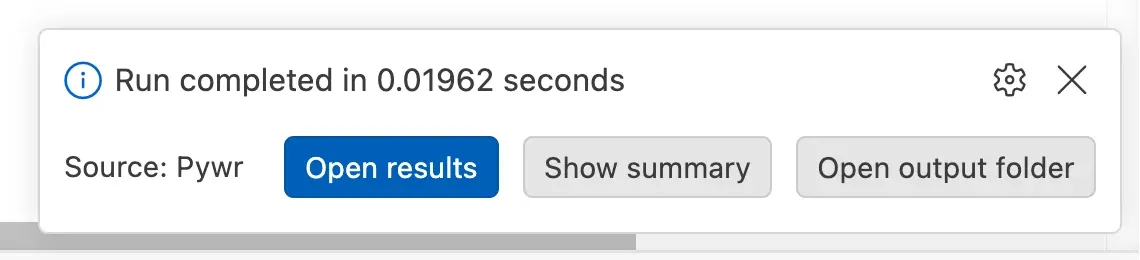
The results are saved in a new folder, named after the date and the time of the run,
inside a results folder next to your model.
5. Chart the results
Section titled “5. Chart the results”-
Press Open results in the message. The results viewer opens.
-
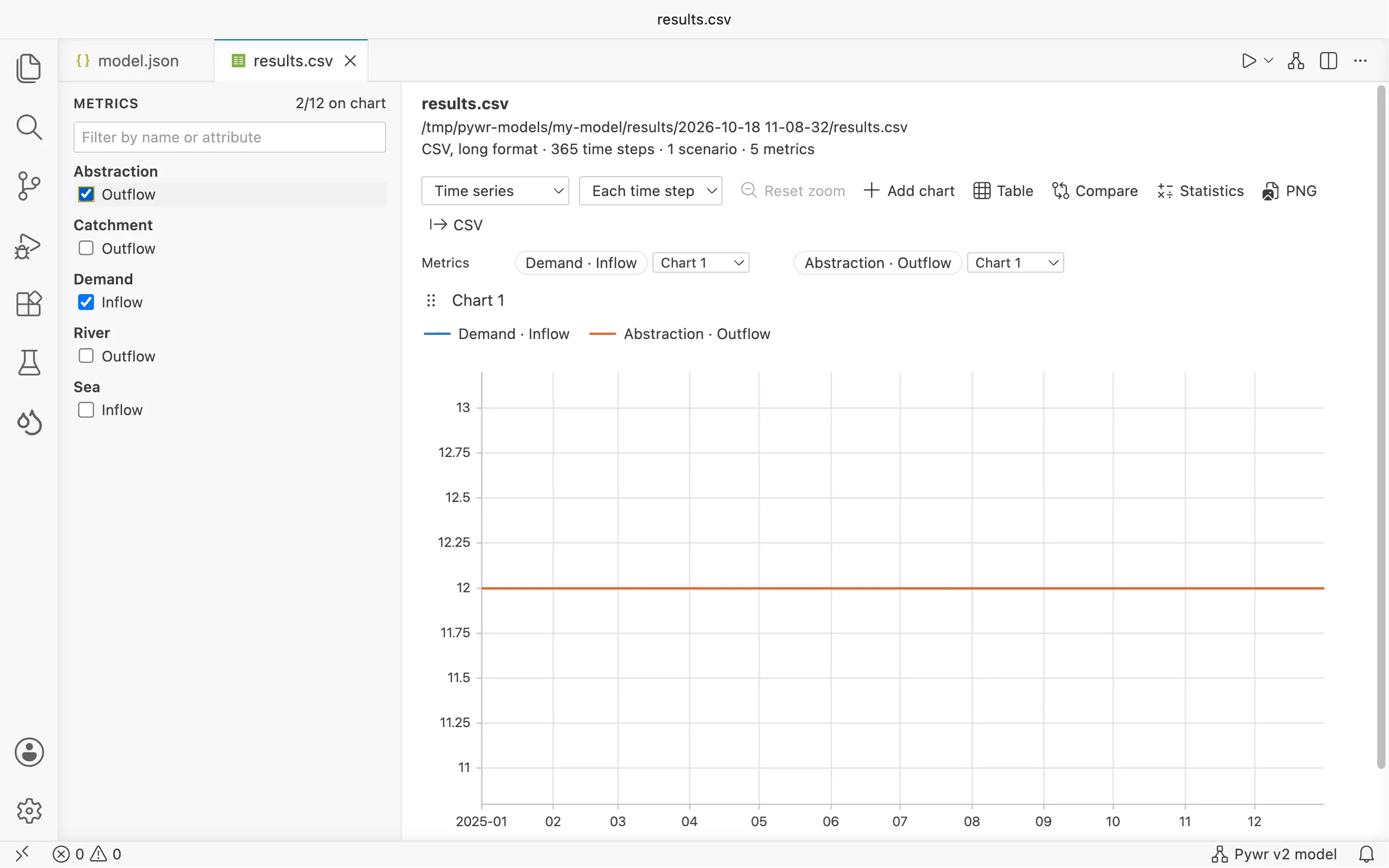
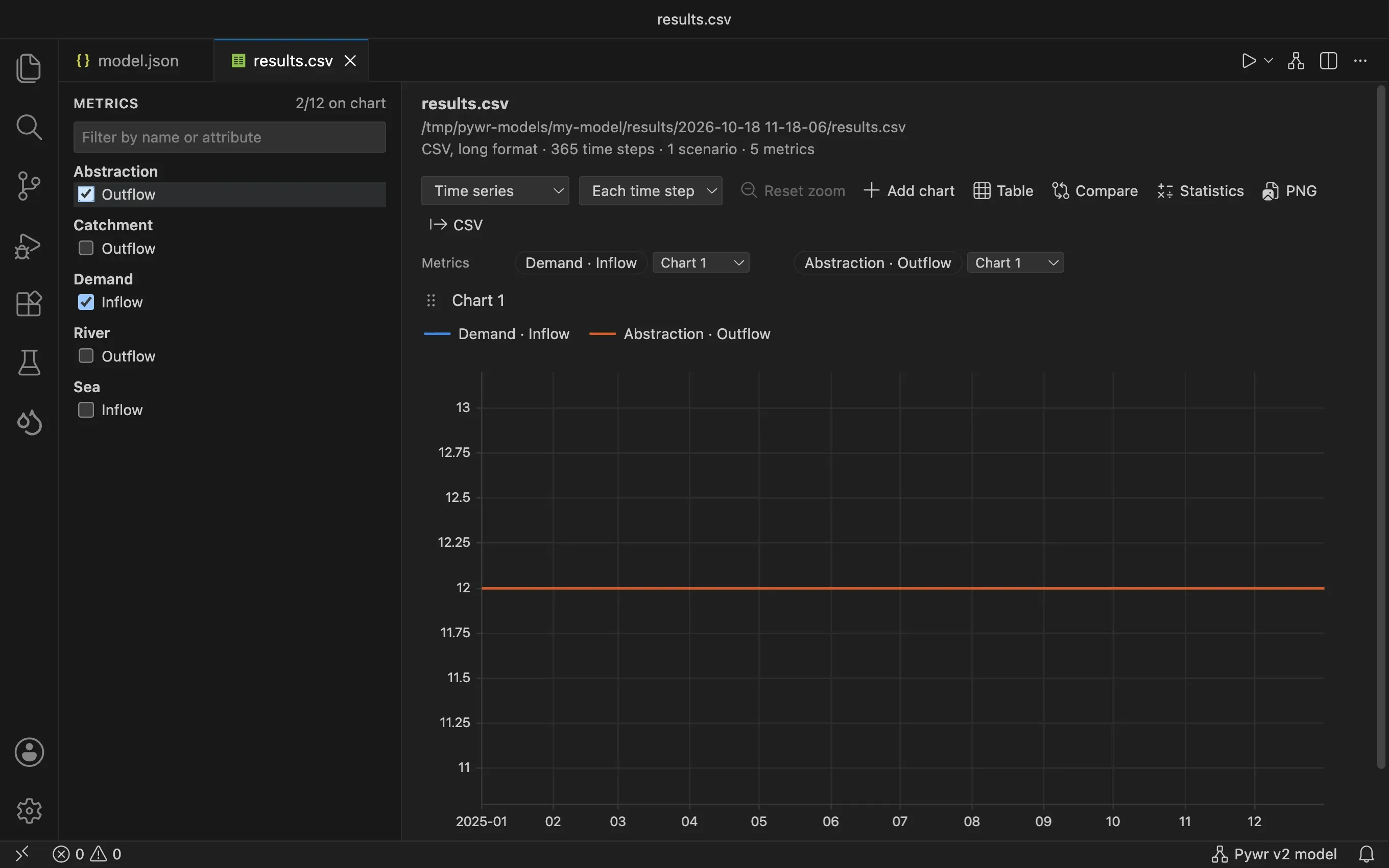
In the Metrics list on the left, tick Inflow under Demand, the water the demand received, and Outflow under Abstraction.
-
Drag on the chart to zoom in, and double-click to zoom out.
Both lines are flat at 12: the demand asks for 15 a day, but the licence you set limits the abstraction to 12. Set the licence to 20, run again and the demand receives its 15.
Where to go next
Section titled “Where to go next”- Draw the schematic to add nodes and edges to the network.
- Edit with forms to see what the forms can do.
- Run the model to choose the solver and the scenarios.
- Chart the results for the other chart types and for comparing two runs.