
Draw the schematic
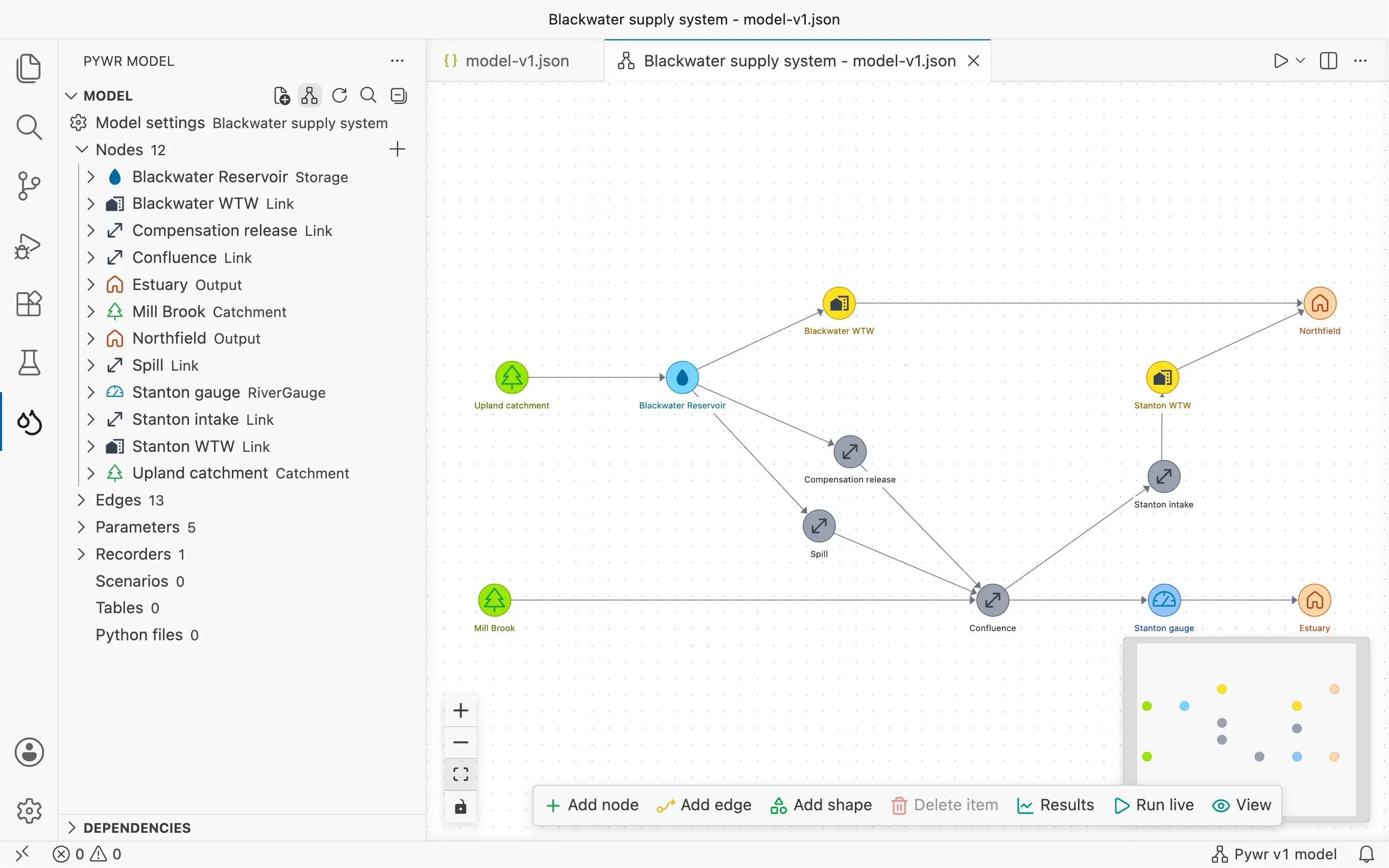
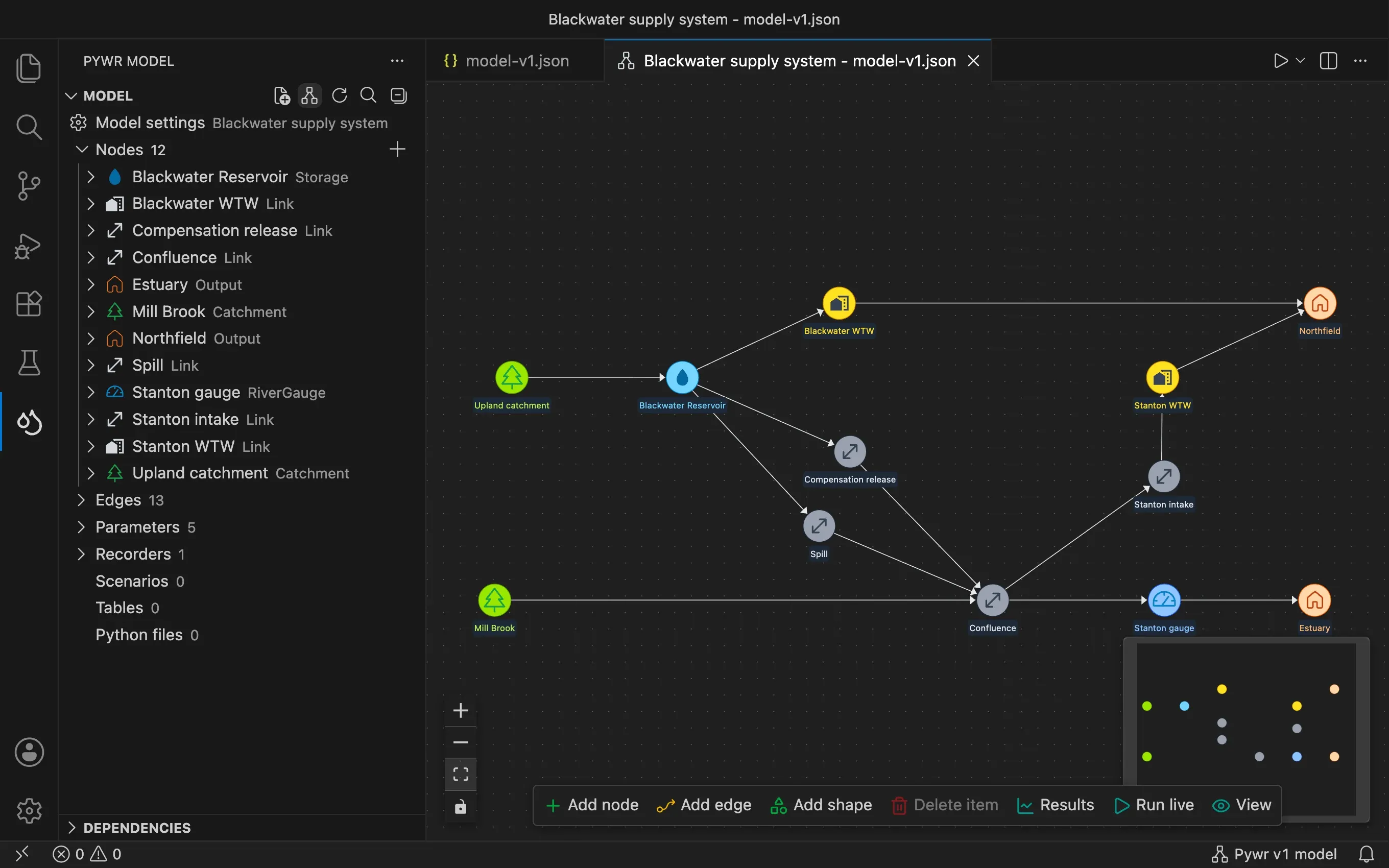
The schematic shows the nodes and the edges of your model as a diagram. What you change on it is written to the model file.
Open the schematic
Section titled “Open the schematic”Use any of these while a model is open:
- the schematic button at the top right of the editor
- the schematic button at the top of the Model view
- Ctrl Alt P, then S
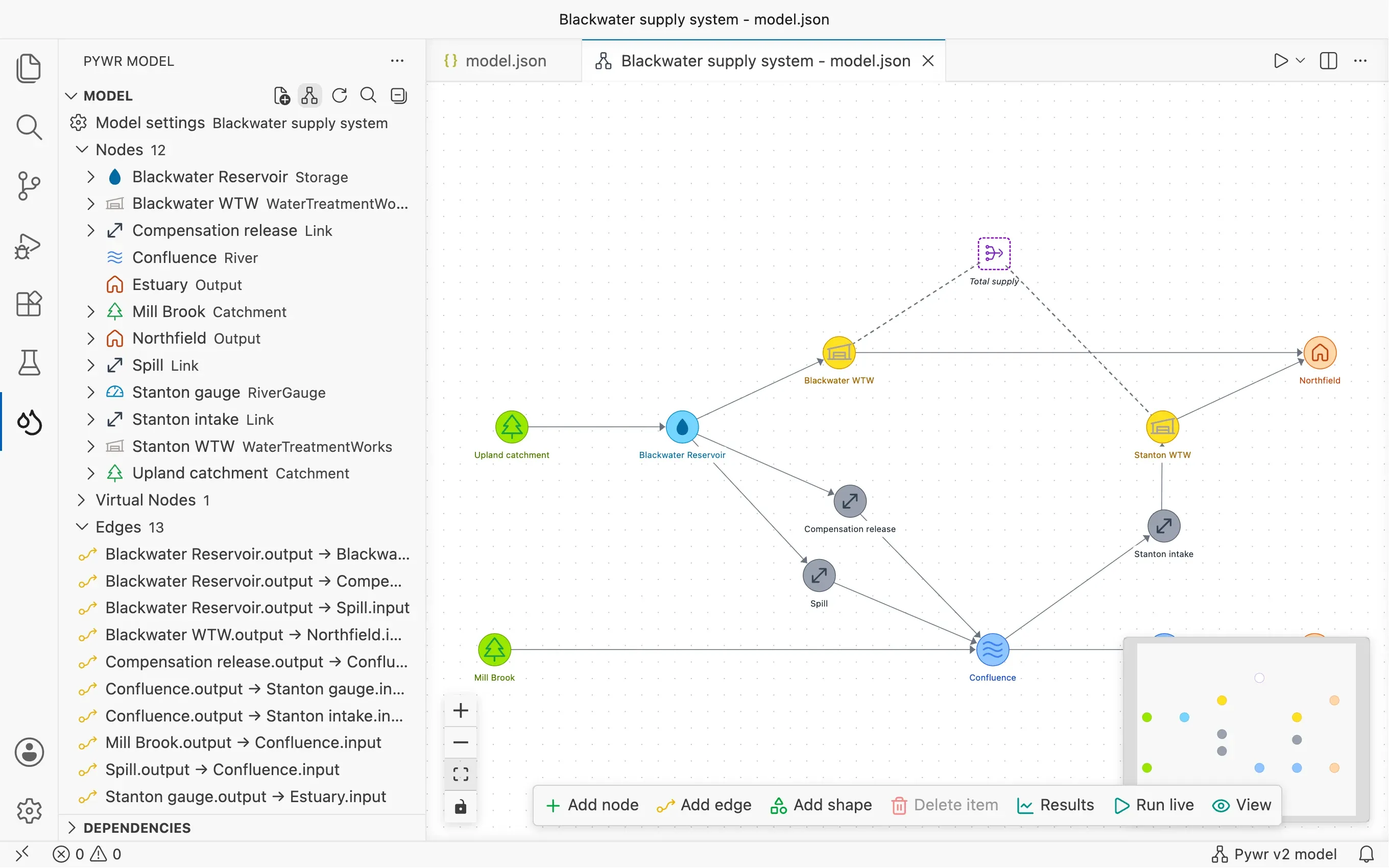
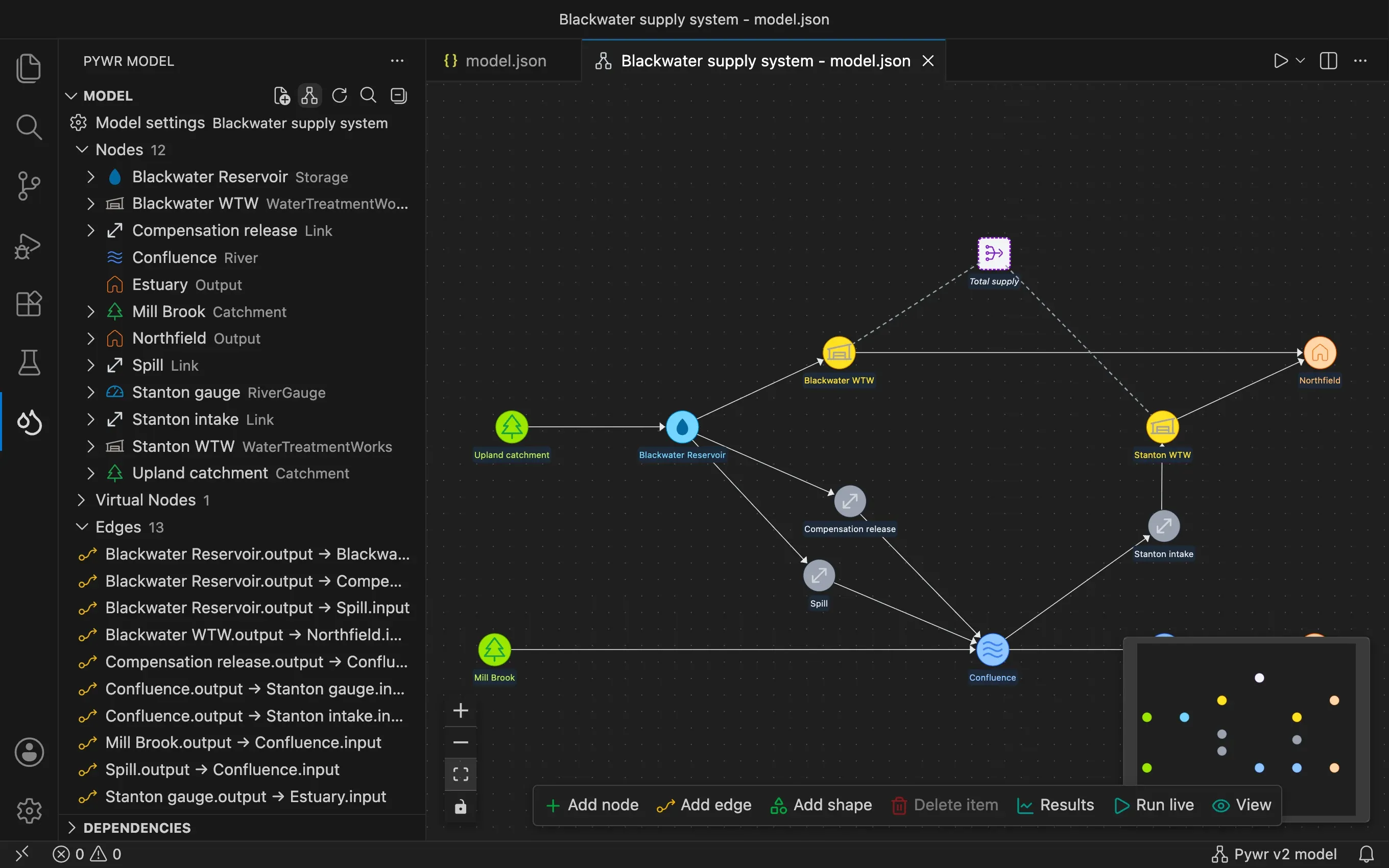
Each node is a circle in the colour of its type, with its name below. A virtual node is a square with a dashed border and its name in italic. There is one schematic for each model, and it updates when the JSON file changes.
Move around
Section titled “Move around”- Drag the background to move, and scroll to zoom.
- Use the buttons on the left to zoom in, zoom out and fit the whole network in the view.
- The minimap at the bottom right shows where you are in a large network.
- Hover a node to read its JSON. Hover an edge to see the nodes and the slots it
connects; turn this off with the
pywr.schematic.showEdgeLabelOnHoversetting.
The zoom and the position are remembered for each model. To forget them all, run Pywr: Clear Saved Schematic Zoom & Position.
Move a node
Section titled “Move a node”Drag a node to its new place. Its position is saved in the model file, so the layout is shared with everyone who opens the model.
Add a node
Section titled “Add a node”-
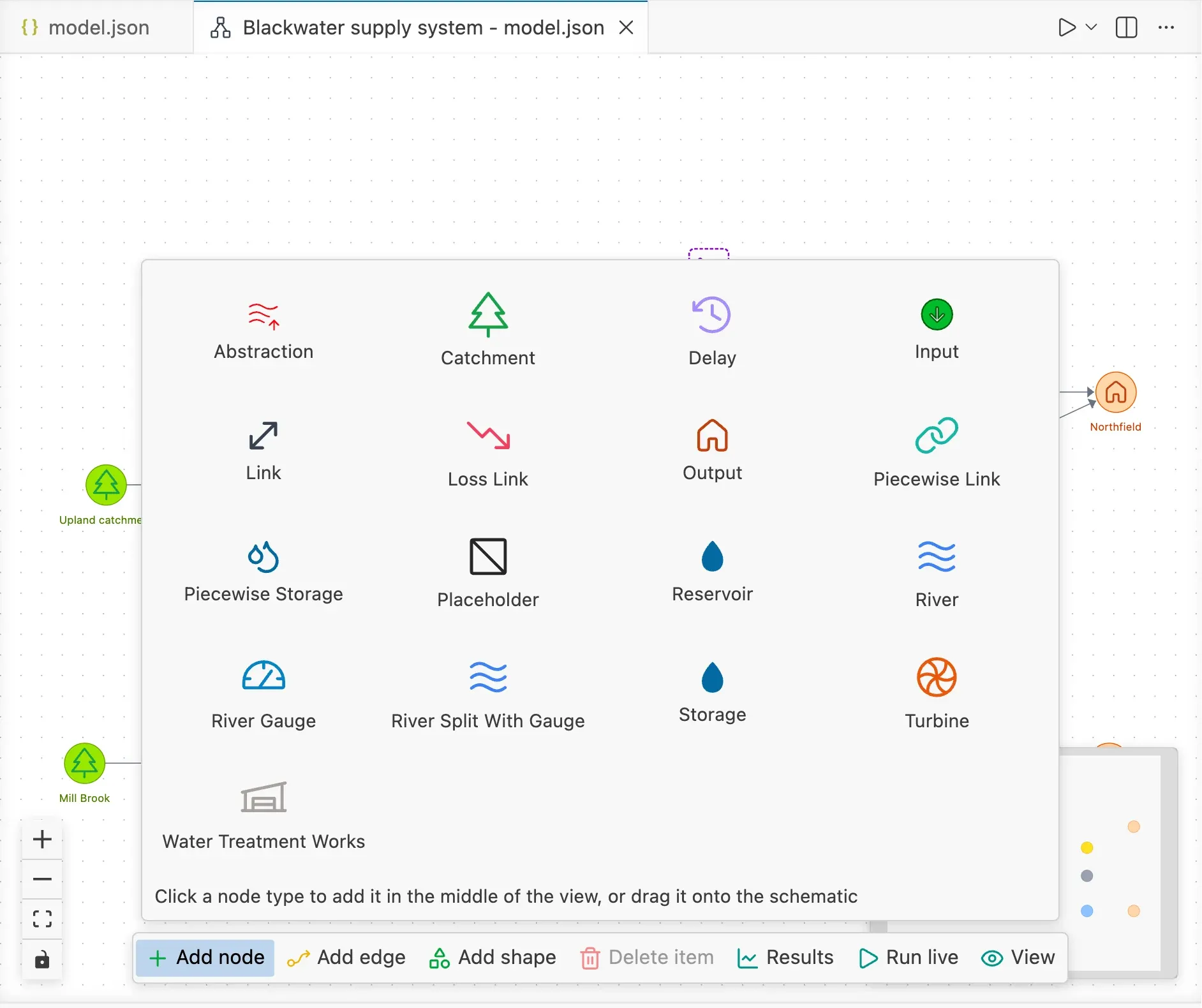
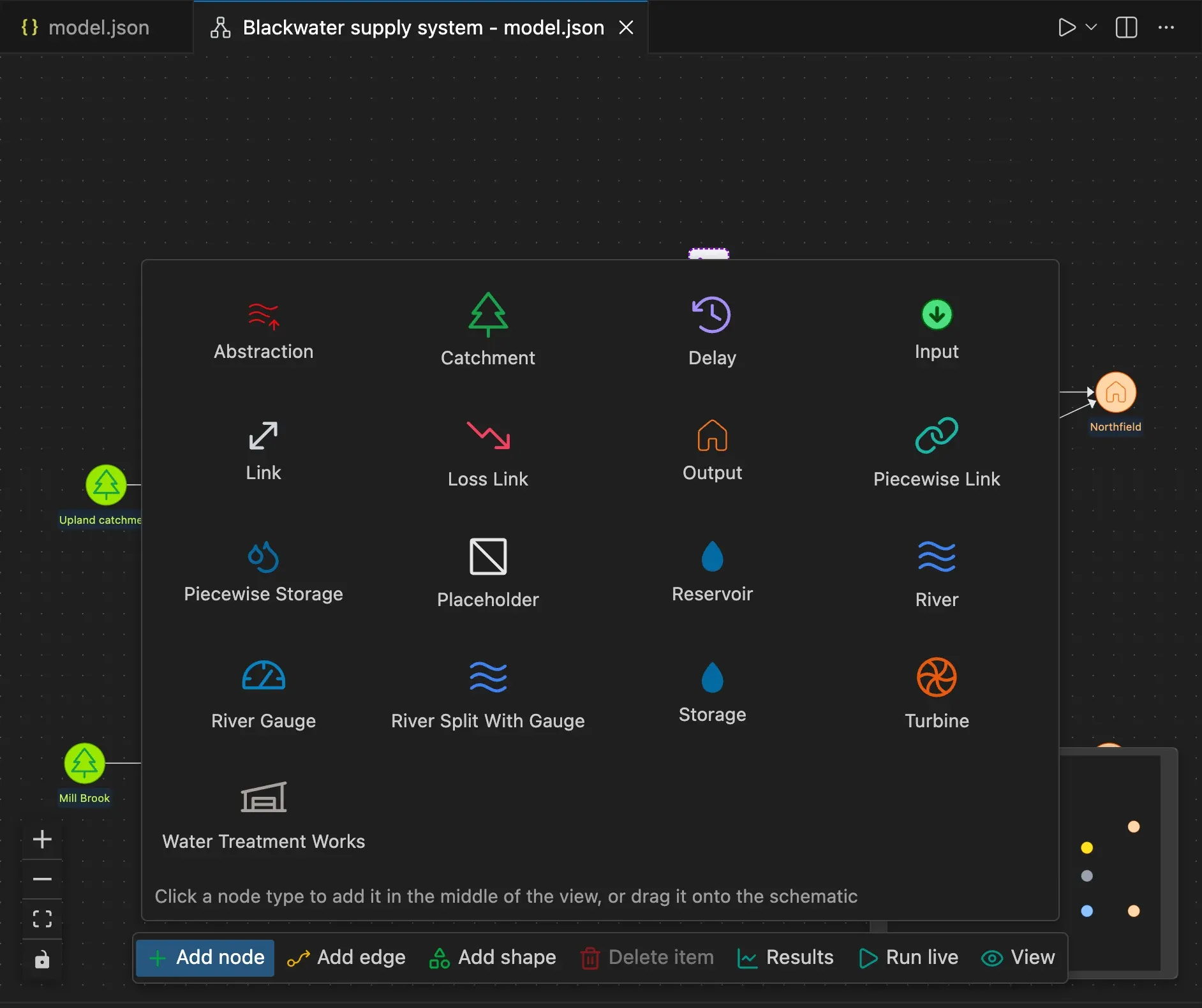
Press Add node in the toolbar at the bottom of the schematic. A panel opens with the types of node.
-
Drag a type onto the schematic and drop it where the node should be.
-
Type the name of the node and press Enter.
The node is added to the model with the default values of its type, and its form opens
so you can set them. To stop the form opening, turn off the pywr.openFormOnAdd
setting.
Connect two nodes
Section titled “Connect two nodes”-
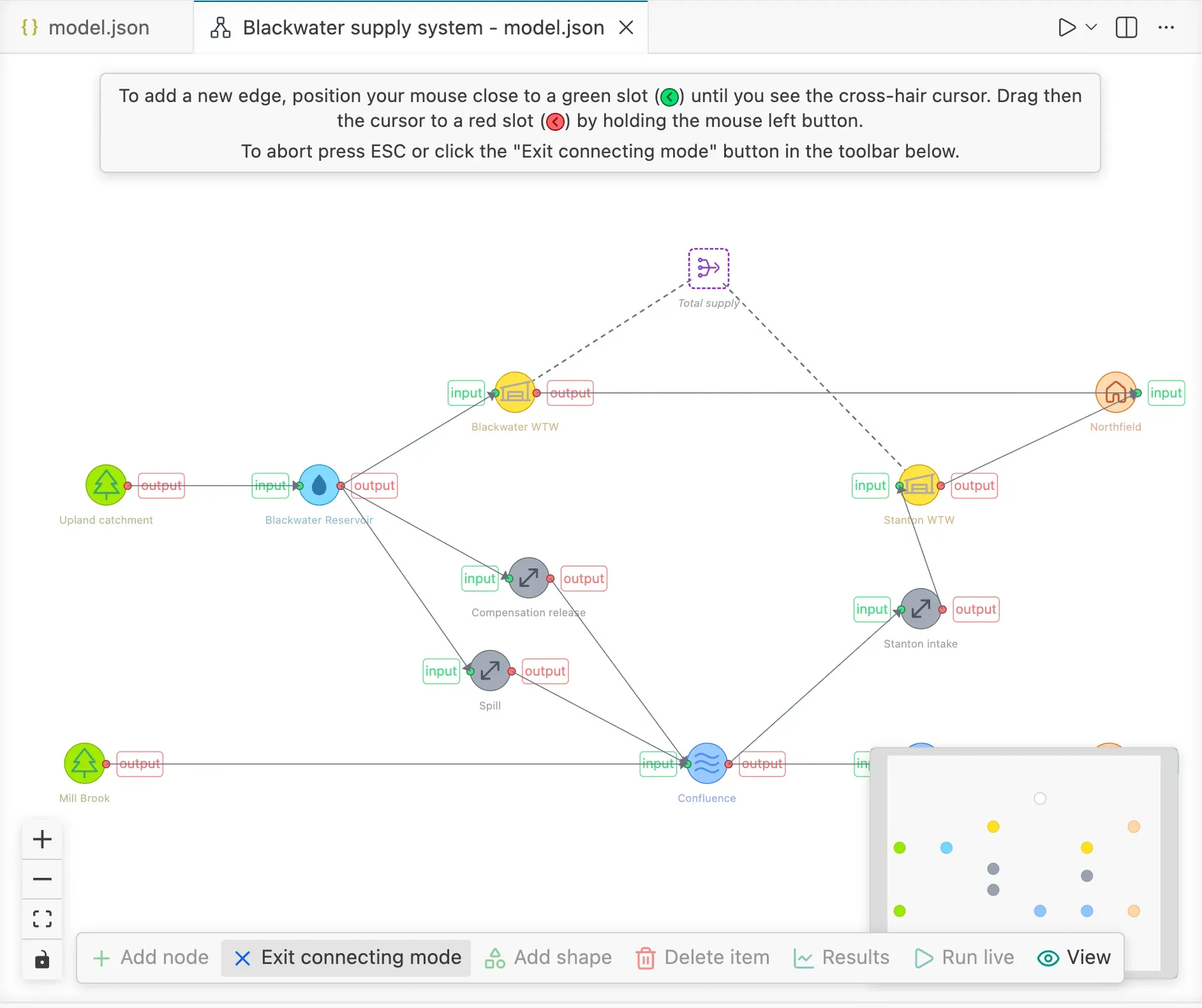
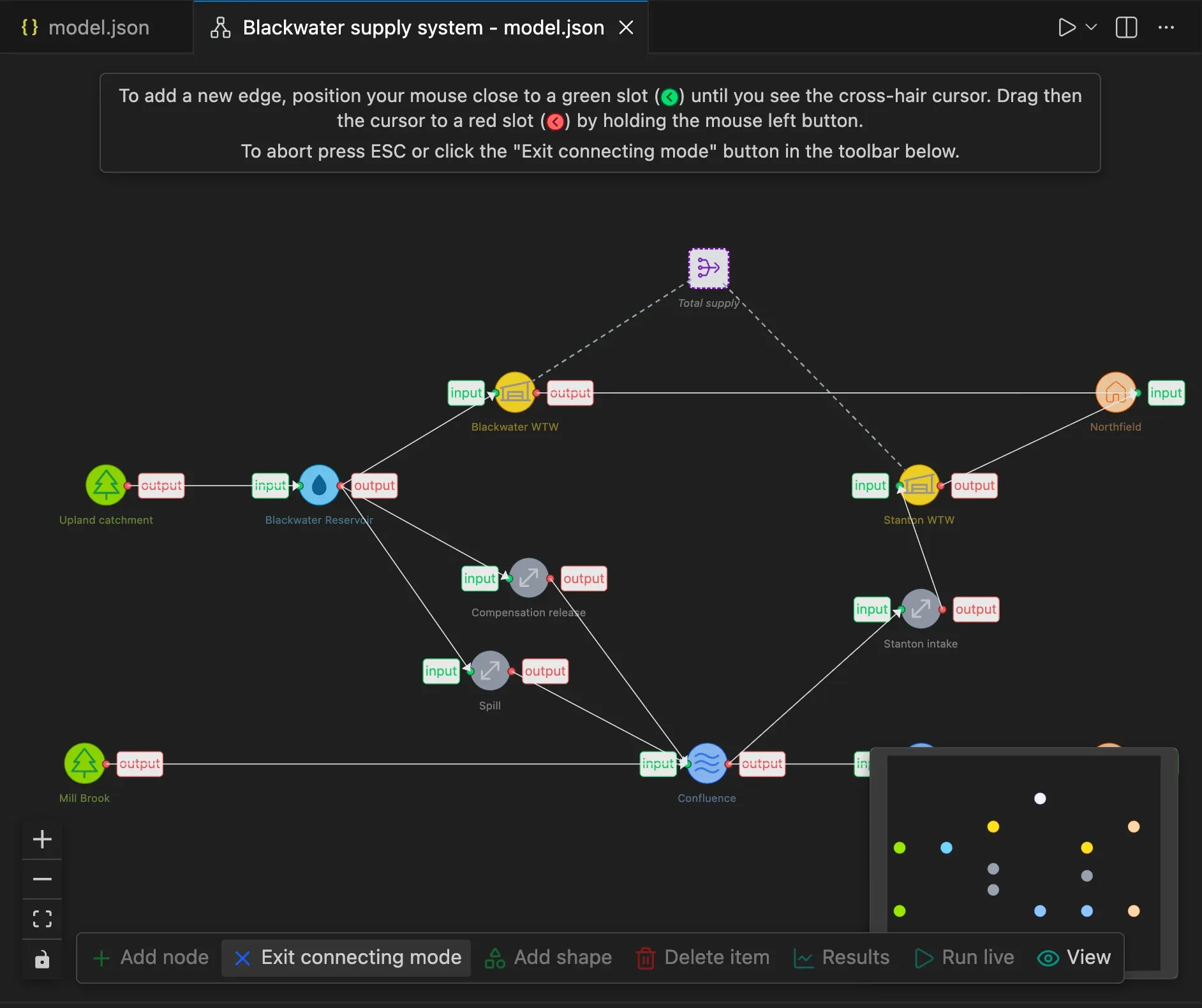
Press Add edge in the toolbar. The schematic enters connecting mode and shows the slots of each node: water leaves from a green slot and arrives at a red slot.
-
Drag from a green slot of the first node to a red slot of the second node.
-
Add as many edges as you need, then press Exit connecting mode or Esc.
Edit, rename and delete
Section titled “Edit, rename and delete”- Double-click a node to open its form.
- Right-click a node or an edge for Edit, Rename, Find usages, Go to JSON and Delete. Rename and Find usages are for nodes only.
- Select one or more items, then press Delete item in the toolbar, Delete or Backspace. You are asked to confirm, and told when a node is still used by other components.
Customise the view
Section titled “Customise the view”The View button in the toolbar opens a panel with the options to change what the schematic shows:
- Virtual nodes shows or hides the virtual nodes, with the dashed lines to the nodes they refer to.
- Virtual node lines shows or hides only the dashed lines.
- Node names shows or hides the names below the nodes.
- Upstream and downstream of the selected node follows the edges from the node you select: the nodes and edges that can send it water turn green, the ones it feeds turn red, and the rest of the network is dimmed. Select one node to use it.
- Node size makes the nodes, with their icon and name, smaller or larger.
The two options for the virtual nodes are only listed when the model has virtual nodes.
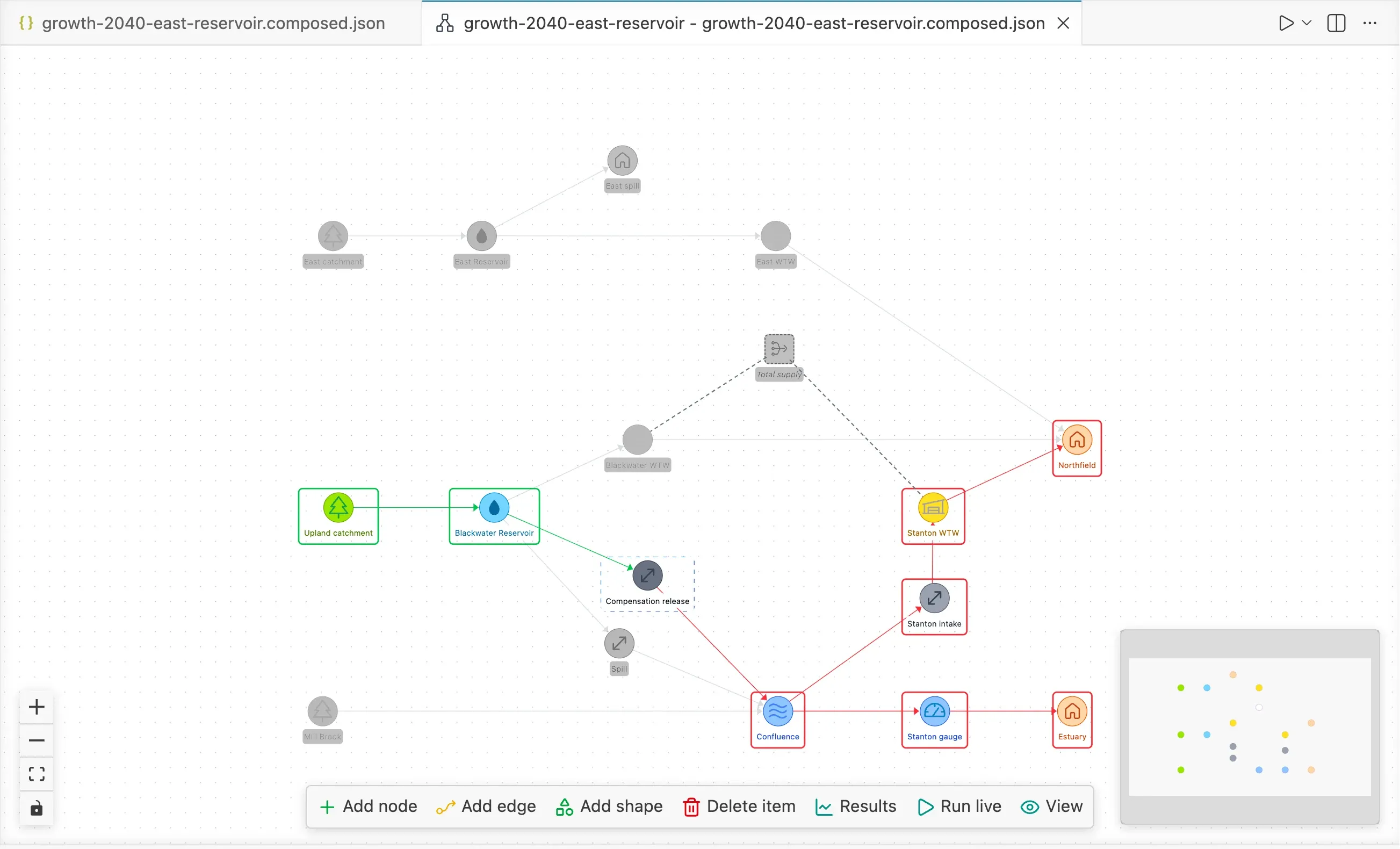
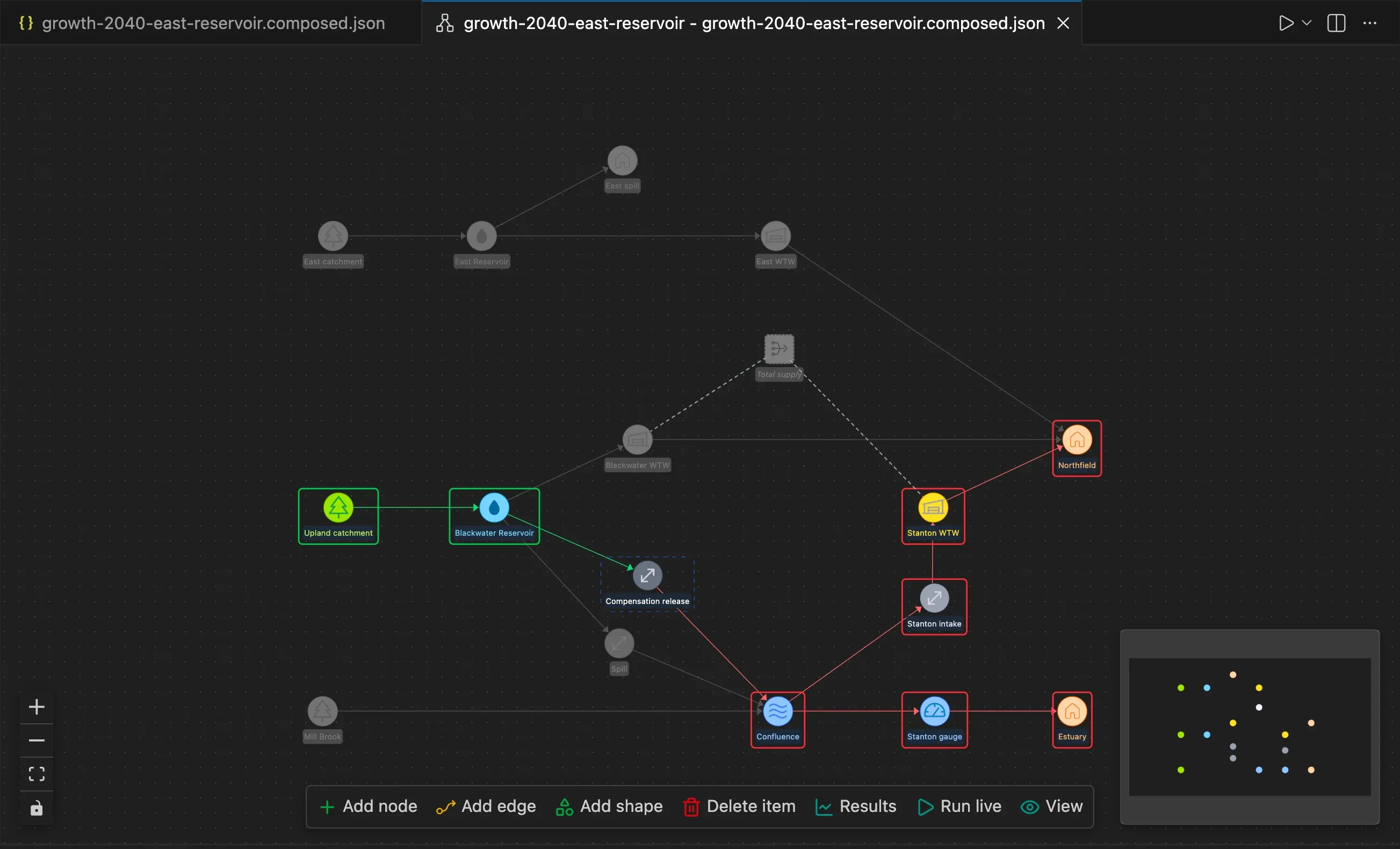
The options are saved in the settings of the workspace (.vscode/settings.json)
or, when no workspace is open, in your user settings. See the pywr.schematic.*
settings.
Pywr v1 The virtual nodes are the AggregatedNode
and AggregatedStorage nodes, and the nodes whose type is, or contains,
VirtualStorage (for example AnnualVirtualStorage or a custom
MyVirtualStorage node).
Draw shapes
Section titled “Draw shapes”To annotate the schematic, press Add shape in the toolbar and pick Rectangle, Arrow or Text. The shape is added in the middle of the view.
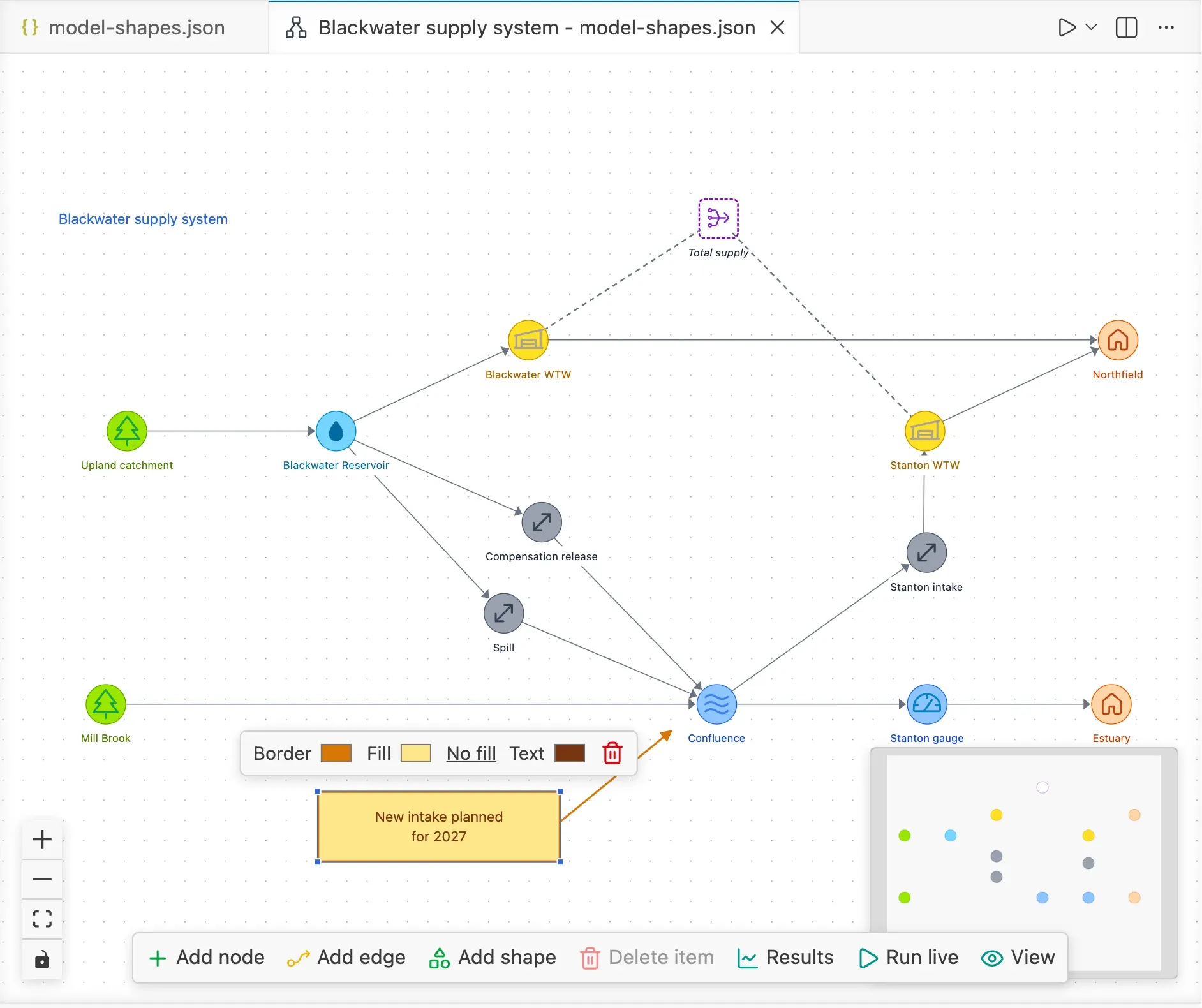
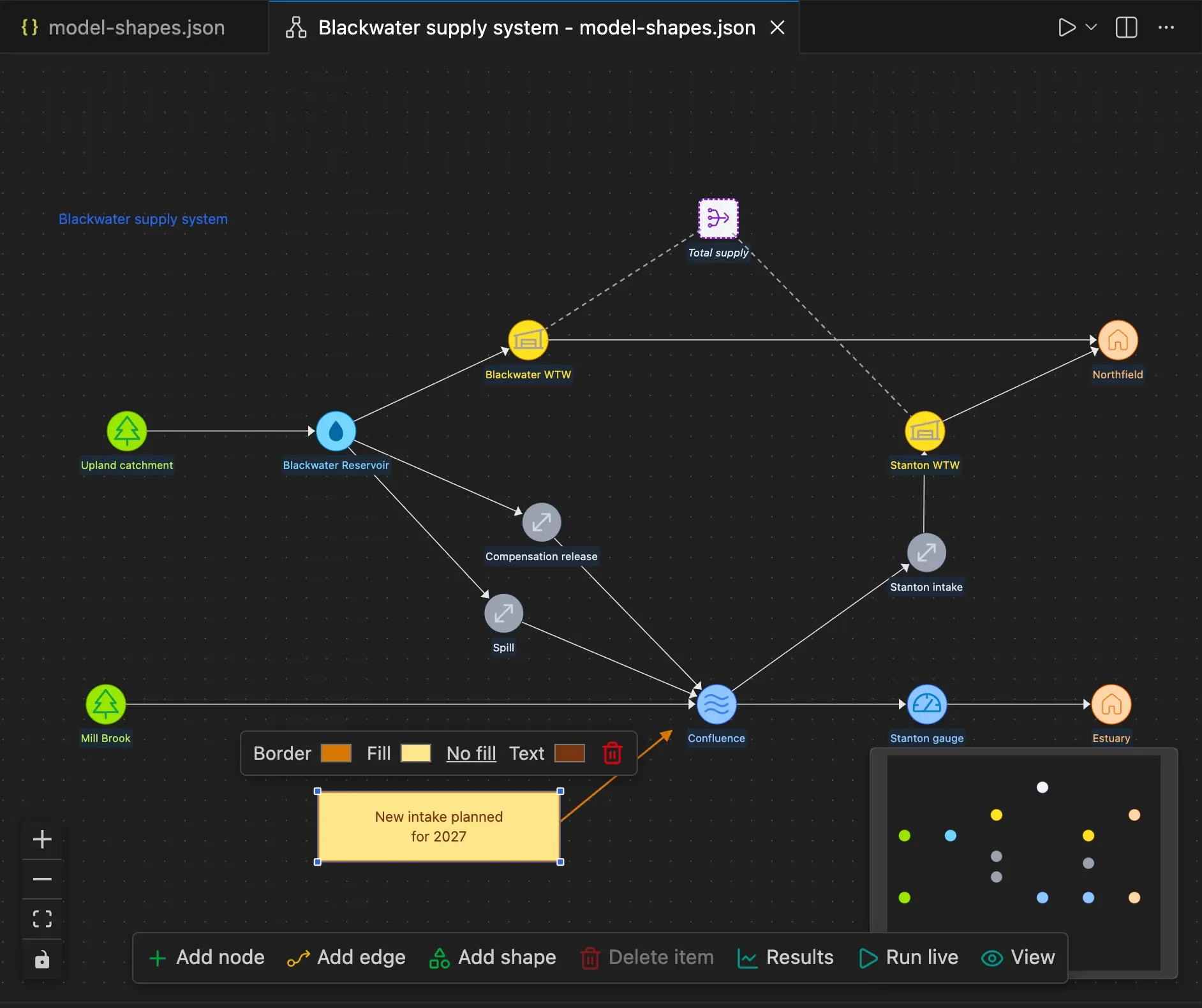
- Drag a shape to move it. Drag the corners of a selected rectangle to resize it, or the two ends of a selected arrow to change where it starts and points.
- Double-click a rectangle or a text shape to edit its text. Enter saves it and Shift+Enter starts a new line.
- Select a shape to change its colours from the toolbar above it: the border (the line of an arrow), the fill of a rectangle and the text. No fill makes a rectangle transparent again.
- Press the bin in the same toolbar, Delete or Backspace to delete a selected shape.
Shapes are drawn under the nodes and edges. They are saved in a top-level shapes
list in the model file, which pywr ignores when it runs the model:
"shapes": [ { "type": "rectangle", "x": 0, "y": 0, "width": 300, "height": 200, "border_color": "#2563eb", "text": "Upper catchment" }, { "type": "arrow", "x": 320, "y": 100, "x2": 420, "y2": 100 }, { "type": "text", "x": 0, "y": 220, "text": "Draft network", "text_color": "#dc2626" }]Shapes are hidden when the schematic draws the network on a map.
Draw the network on a map
Section titled “Draw the network on a map”When the nodes of a model have geographic coordinates, the schematic is drawn on a map.
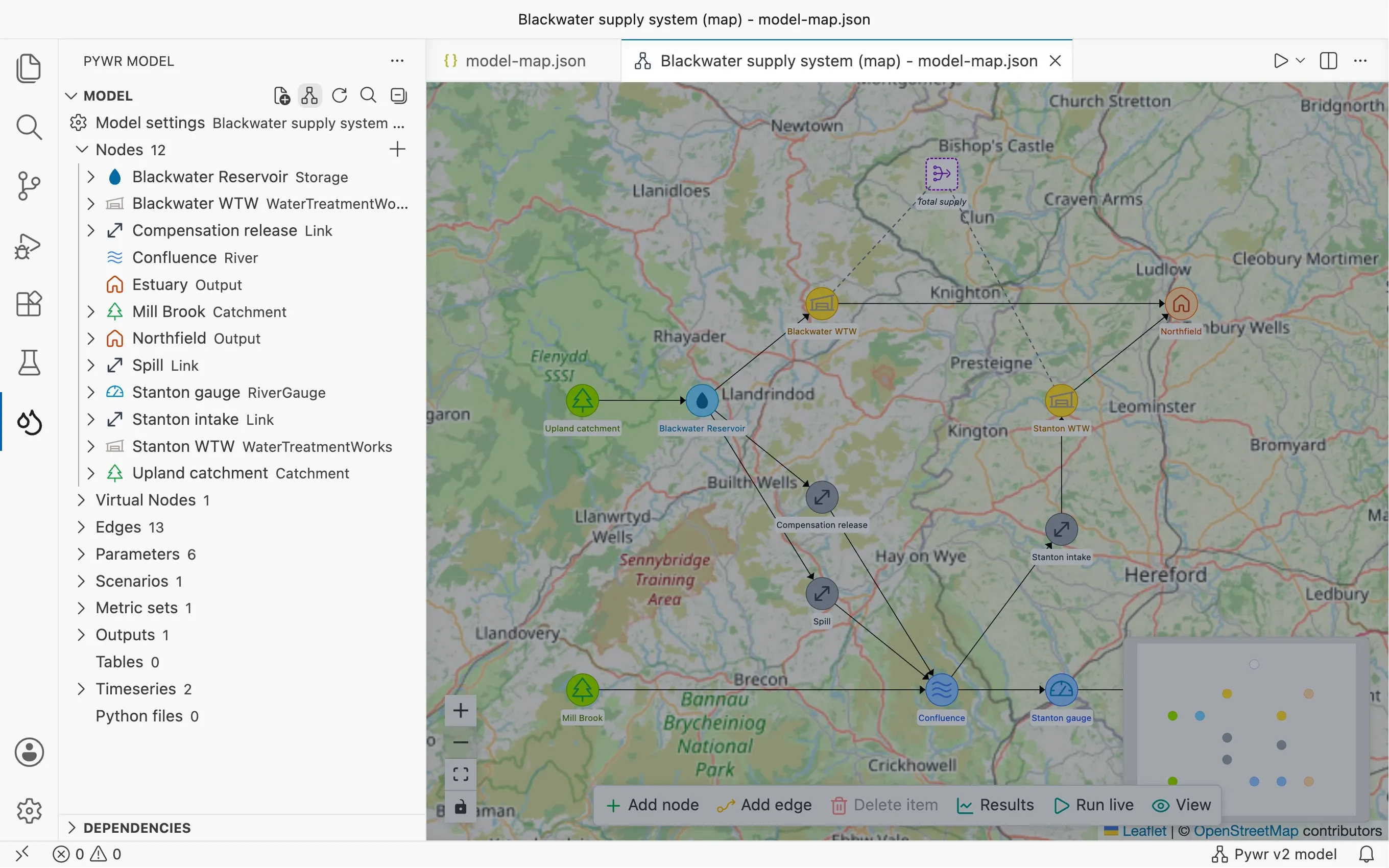
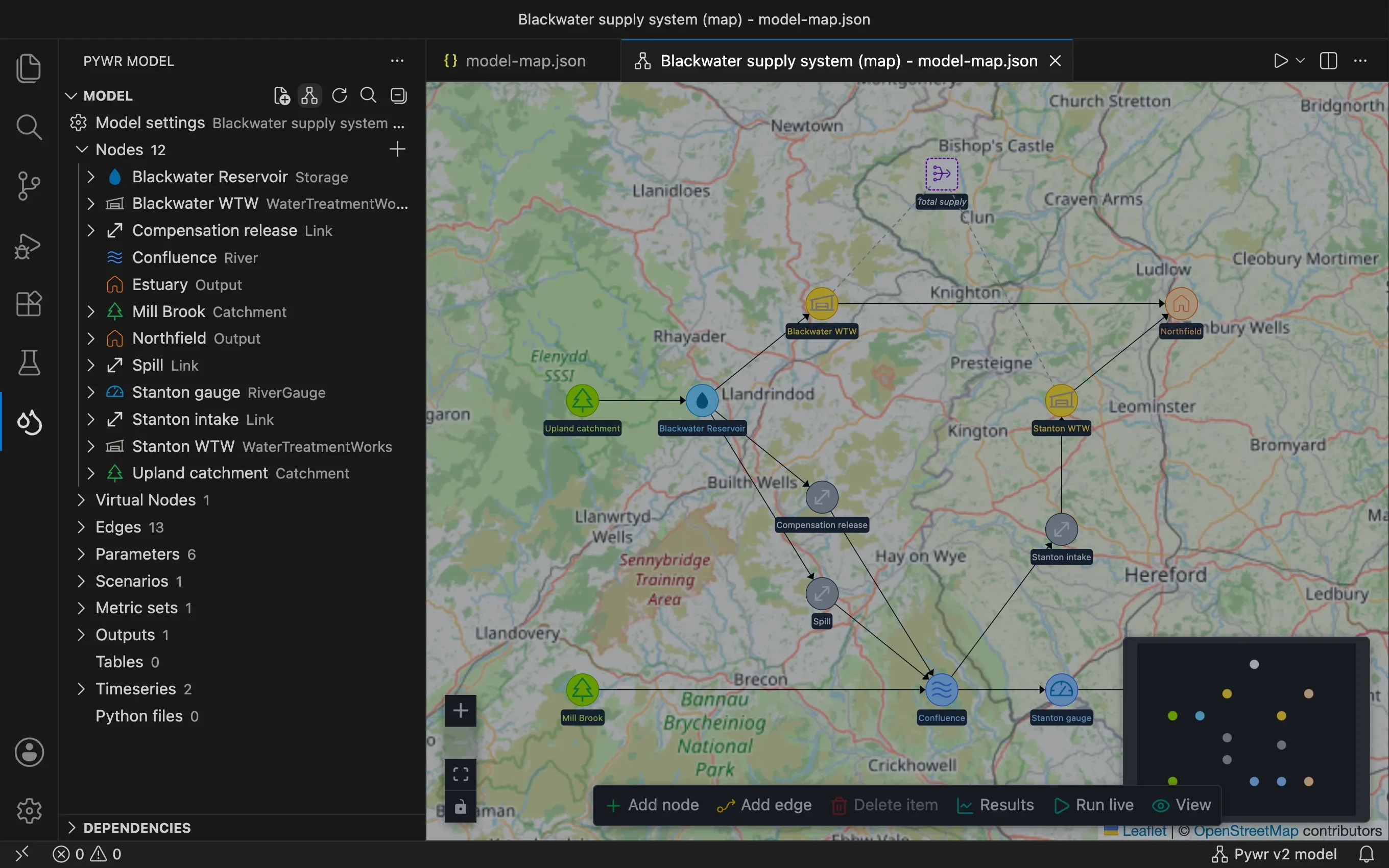
To start a new model on a map:
-
Open the schematic of a model with no nodes. You are asked how to draw it.
-
Pick Map.
-
Type the latitude and the longitude of the area of your model, such as
51.48, -3.18, or leave the field empty to start from a map of the world. -
Add your nodes. They are saved with their latitude and longitude.
Pywr v1 models
Section titled “Pywr v1 models”Pywr v1 The schematic of a Pywr v1 model uses the
position saved with each node, in its editor_position or its schematic key,
and keeps the node icons and the edge colours saved in the model. When you move
a node, its new position is saved in the editor_position key of the node.
Show the results on the network
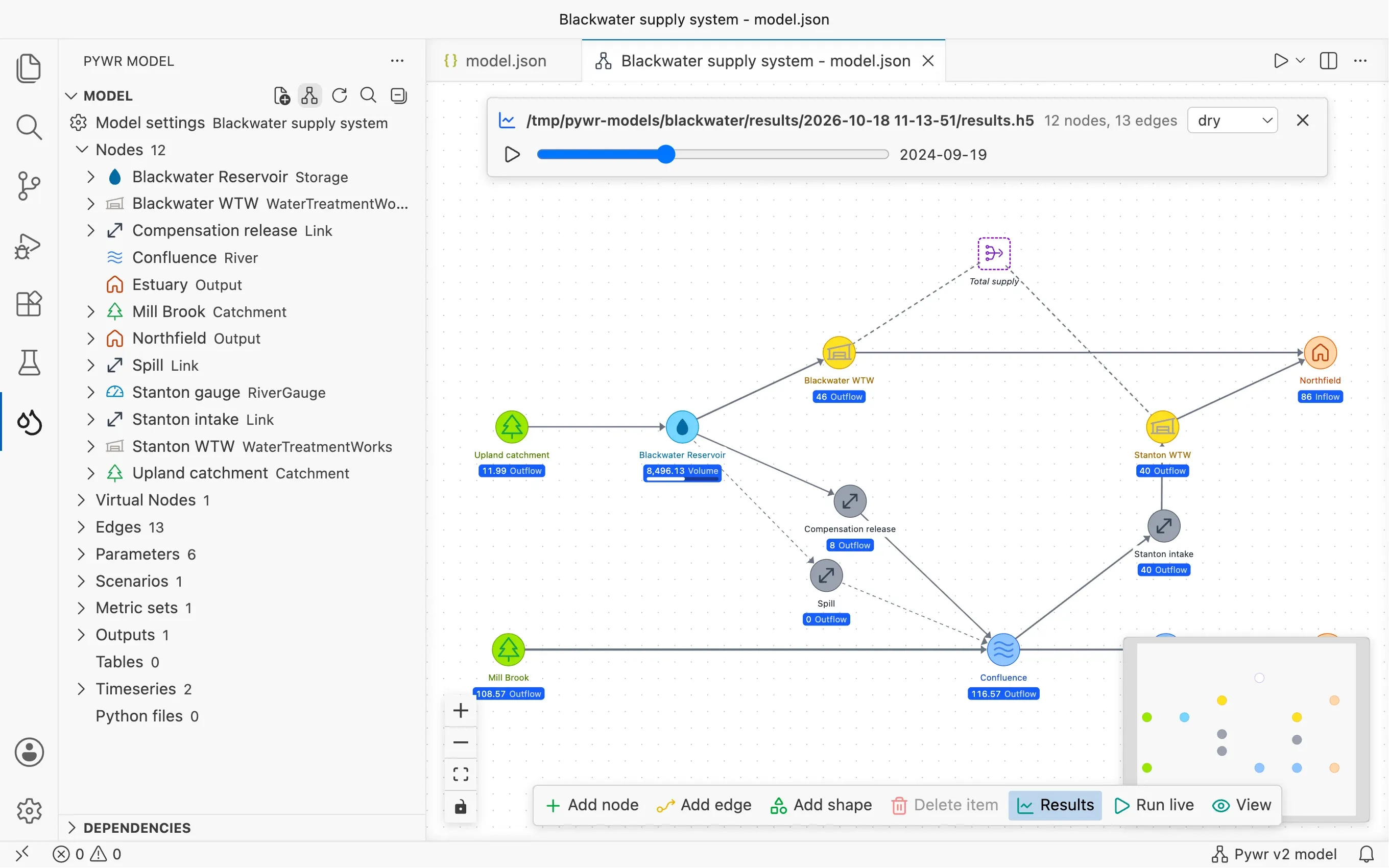
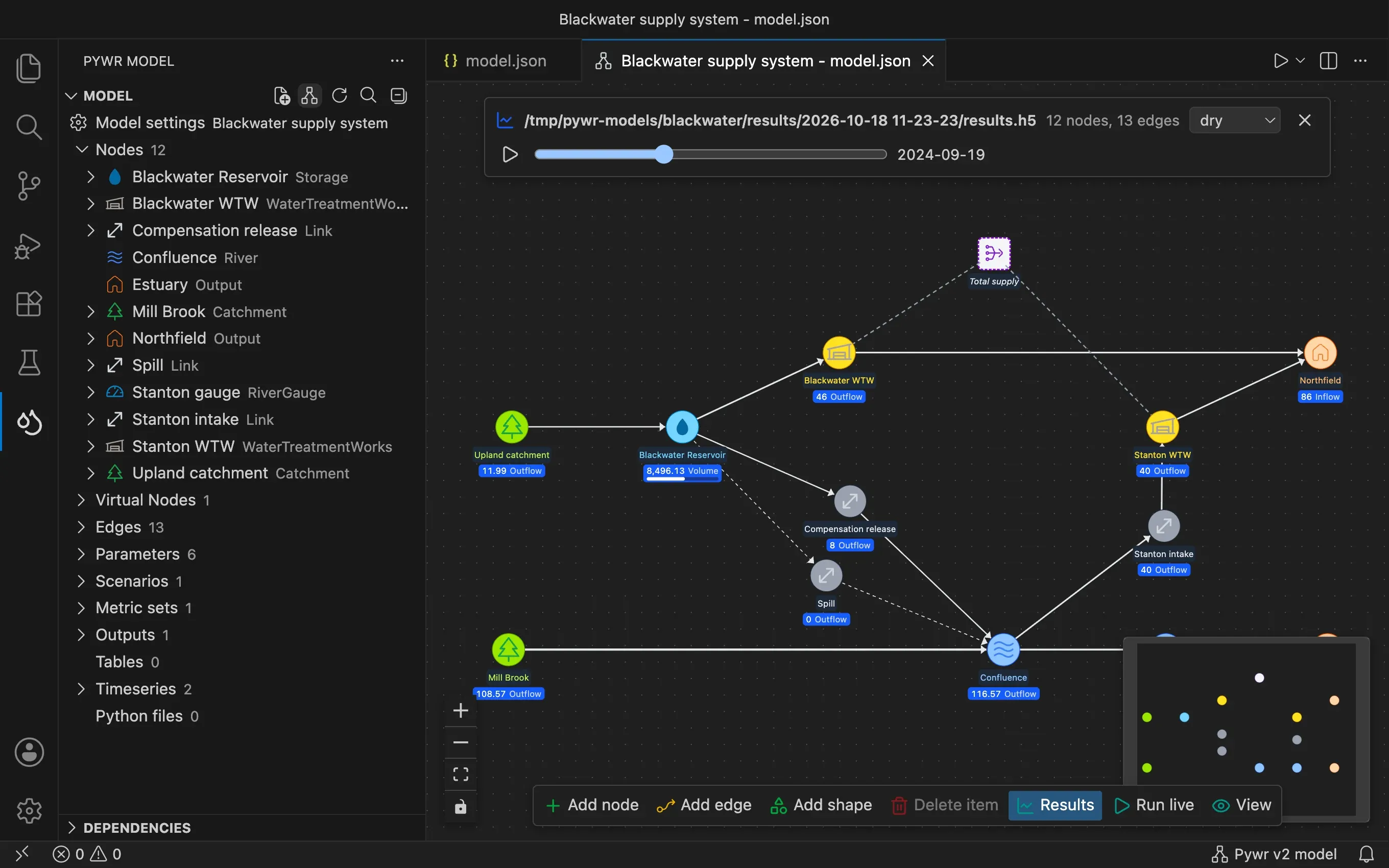
Section titled “Show the results on the network”After a run, the schematic can show the results on the nodes and the edges.
-
Open the schematic and press Results in the toolbar. The results of the last run are loaded; when there is none, you are asked for a results file.
-
Read the network:
- Each node shows its value and the attribute it is for.
- A storage node shows how full it is, with a bar.
- Pywr v2 Edges get wider as their flow grows, and are dashed when the flow is zero.
- Pywr v2 When a node saves more than one attribute, pick the one to show from the list on the node.
-
Use the bar at the top to move through the run:
- pick the scenario
- drag the slider to a time step, or press Play to move through them
- click the file name to show the results of another file
- press Hide the results to go back to the plain schematic
Run the model live
Section titled “Run the model live”You can also run the model from the schematic and watch it one time step at a time, without a results file. This helps to find where the network is constrained and when a demand is not met.
-
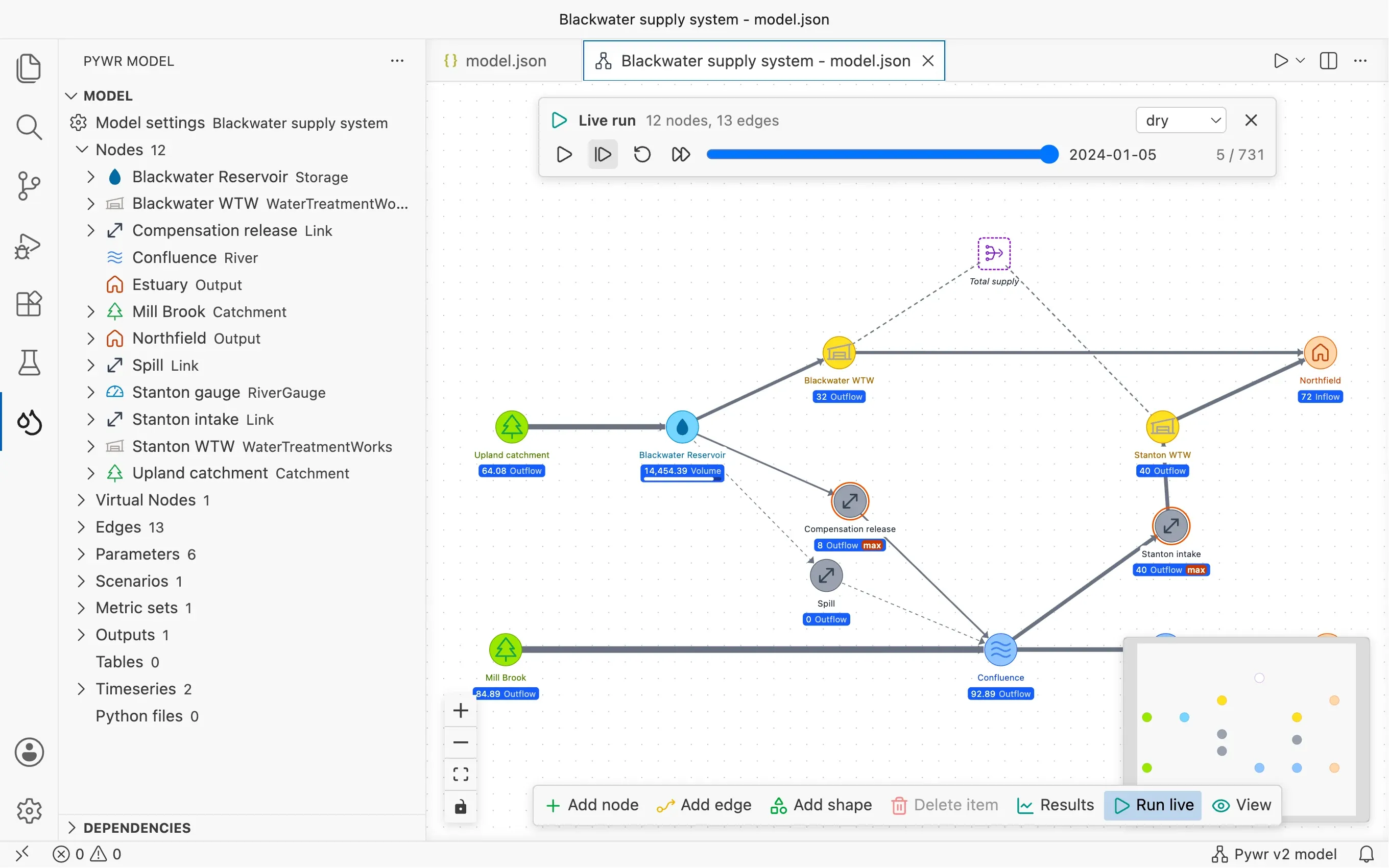
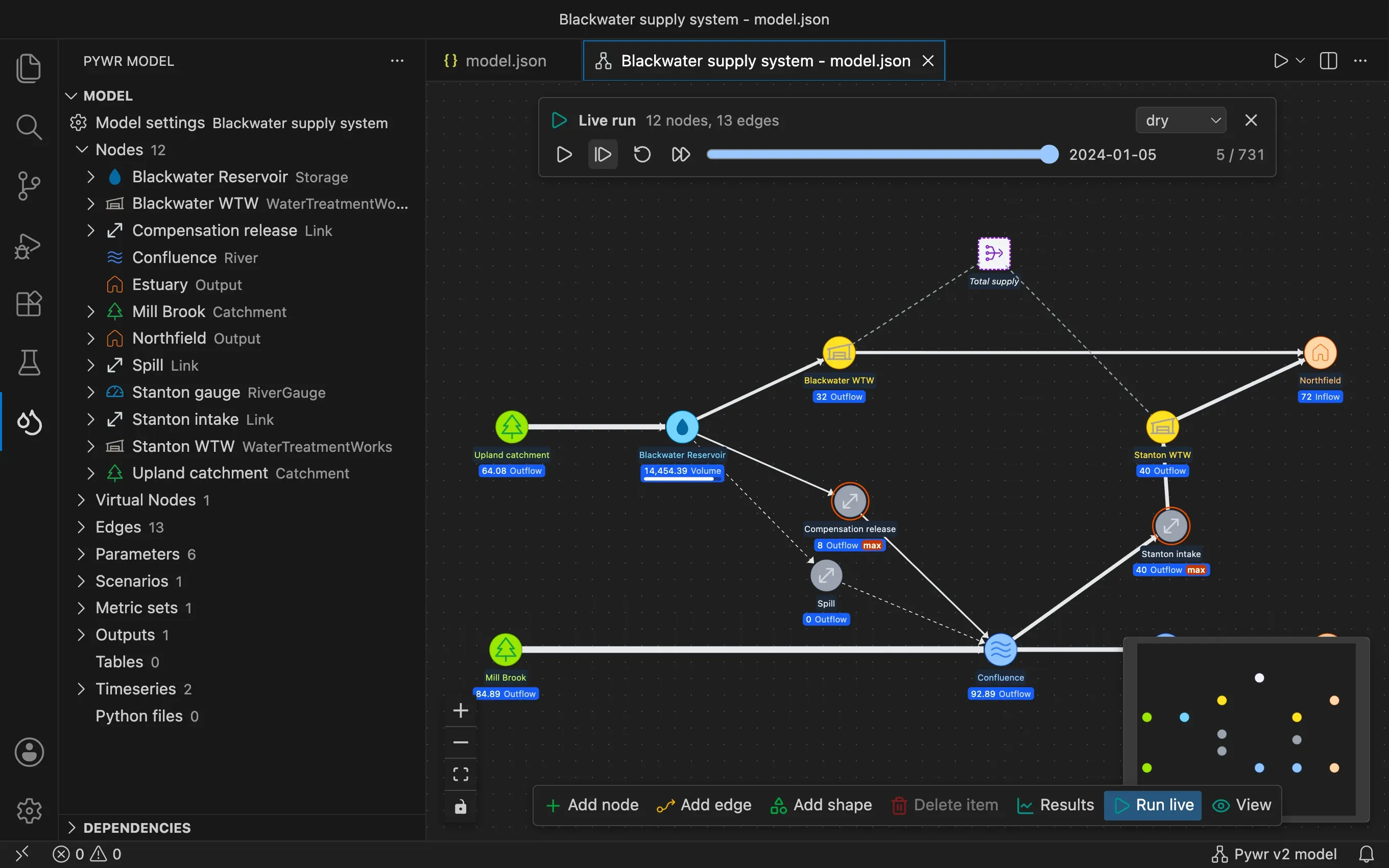
Open the schematic and press Run live in the toolbar. The model is saved and loaded with the Python environment selected in the Python extension, and its first time step is simulated.
-
Use the bar at the top to move through the run:
- press Simulate the next time step to advance by one time step
- press Play to simulate the time steps one after the other, and Pause to stop
- press Run until a condition is met to simulate the time steps until something happens (see Run until a condition)
- drag the slider to go back to a time step that was already simulated
- pick the scenario: all the scenarios are simulated together
- press Start the run again to go back to the first time step
- press Stop the run to go back to the plain schematic
-
Read the network:
- Each node shows its flow, and each storage node its volume and how full it is.
- A node with an orange outline and the label max has reached its maximum
flow (
max_flow): the node limits the flow in the network. - A grey node with the label blocked has a maximum flow of zero: the route through the node is blocked.
- An output node with a red outline and the label deficit gets less than its maximum flow: its demand is not met. The label has the deficit, which is the flow the node misses to get its maximum flow. An output node that gets its maximum flow has no outline.
- Pywr v2 Edges get wider as their flow grows, and are dashed when the flow is zero.
A live run does not save any results: the outputs of a Pywr v2 model and the CSV and tables recorders of a Pywr v1 model are not used. To save the results, run the model. A live run uses the model as it is saved and ignores the options of Run the model with options….
Catchments have no outline, as their flow is always the flow they are given. In Pywr v2 models, the outline is shown for the input, link, output, loss link and water treatment works nodes.
Watch parameters
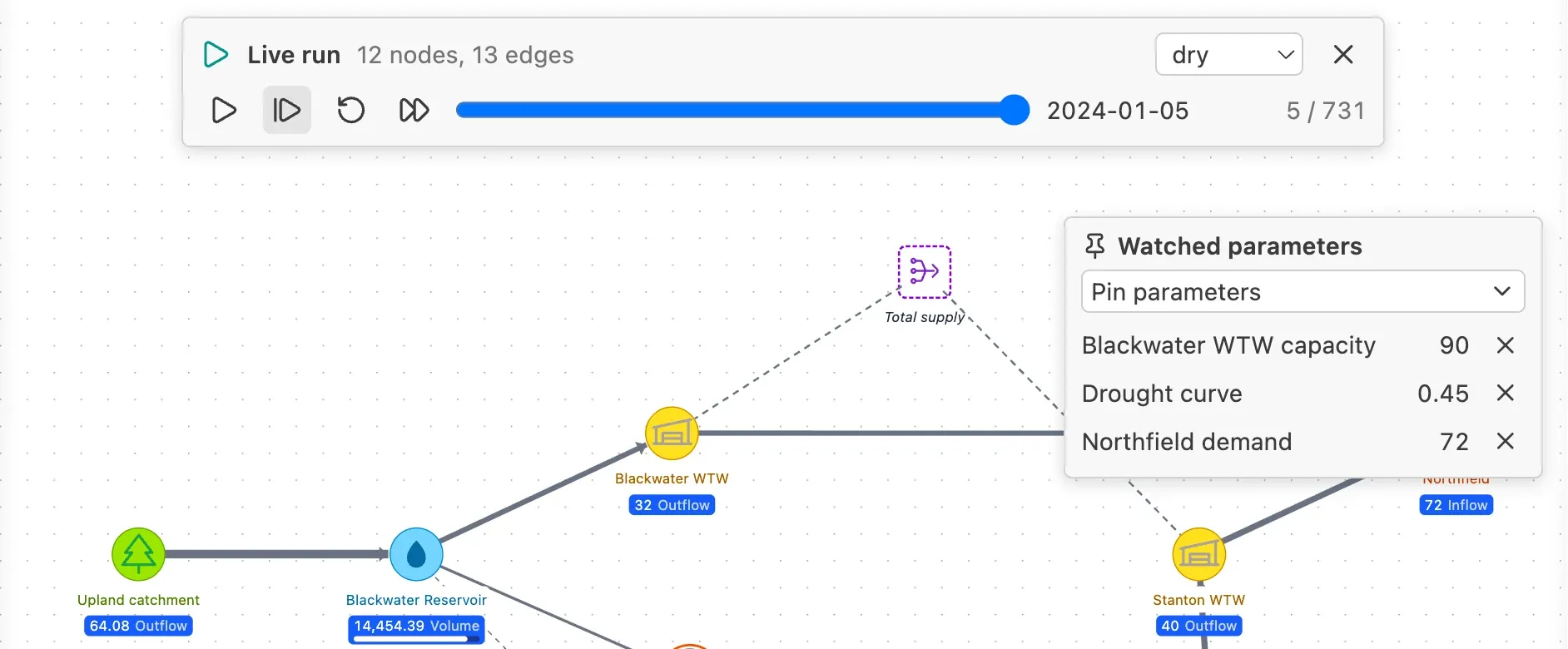
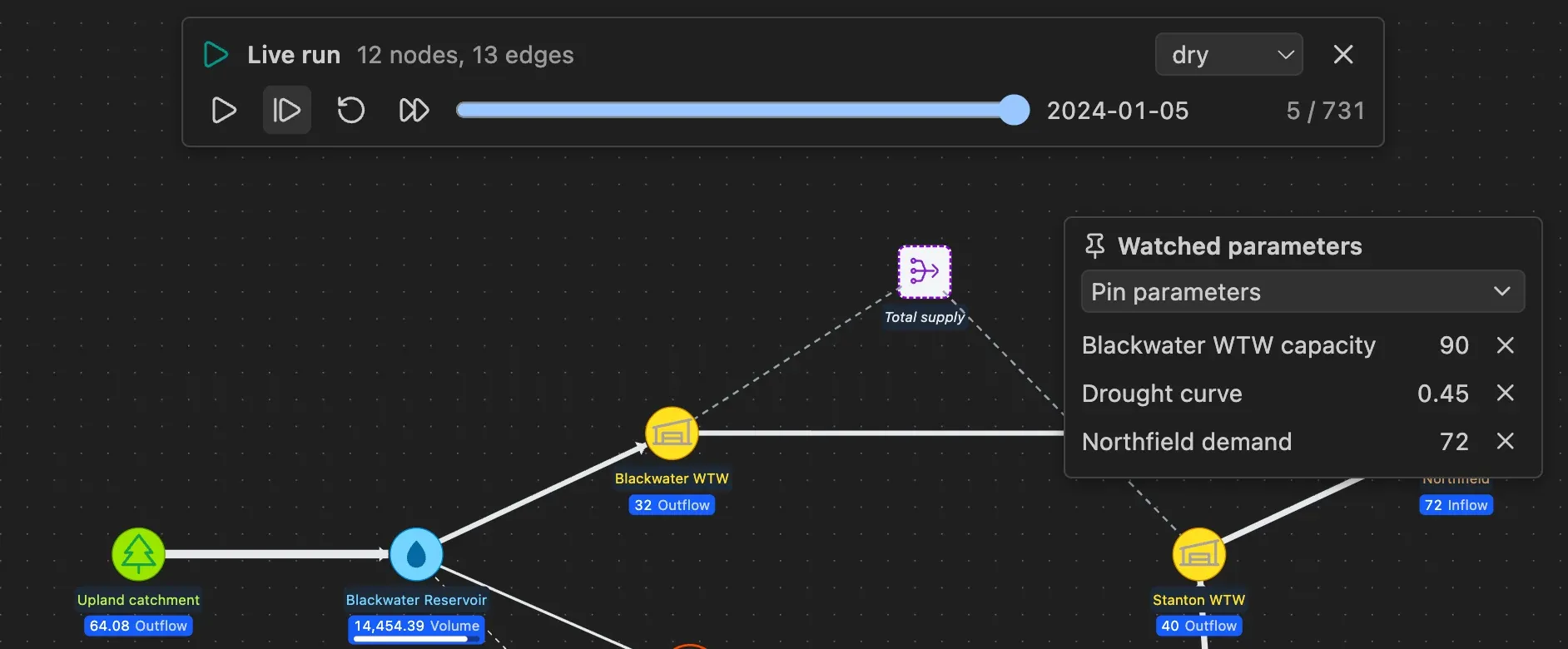
Section titled “Watch parameters”Pin the parameters, such as a control curve, the index of a control curve or a licence, to see their value at each time step next to the schematic.
-
Start a live run. The Watched parameters panel opens on the right of the schematic.
-
Press Pin parameters and tick the parameters to watch. Type in Search… to filter a long list. The panel shows the value of a ticked parameter straight away. Press Esc, click the schematic or press the cross next to the search box to close the list.
-
Move through the run: the panel shows the value of each pinned parameter at the time step and in the scenario shown in the bar. An index parameter shows its index. Press the cross next to a parameter, or untick it in the list, to unpin it.
When you pin a parameter in the middle of a run, the panel shows a dash at the earlier time steps, because only the last simulated time step is read again. Press Start the run again to get its value from the first time step. Pinned parameters stay pinned when you start the run again or start a new live run of the same model.
You can pin any parameter with a name, except a Python parameter that returns a dictionary in a Pywr v2 model.
In a Pywr v2 model, a parameter can calculate its value before the network is solved, after it, or both. When it has both, the panel shows the value calculated before, which is the one the time step used.
Compare the node costs along a route
Section titled “Compare the node costs along a route”Pywr v1 In a live run, the Node costs panel on the left of the schematic sorts the route of the selected node by cost, so you can see which nodes the solver prefers.
-
Start a live run and simulate at least one time step.
-
Click a node. Its route is coloured on the schematic, and the panel lists the node (in bold), the nodes upstream of it (green dot) and the nodes downstream of it (red dot), from the lowest cost to the highest. A negative cost is a benefit, so the most wanted nodes come first.
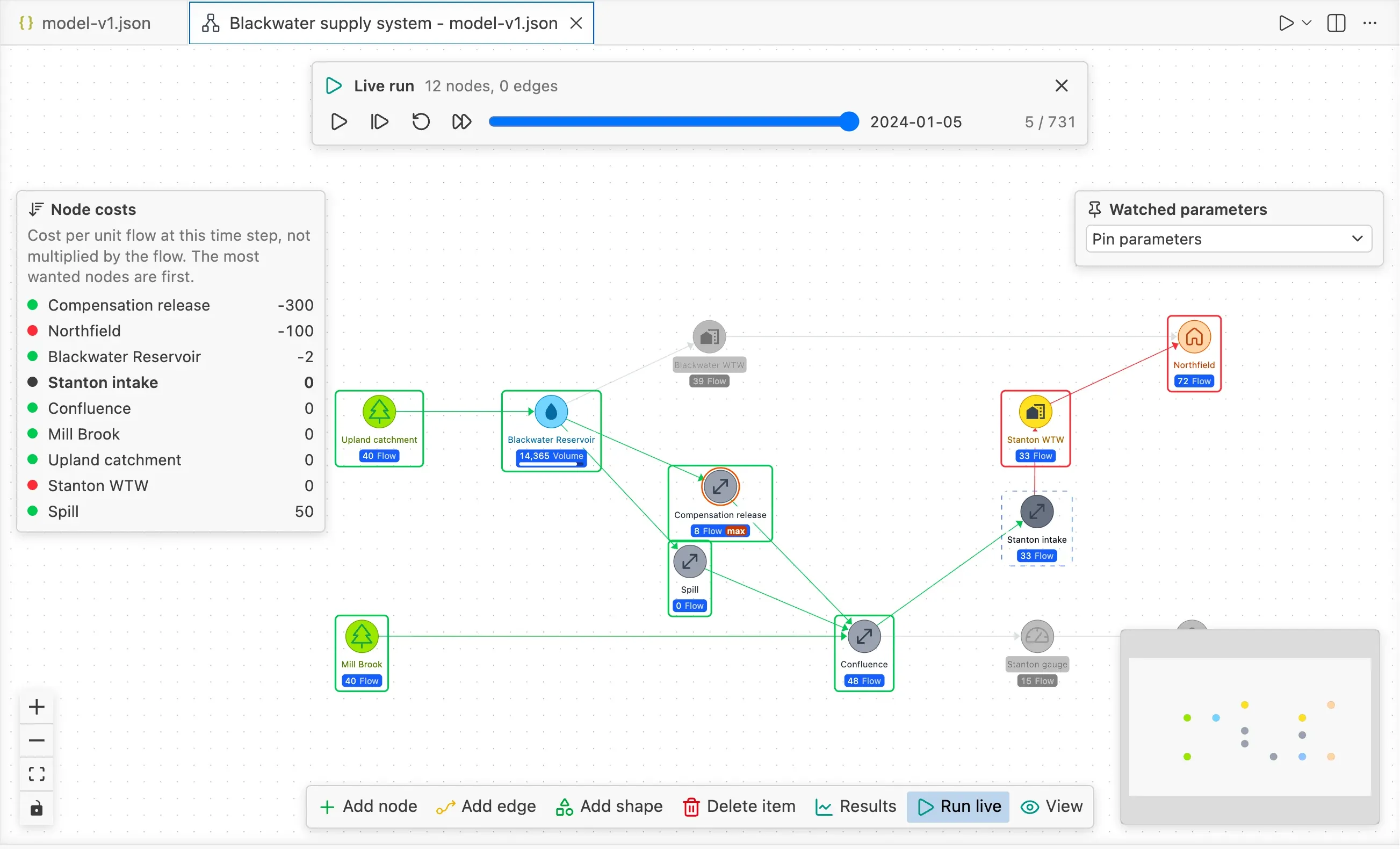
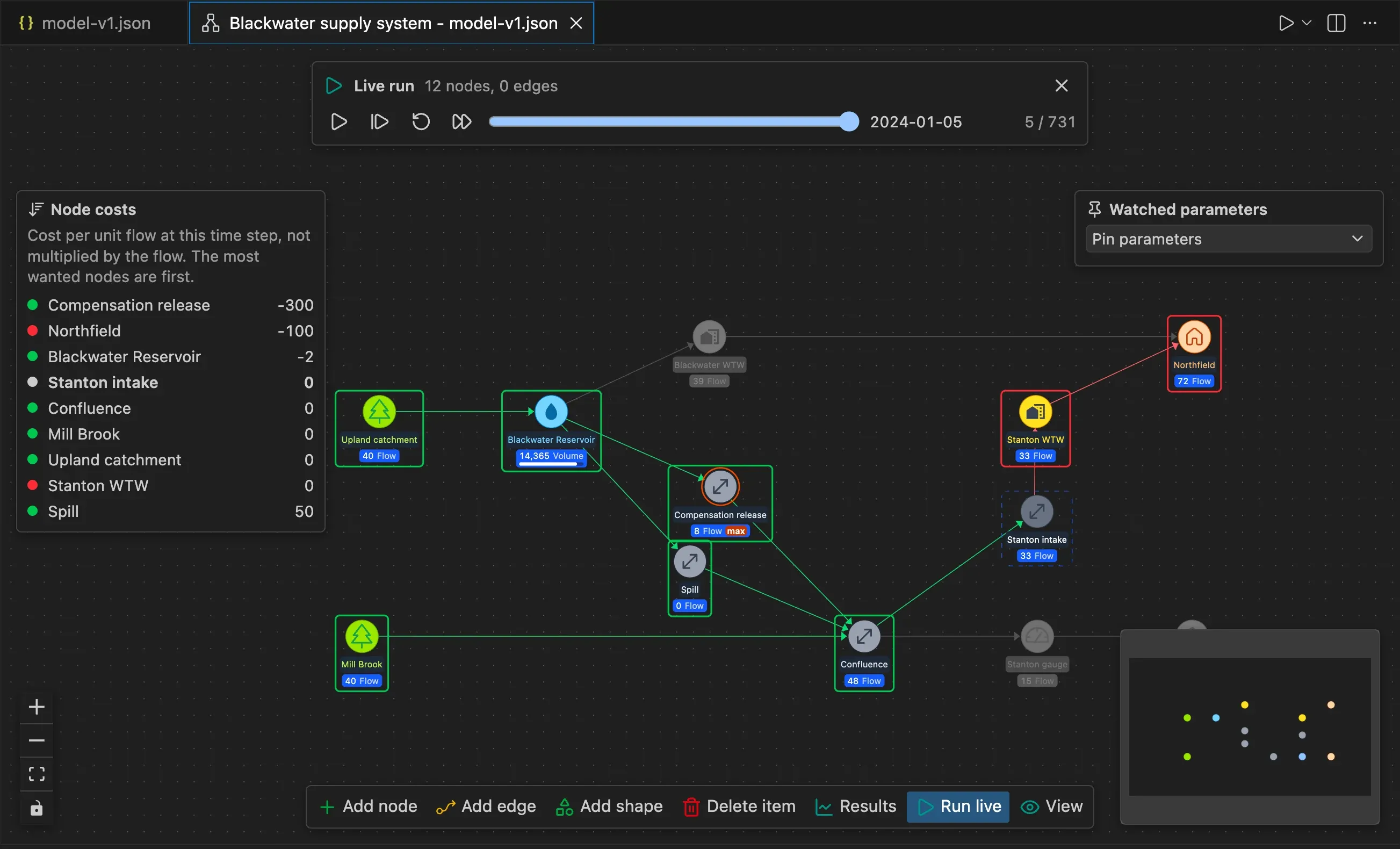
The costs are the ones Pywr uses at the time step and in the scenario shown in the bar, so a cost set with a parameter, such as a control curve, can change from one time step to the next. Each cost is per unit of flow through the node and is not multiplied by the flow. A node without a cost shows a dash and is listed last.
Run until a condition
Section titled “Run until a condition”To find when a demand is first not met or a reservoir runs low in a long run, let the live run simulate the time steps on its own and pause on the first one where it happens.
-
Start a live run and press Run until a condition is met (the fast-forward button) in the bar at the top. A row opens under the buttons.
-
Pick the condition and fill in its value:
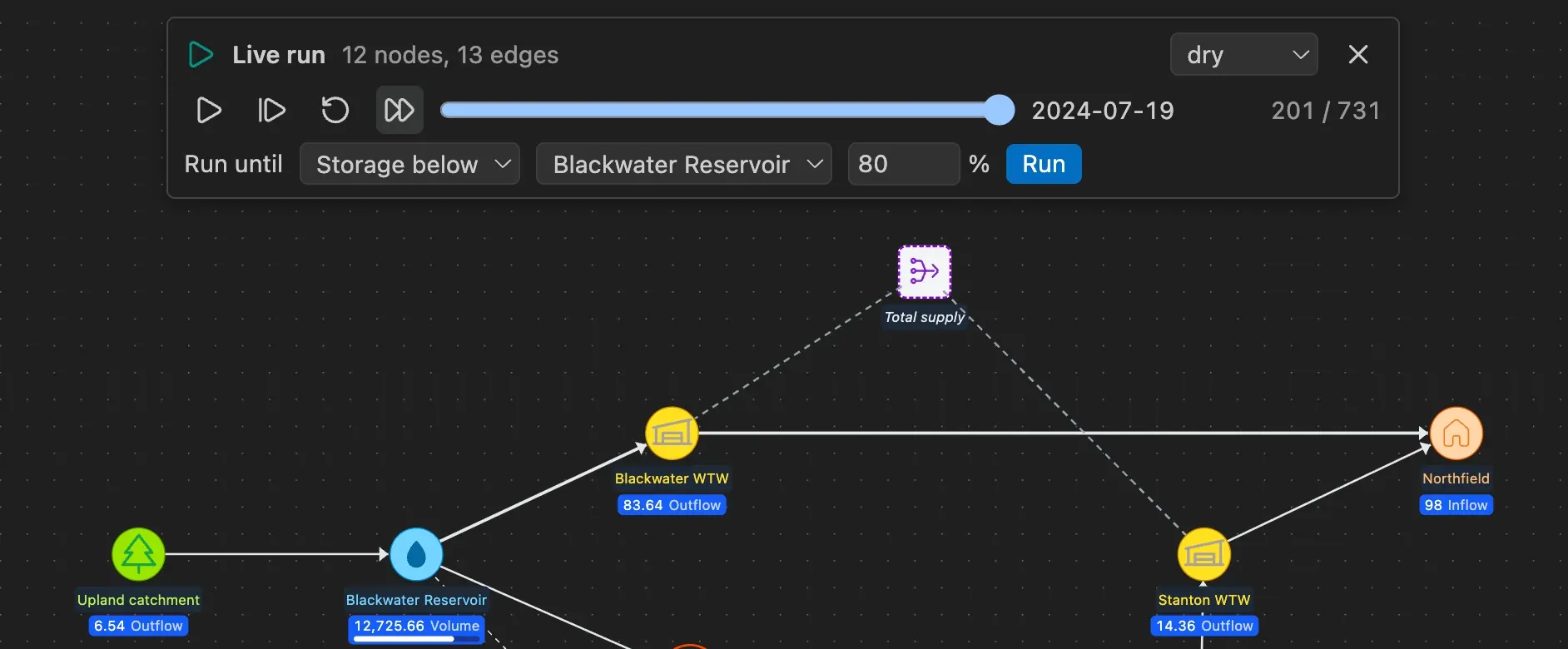
Condition Pauses on the first time step where Deficit at the output node picked gets less than its maximum flow (its demand) Storage below the volume of the storage node picked is below the percentage given of its maximum volume Date the time step starts on or after the date picked 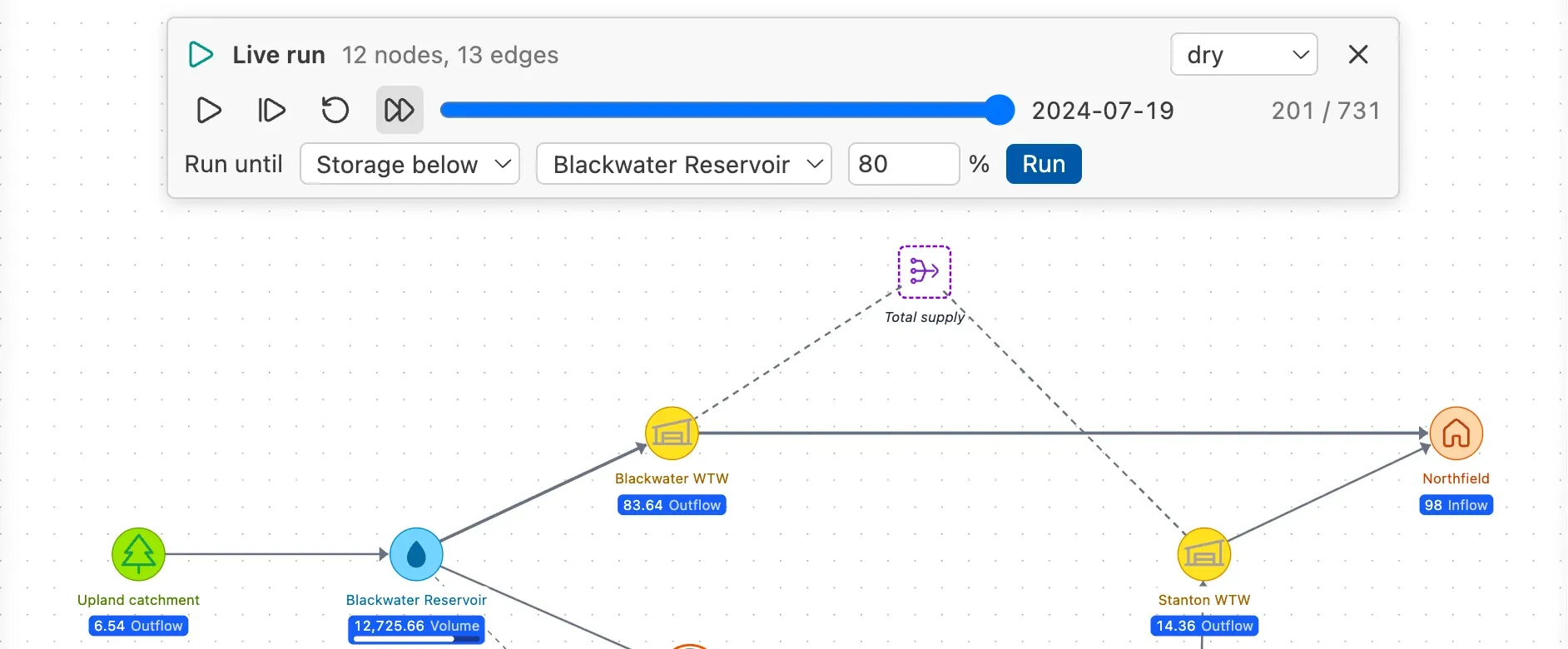
-
Press Run. The run simulates the time steps one after the other, pauses on the first one that meets the condition and shows it on the schematic. Press Pause to stop earlier.
The run checks the condition in the scenario shown in the bar. Each Run starts from the last simulated time step, so pressing it again finds the next time step that meets the condition. When no time step meets it, the run stops at the last time step and the bar says that the condition was not met. The condition is checked for the selected scenario.