
Work in the JSON file
If you are comfortable in JSON, you do not have to leave it. The JSON editor knows the components of your model the way a code editor knows the symbols of a program.
The shortcuts on this page are those of VS Code on Windows and Linux. On macOS, they are the same unless you changed them.
Links above each component
Section titled “Links above each component”Above each component, the editor shows links to act on it:
- Edit opens its form.
- Show on schematic selects the node or the virtual node on the schematic.
- 2 usages lists the places where it is used.
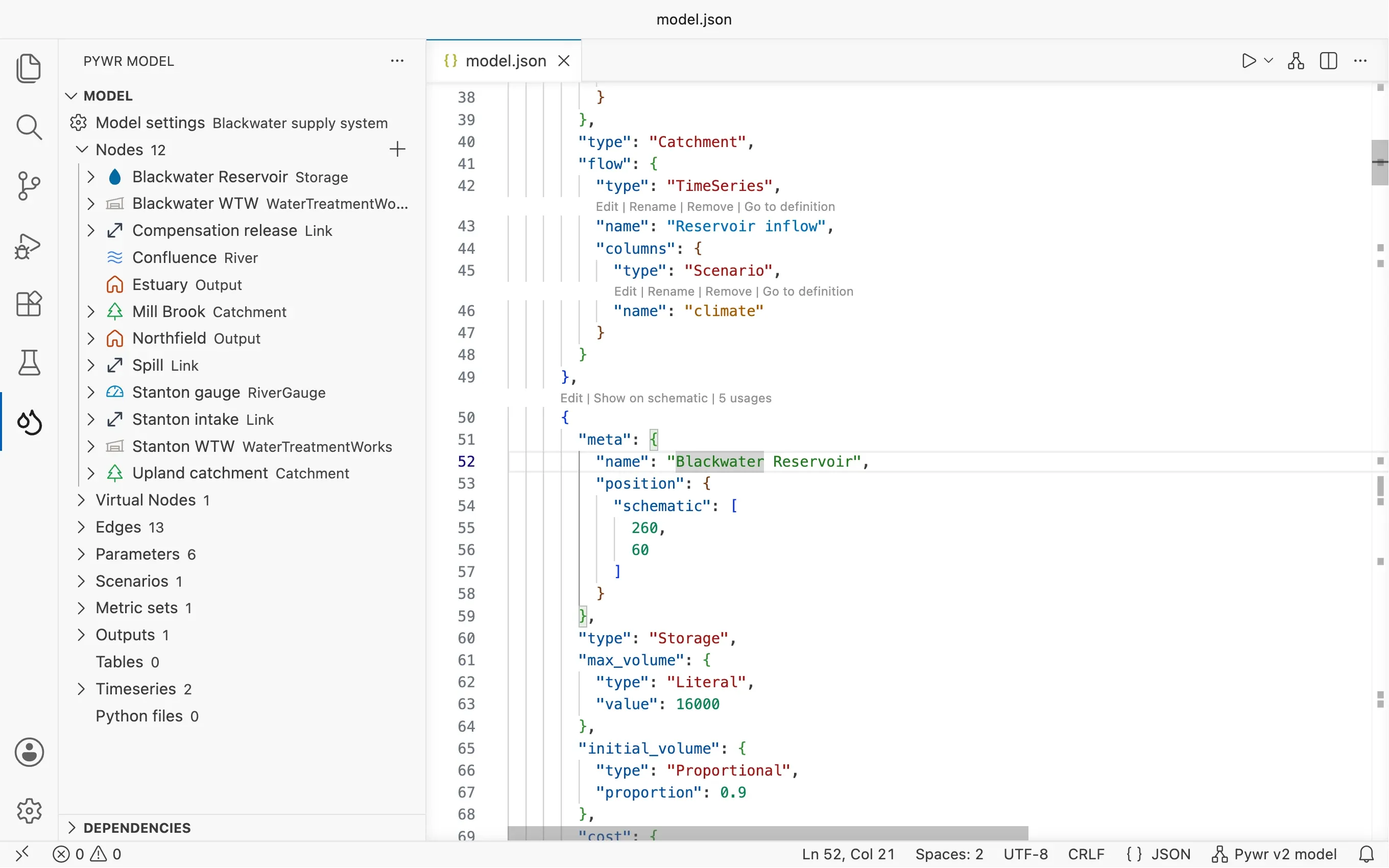
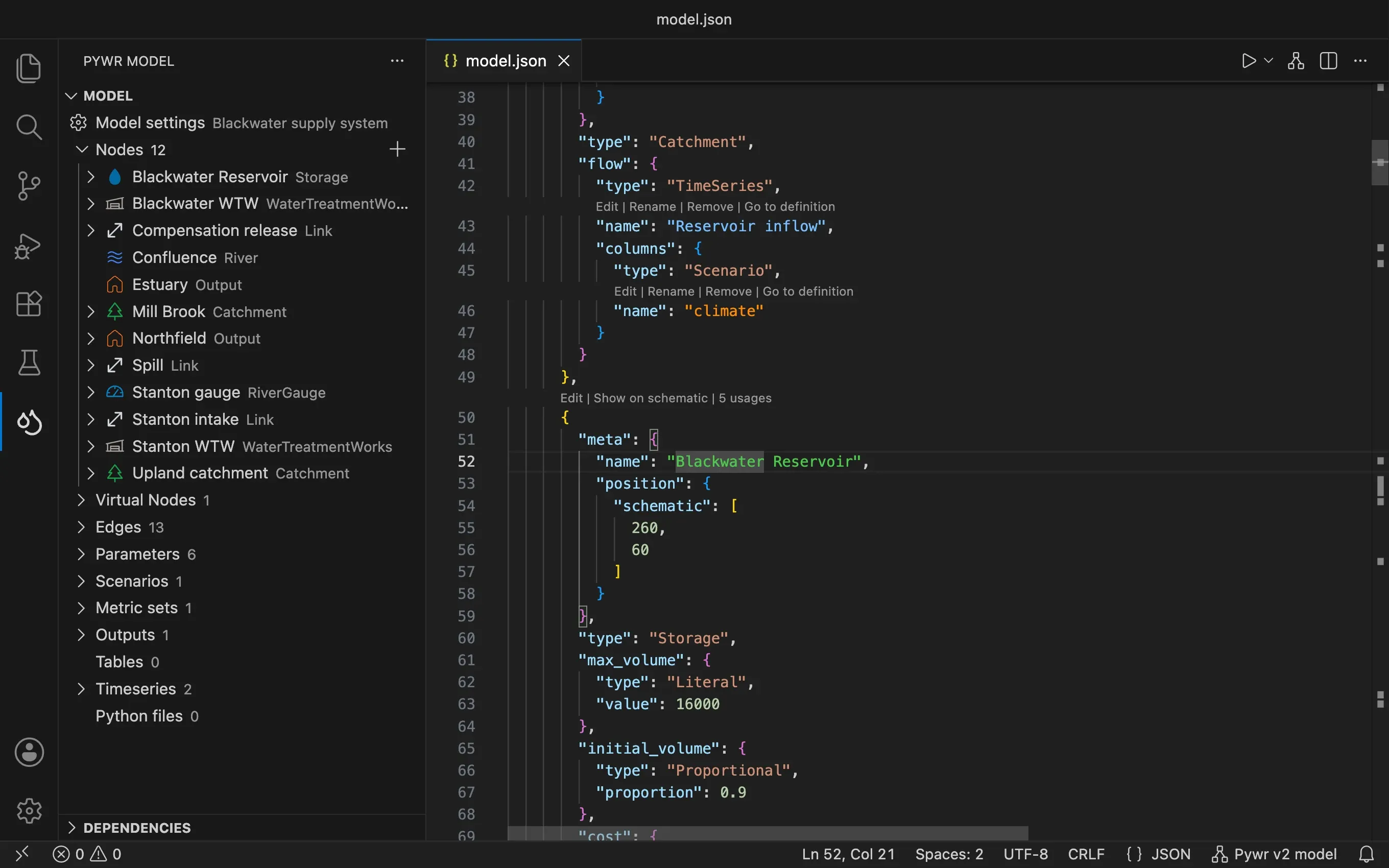
There are other links too:
- The first line of the file has a summary of the model: its title and the number of nodes, edges, parameters and the other components.
- Each section, such as
nodes, has the number of components in it. - Edit above
metadataandtime(timestepperin Pywr v1) opens the model settings.
Links above each reference
Section titled “Links above each reference”Above a name that refers to another component, such as the parameter used by the
max_flow of a node, the editor shows links to act on that component:
- Edit opens its form.
- Rename renames it and every place that uses it.
- Remove removes it from the model, after asking you to confirm when other components still use it.
- Go to definition moves the cursor to where it is defined.
The links are not shown on a line with more than one name, such as an edge of a Pywr v1 model, because they would not say which component they act on. Use the shortcuts there instead.
In a large model, the links can slow the editor down. Turn them off with the
pywr.codeLens.componentActions (above each component) and
pywr.codeLens.referenceActions (above each reference)
settings; the summary and the counts stay.
Colours of the component names
Section titled “Colours of the component names”The names of the components have a colour for each type of component: nodes are
green, parameters yellow, recorders purple, and so on. The colour is the same where a
component is defined and where it is used, so you can tell what a name refers to, such
as a node or a parameter in the max_flow of a node, without moving to it.
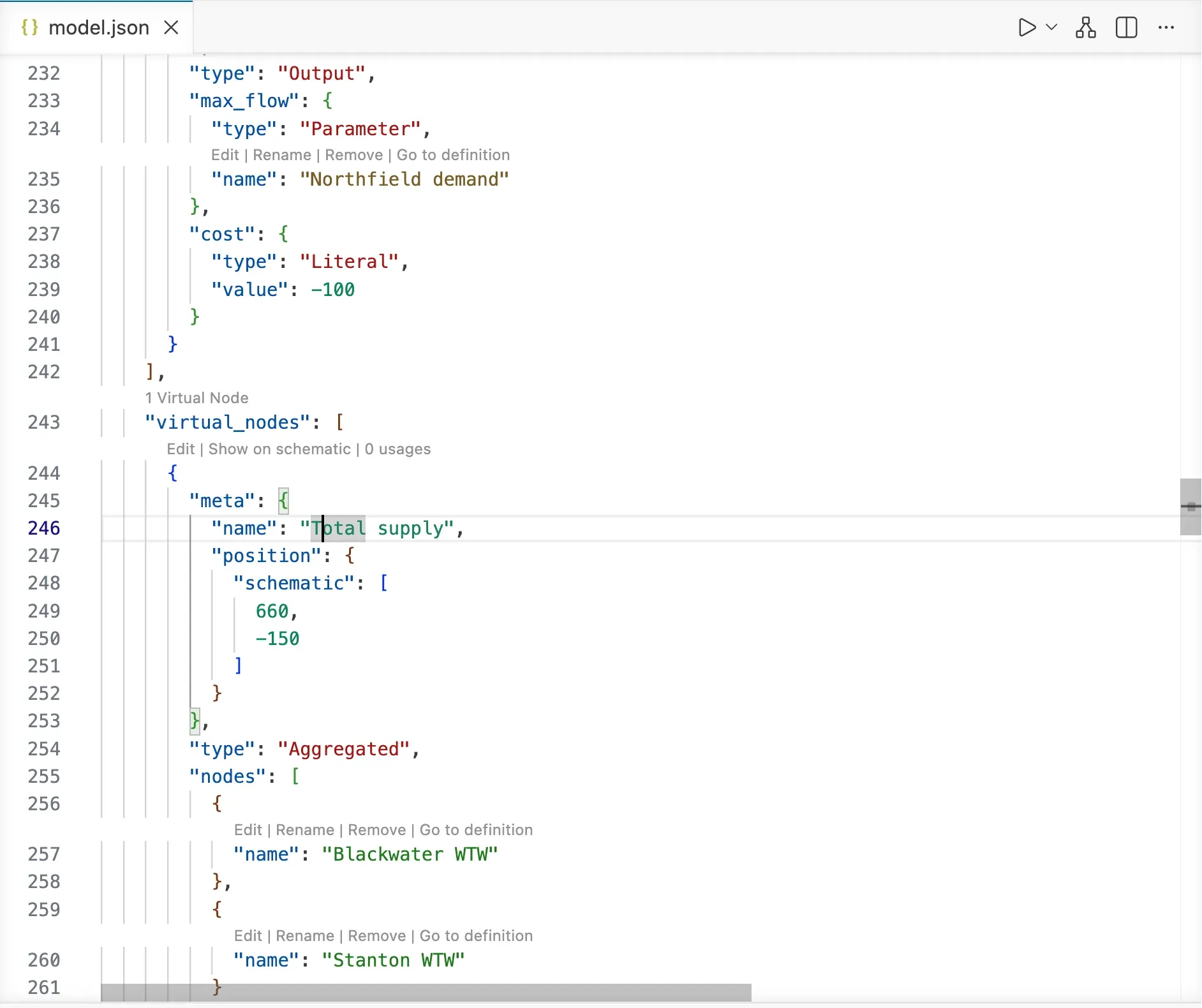
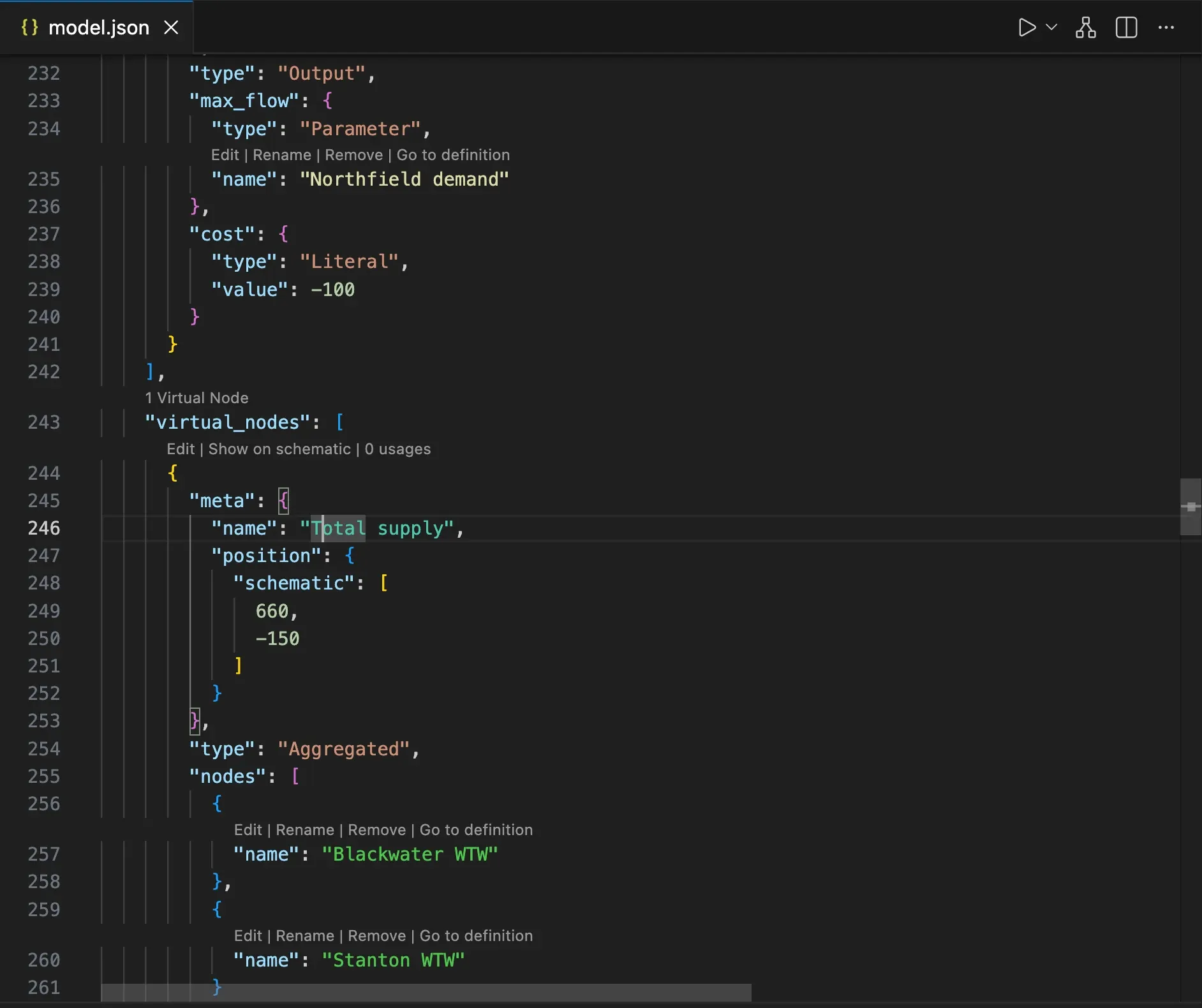
To turn the colours off, untick the pywr.highlightComponentNames
setting. To change a colour, set it in
workbench.colorCustomizations in your settings:
{ "workbench.colorCustomizations": { "pywr.componentName.Node": "#00ff00", "pywr.componentName.Parameter": "#ffa500" }}The colours are pywr.componentName.Node, .VirtualNode, .Parameter, .Recorder,
.MetricSet, .Timeseries, .Table, .Output and .Scenario.
Rename a component
Section titled “Rename a component”Put the cursor on the name of a component, or on any place that uses it, and press F2. Type the new name and press Enter: the definition and every reference are updated.
Go to a component and list its usages
Section titled “Go to a component and list its usages”- F12 on a name that refers to a component goes to where the component is defined.
- Shift F12 on a name lists where the component is used.
Hover for details
Section titled “Hover for details”Hover the name of a component to see its kind and type, its comment and how many times it is used.
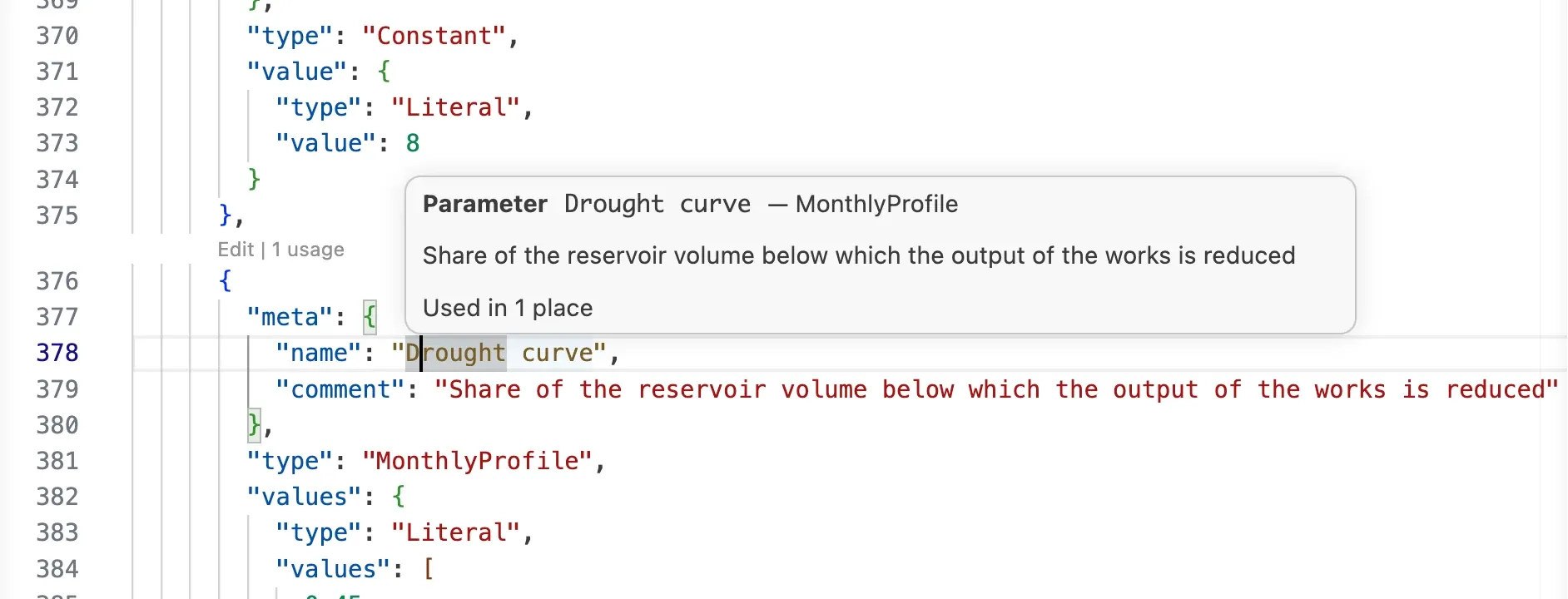
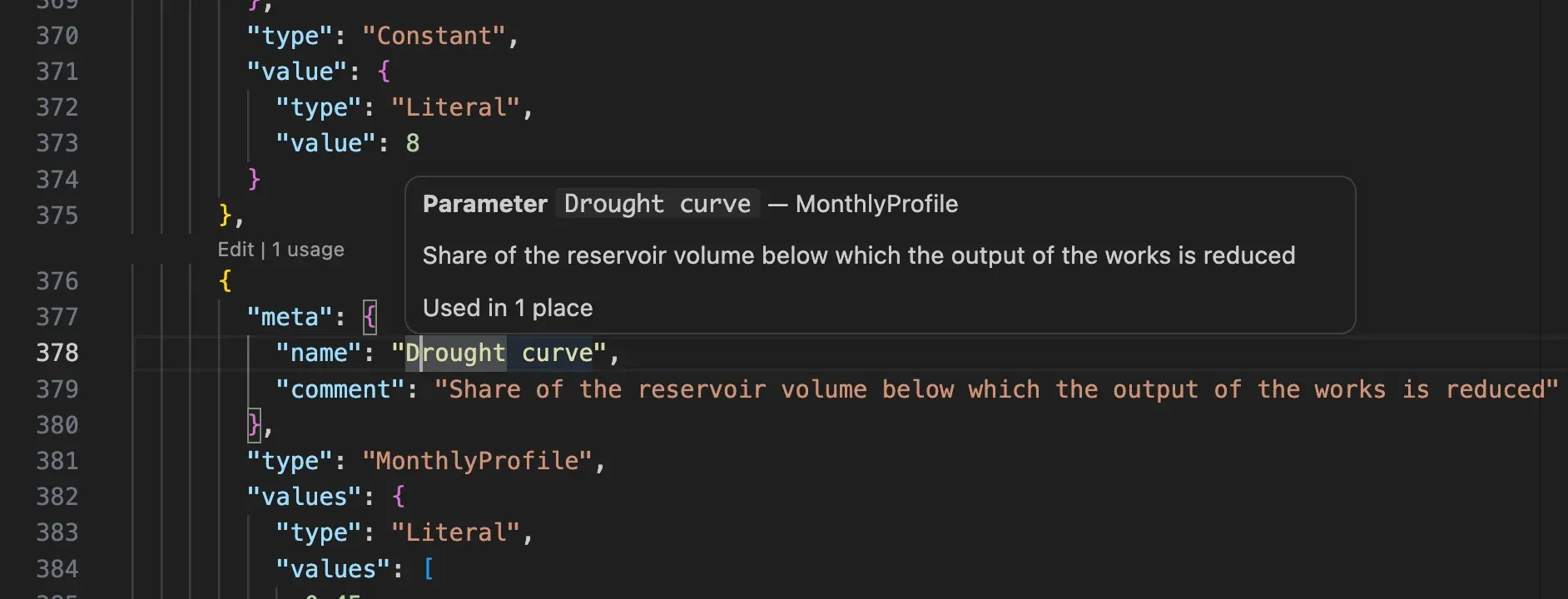
Hover the value of type to read what the type does.
Complete names and types
Section titled “Complete names and types”Type a quote where a component can be used, and the editor lists the names you can put
there, with the type and the comment of each. On type, it lists the types.
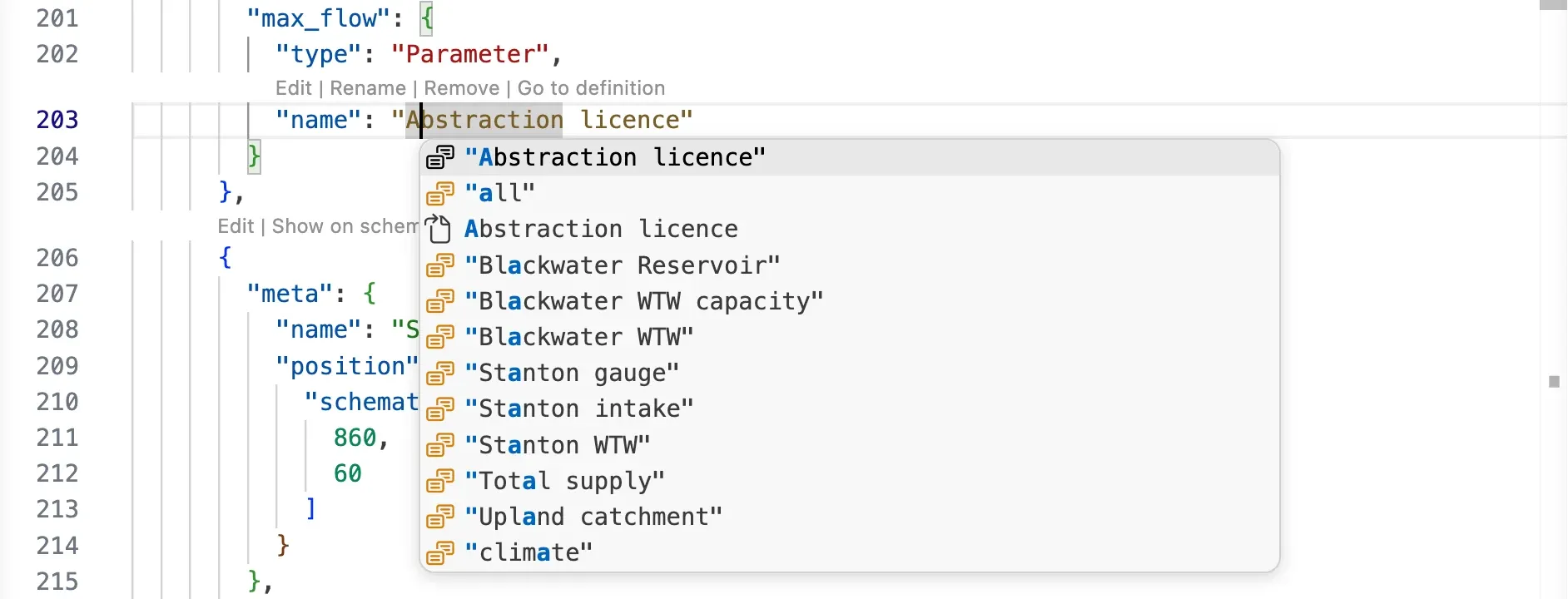
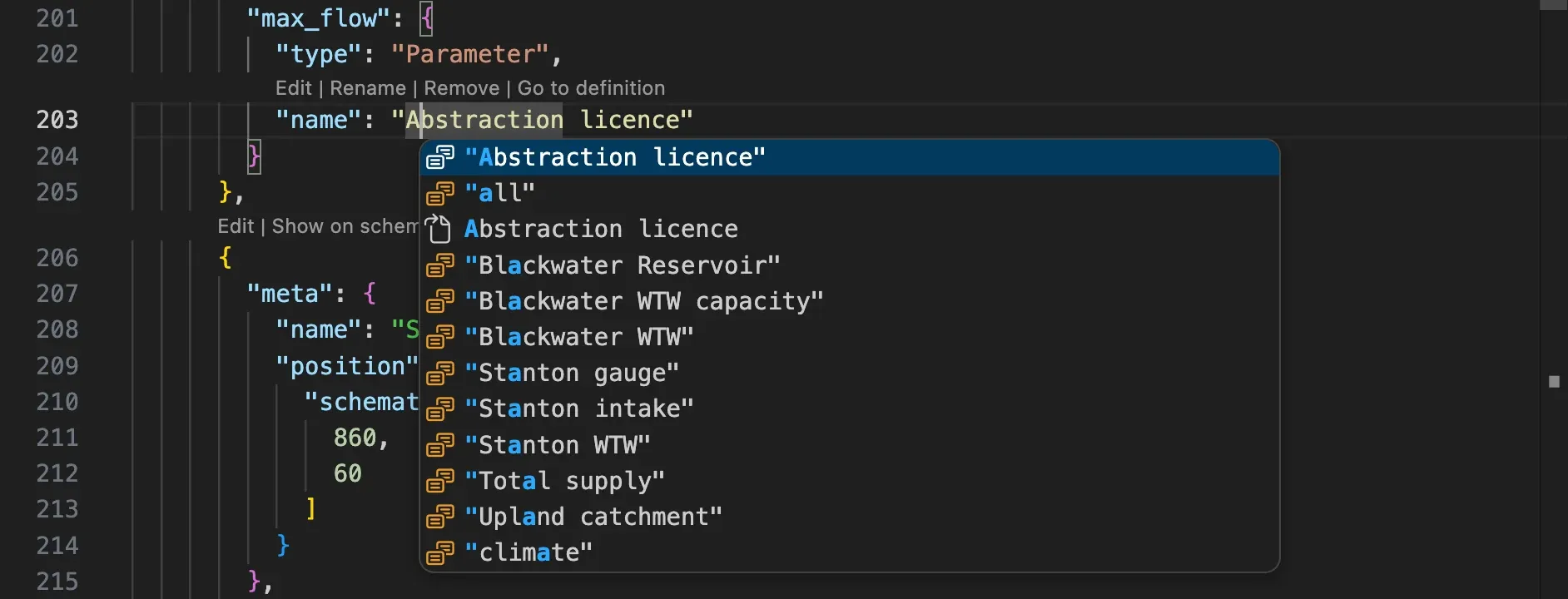
Press Ctrl Space to open the list yourself.
Find a component
Section titled “Find a component”- The Outline view of the Explorer lists the named components of the model.
- Go to Symbol in Editor (Ctrl Shift O) finds a component by name.
- The Search view of the Pywr sidebar also searches by type.
Fix a mistake with the light bulb
Section titled “Fix a mistake with the light bulb”When a mistake is underlined, put the cursor on it and click the light bulb, or press Ctrl .. See Check the model for mistakes for the fixes on offer.
Move an inline parameter to the parameters
Section titled “Move an inline parameter to the parameters”In a pywr v1 model, put the cursor in a parameter defined inline, such as the cost of a
node, press Ctrl . and pick Move to named parameter. The
parameter is moved to the parameters section and named after the component and the
attribute using it (for example Node cost); the attribute then uses that name. A number
is added when the name is taken.