
Chart the results
The results viewer charts the files a run writes, inside VS Code. It needs no Python and no script, and it opens files written outside VS Code too.
Open the results
Section titled “Open the results”Use whichever is closest to hand:
| From | Do this |
|---|---|
| The end of a run | Press Open results in the notification. |
| The Explorer | Click an .h5, .hdf5 or .arrow file. For a .csv file, right-click it and pick Open the results chart. |
| The Command Palette | Run Pywr: Open the results chart and choose a file. |
| A component | Right-click a node, a virtual node or a parameter in the Model view and pick Chart the results, or press the chart button in its form. |
| The schematic | Press Results to show them on the network instead. |
Chart the results on a component uses the results of the last run of the model and ticks the metrics of that component for you. When there are several results files, you are asked which one.
For a reservoir whose cost is set by a control curve parameter, the control curves are
drawn too, as dash-dot lines. A curve that is a constant is drawn from the model, and a
curve that is a parameter is ticked when it is saved in the results file. The curves
are relative to the maximum volume, so they are only added when the volume of the
reservoir is saved as relative: the ProportionalVolume attribute in Pywr v2, or a
volume between 0 and 1 in Pywr v1. They are drawn on the chart of the volume and move
with it. You can move a curve that is a parameter to another chart.
There it is drawn like any other metric, as a solid line with the values saved in the
file.
The results of Pywr v1 have the absolute volume of the reservoir. When the max_volume
of the reservoir is a constant in the model, the curves are multiplied by it and drawn
with the absolute volume: a curve at 0.5 of a reservoir with a max_volume of 1000 is
drawn at 500. The values of these curves in the table, the statistics and the exports
are multiplied too. A curve is multiplied only while it is on the chart of the volume:
once you move it to another chart, it has the values saved in the file again. When
max_volume is a parameter, the curves are not drawn. This does not apply to Pywr v2,
where you save ProportionalVolume instead.
The curves are also added when you tick the relative volume of the reservoir on the left, for the results written by a run started from the extension.
The files the viewer reads are listed in Supported formats.
Chart a result step by step
Section titled “Chart a result step by step”-
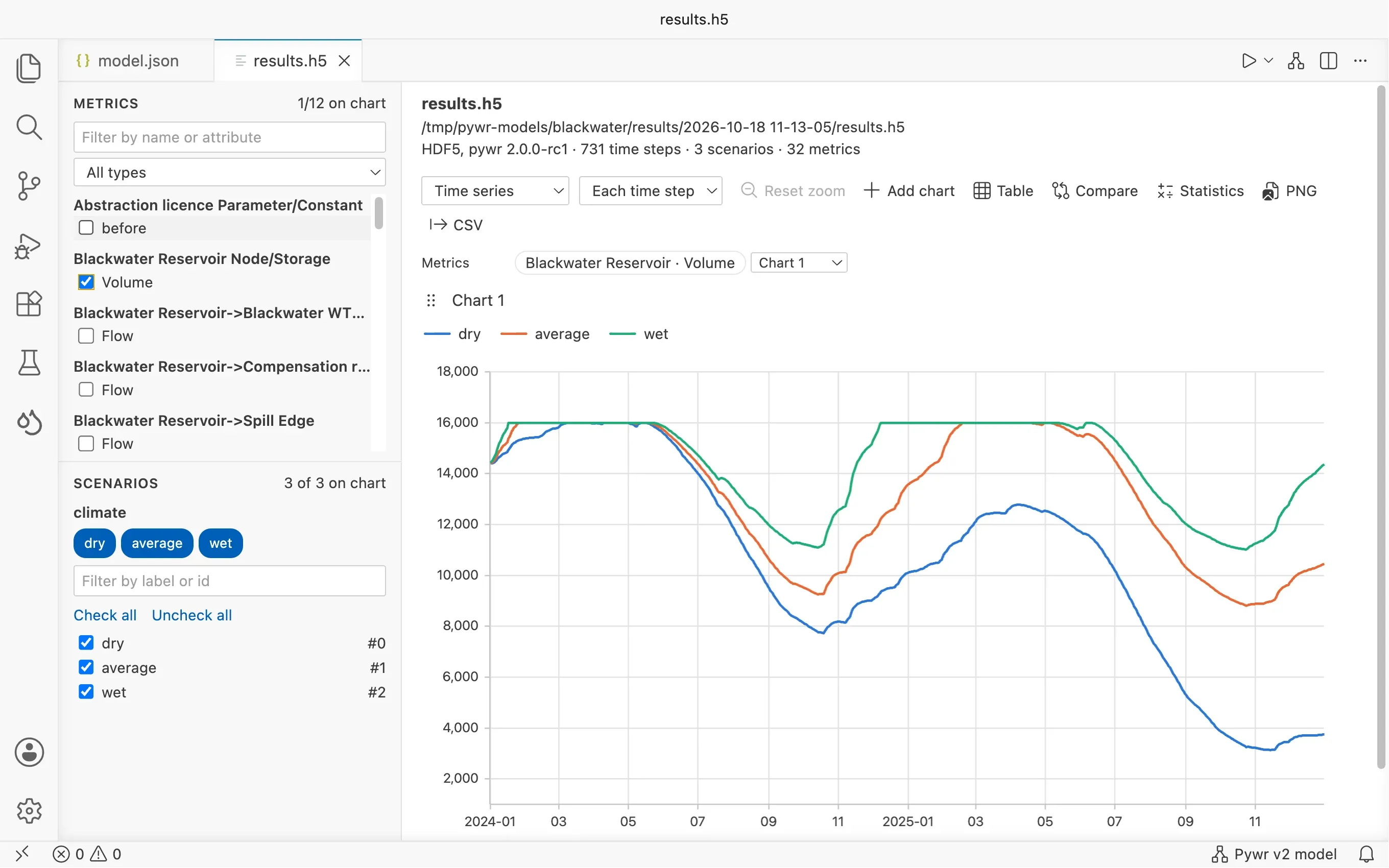
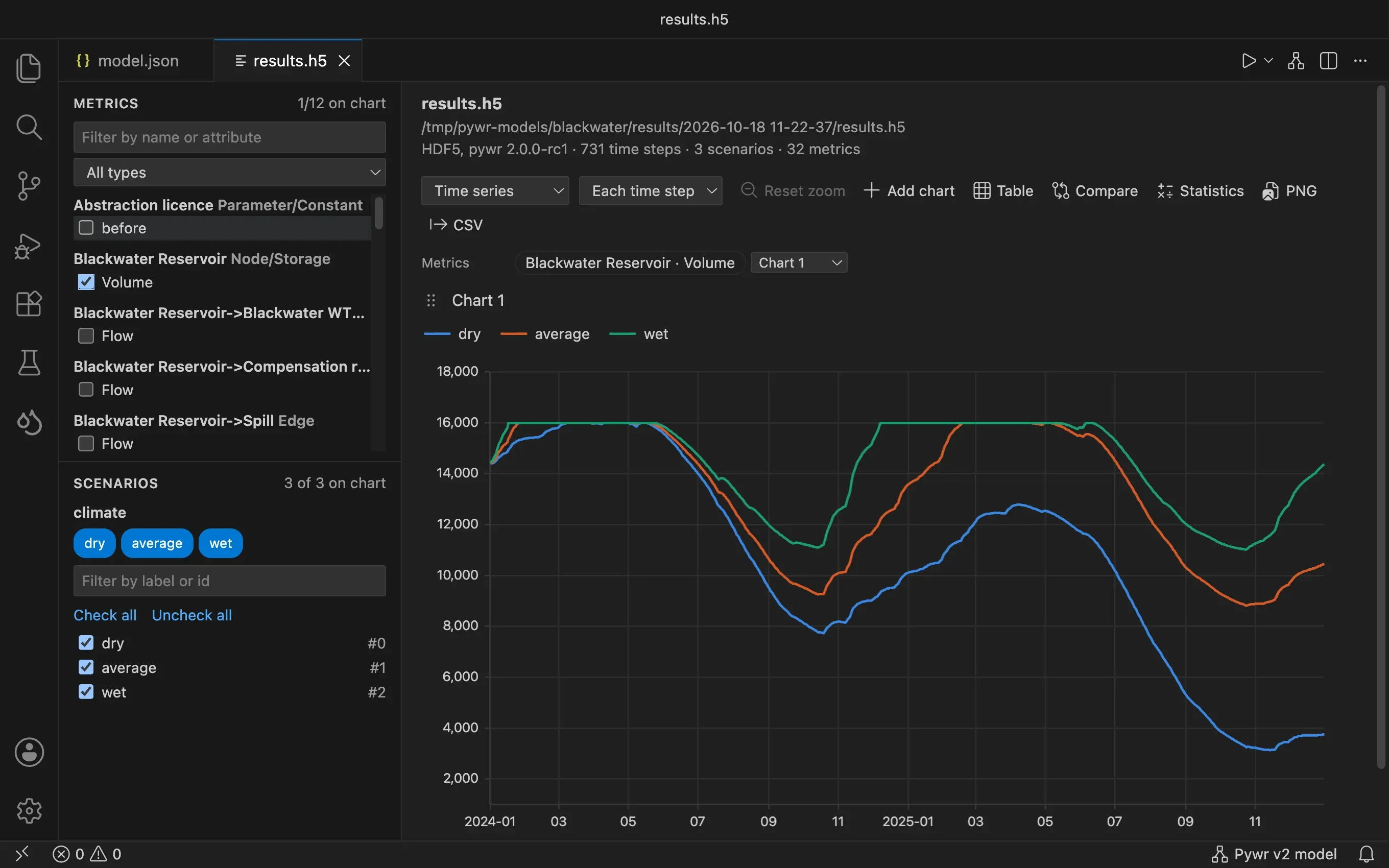
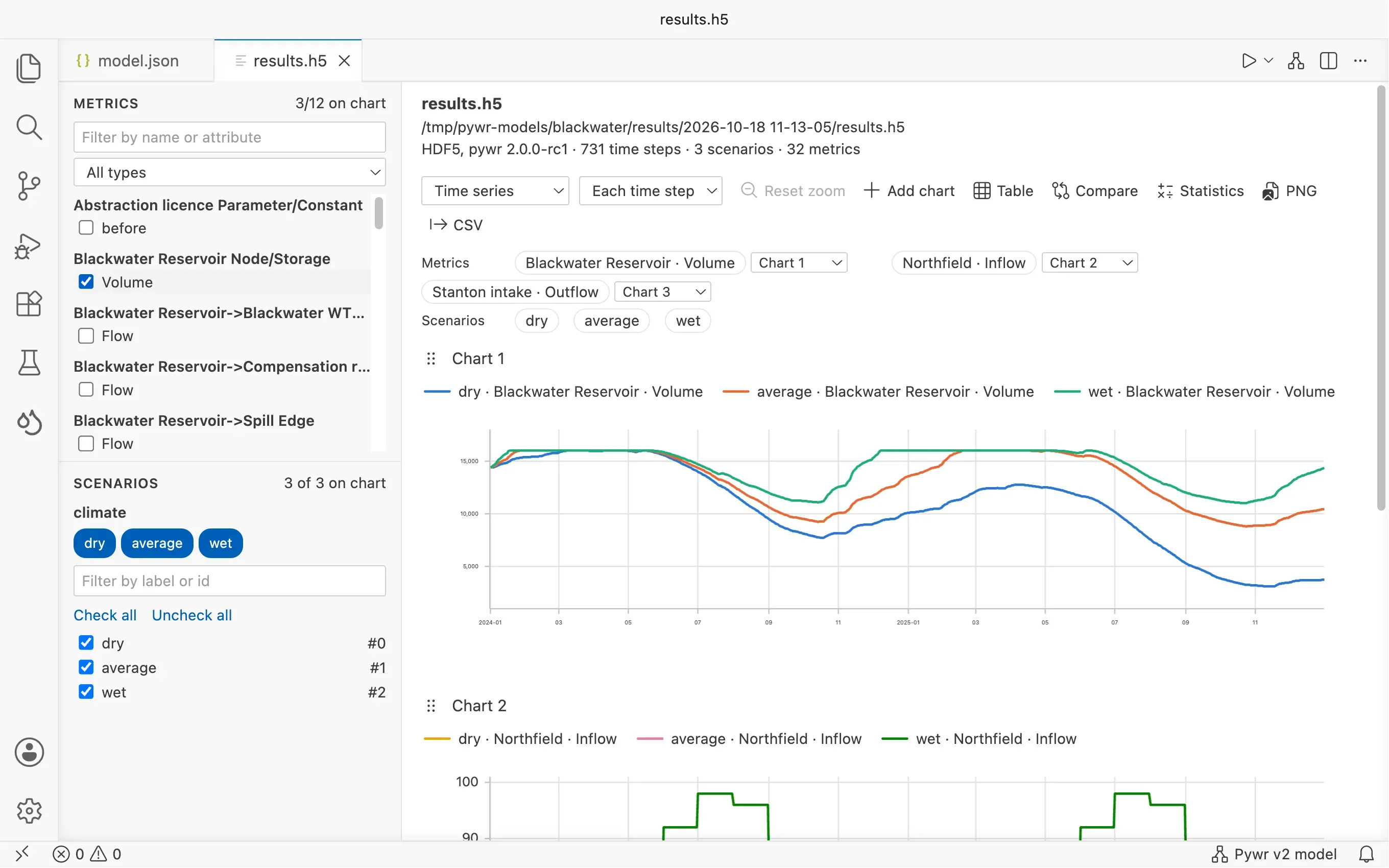
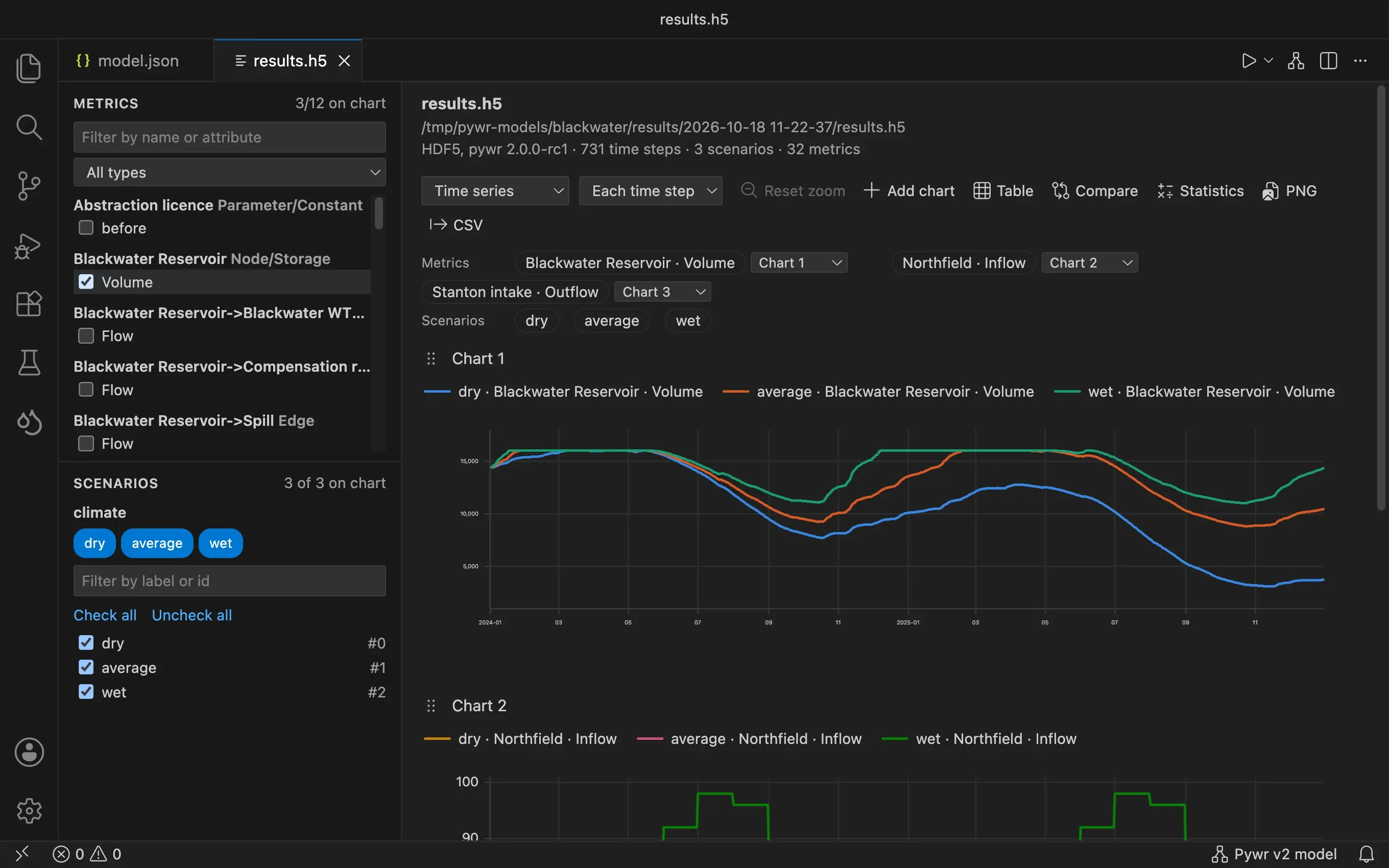
Open a results file. The top of the viewer shows its name, its format, and the number of time steps, scenarios and metrics it holds.
-
In the Metrics list on the left, tick what to plot. Each component is listed with the attributes saved for it, such as the Volume of a reservoir or the Outflow of a link.
- Type in the box above the list to filter by name or by attribute.
- Pick a kind of component from the list under it to show only nodes, only parameters, and so on.
- You can tick up to 12 metrics at a time.
-
In the Scenarios list, tick the scenarios to draw. It is there when the file has more than one. Press a label under a scenario group to keep only the scenarios with that label.
-
Read the chart. Hover it to see the value of each line at a date. Click an entry of the legend to hide or show its line.
Drag across the chart to zoom into a period, and double-click to zoom out. The Reset zoom button in the toolbar does the same.
Change the type of chart
Section titled “Change the type of chart”Pick the type from the first list of the toolbar.
Time series
Section titled “Time series”One line for each metric and scenario, over time. This is the default.
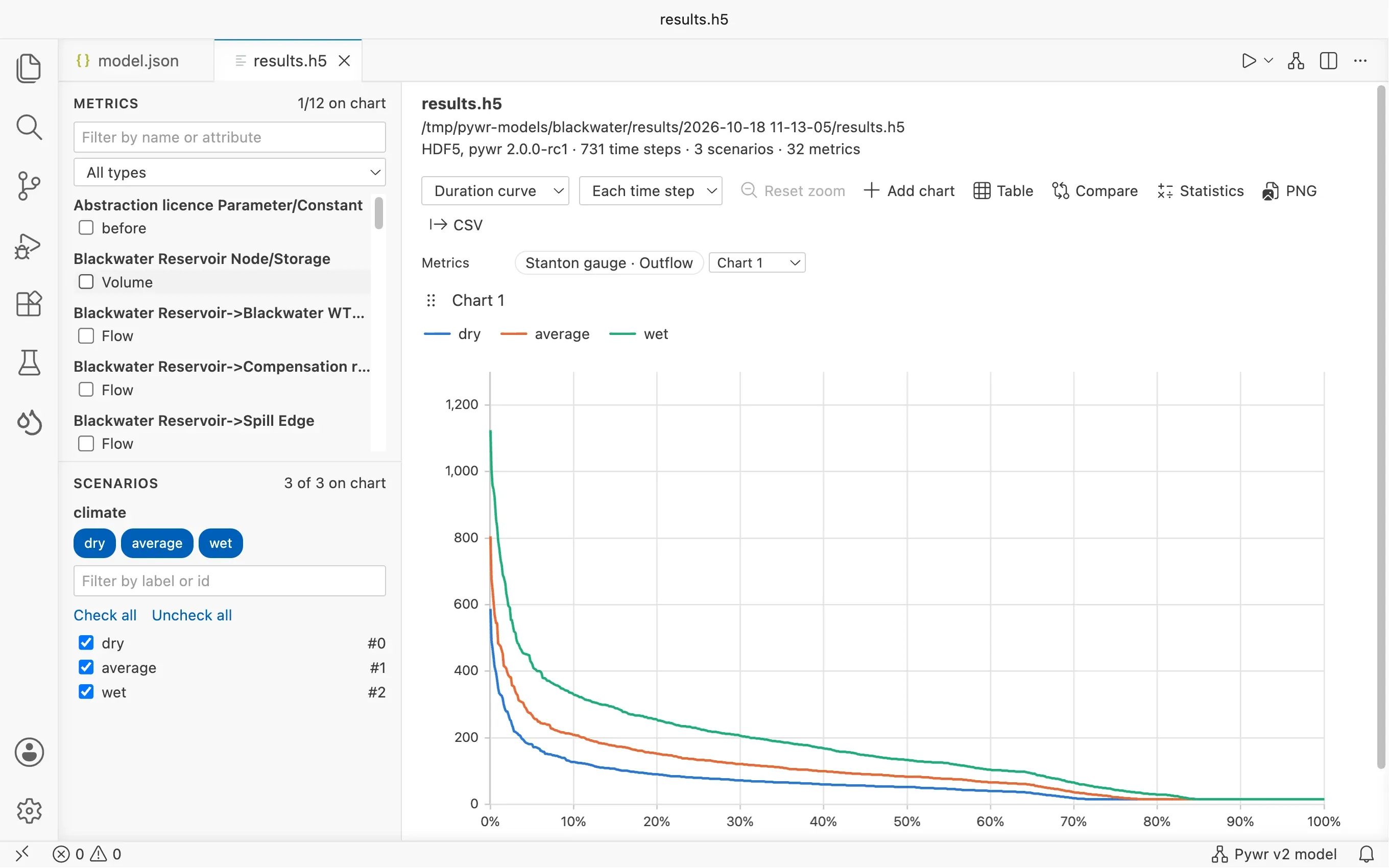
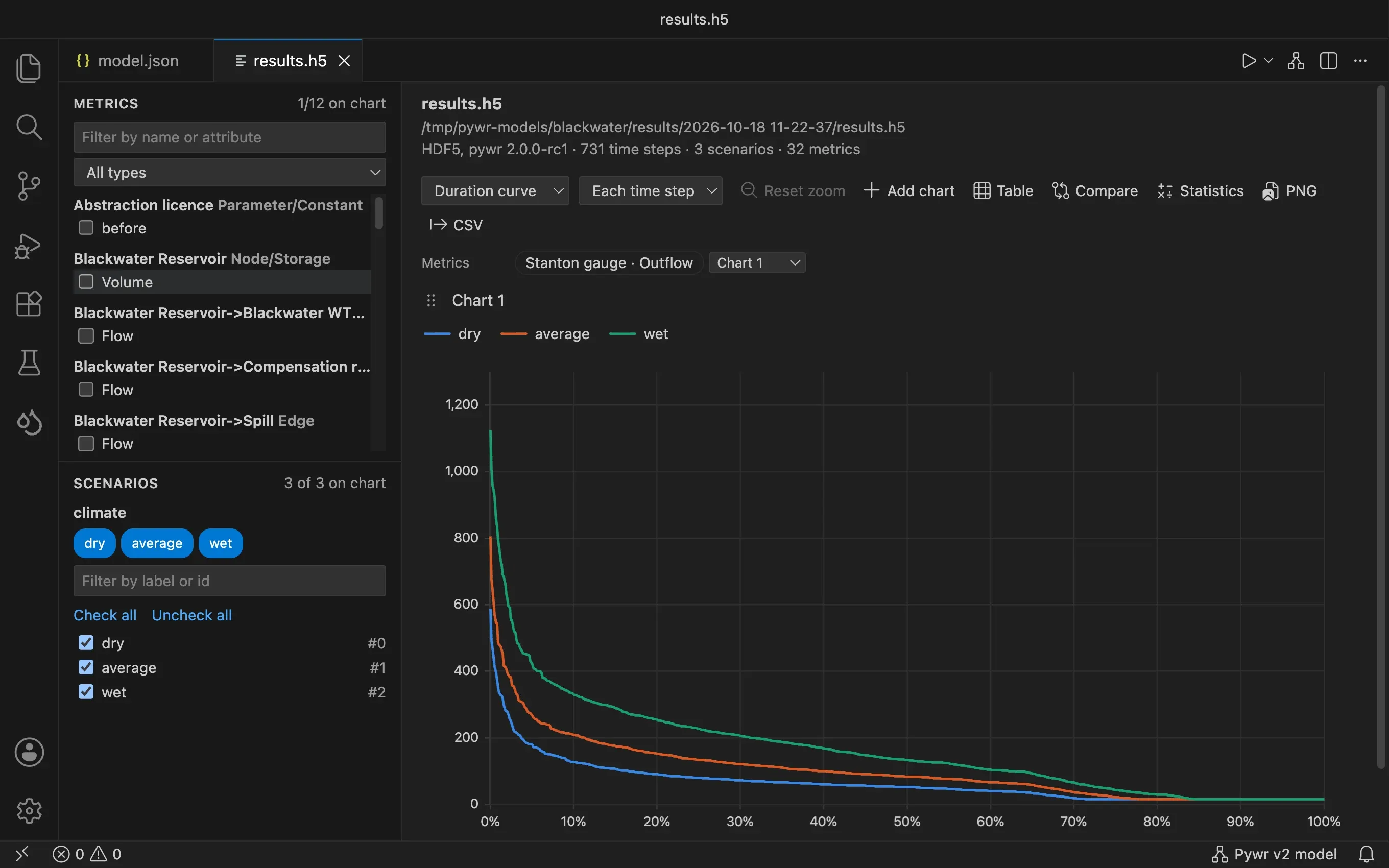
Duration curve
Section titled “Duration curve”How often a value is reached or exceeded, with the percentage of time on the horizontal axis. Use it to read, for example, the flow that is exceeded 95% of the time.
Scenario bands
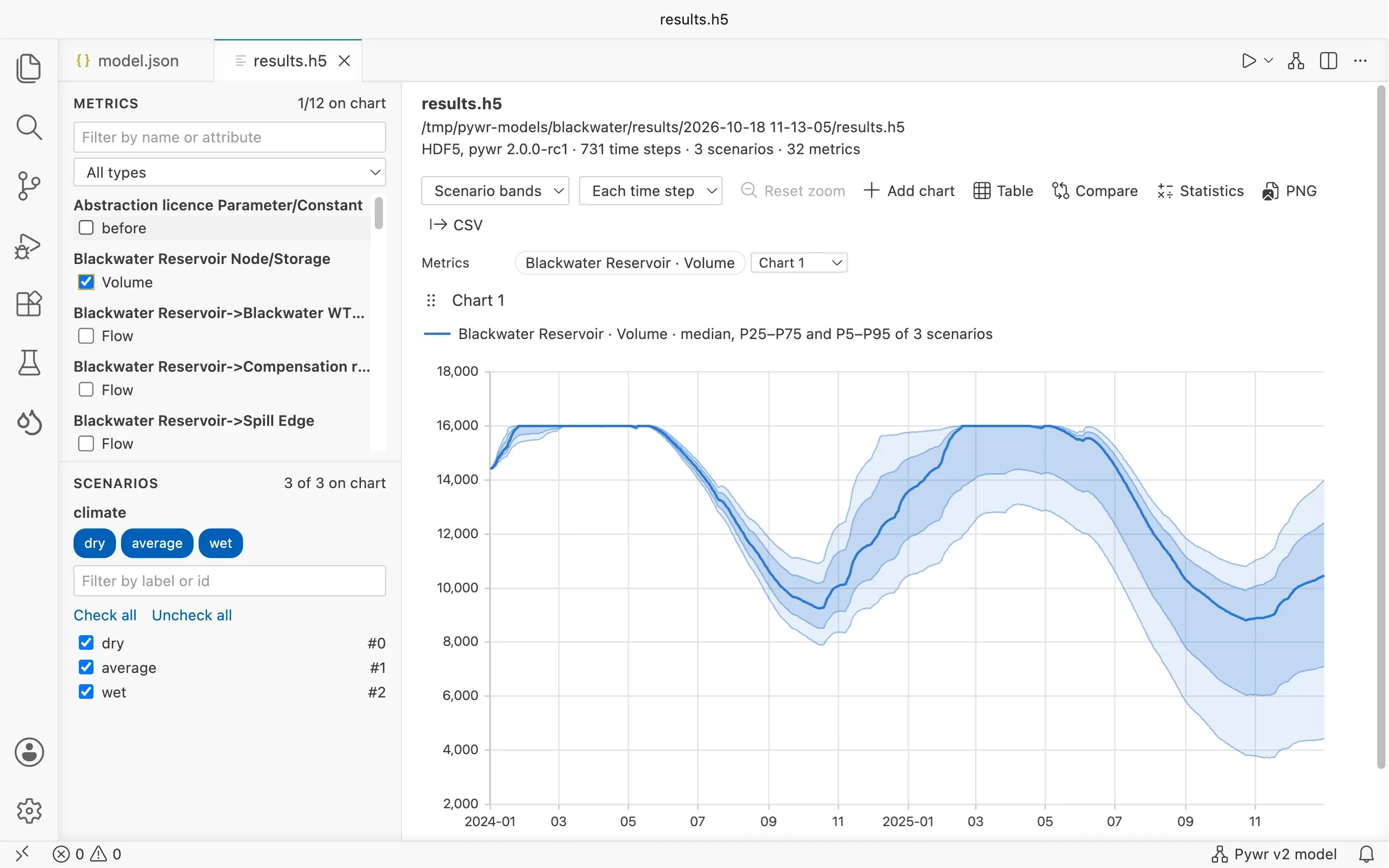
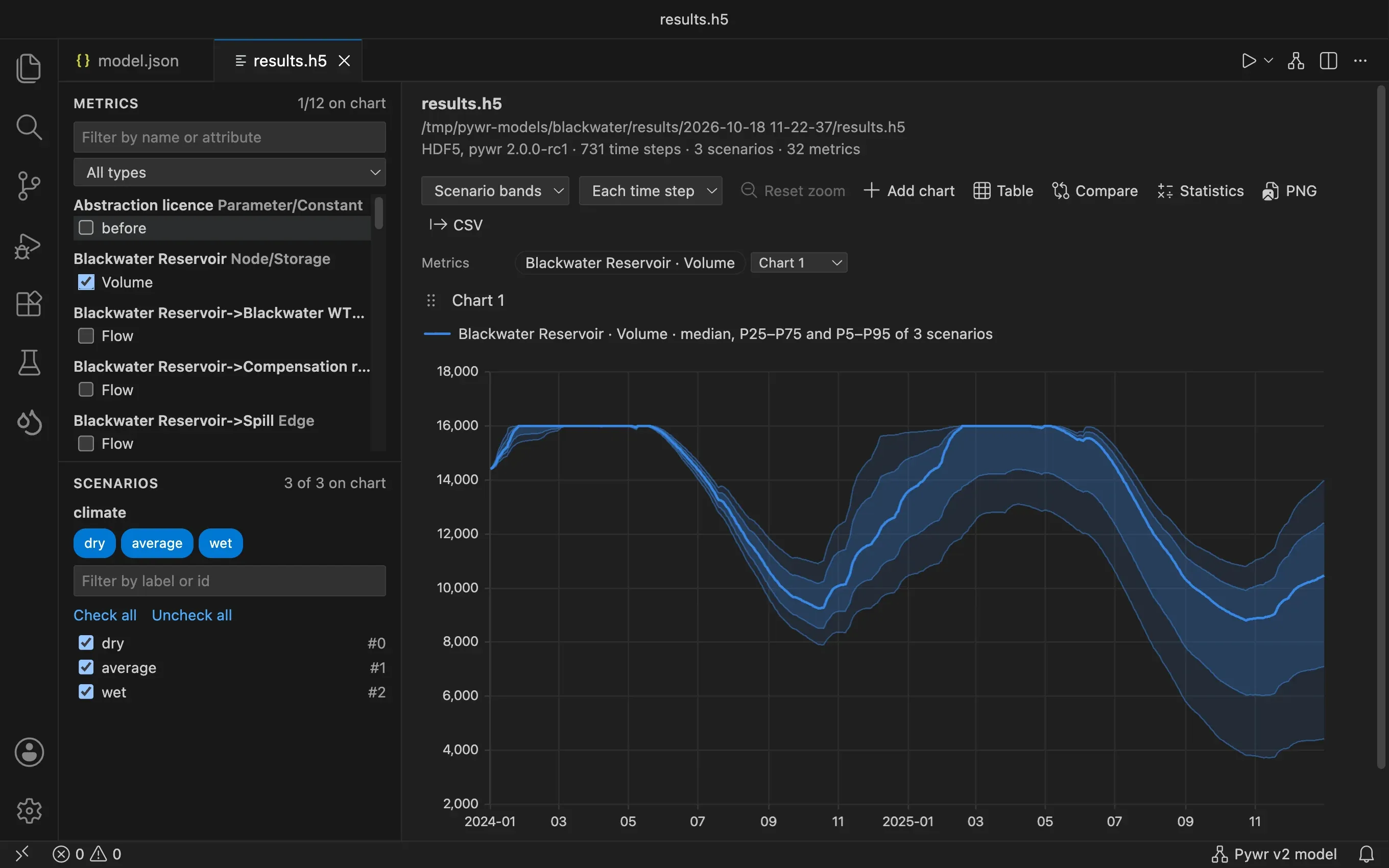
Section titled “Scenario bands”The spread of the scenarios over time: the median as a line, with a band from the 25th to the 75th percentile and a lighter band from the 5th to the 95th. It needs at least two scenarios, and is the clearest view when you have many.
Aggregate by month or year
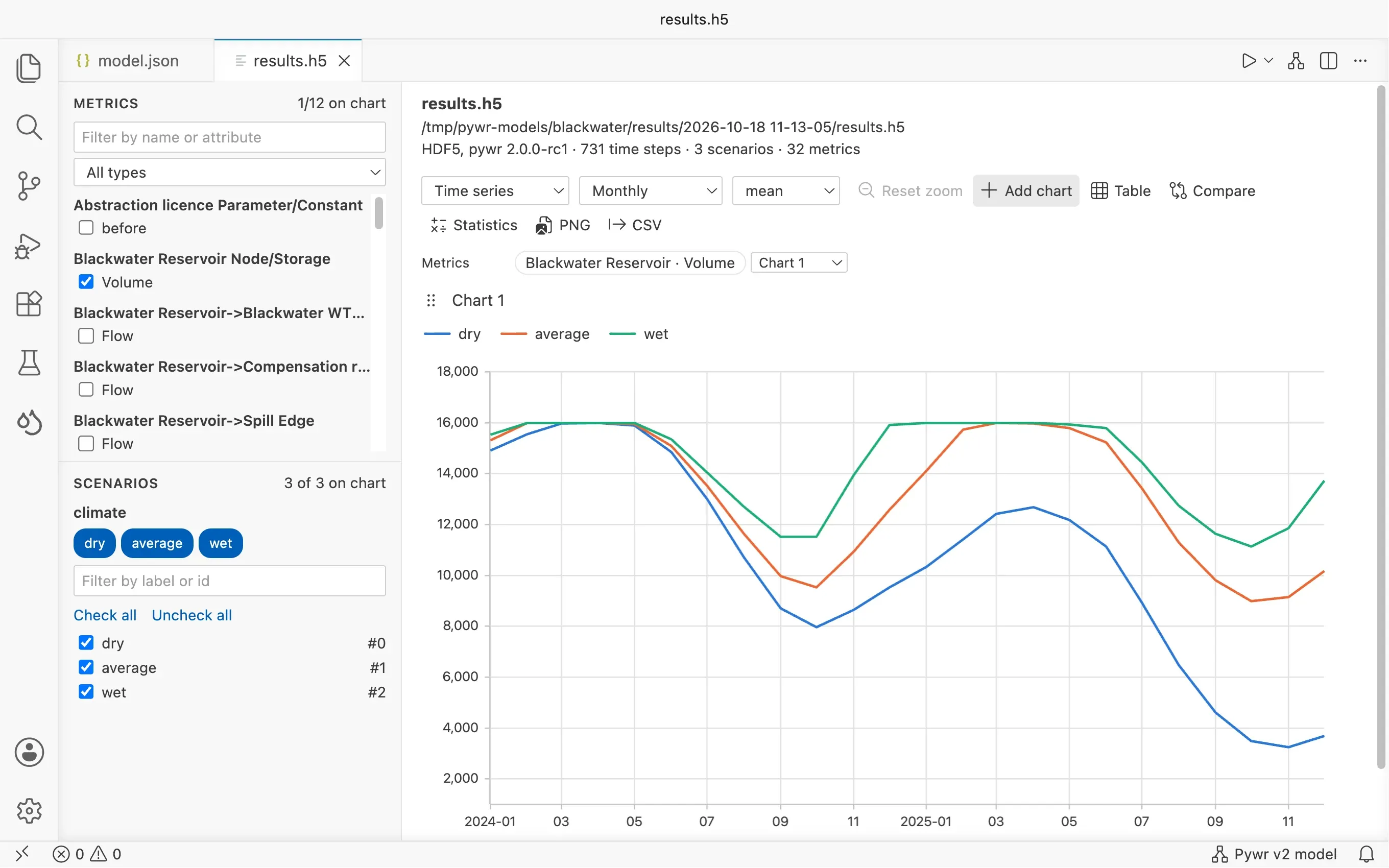
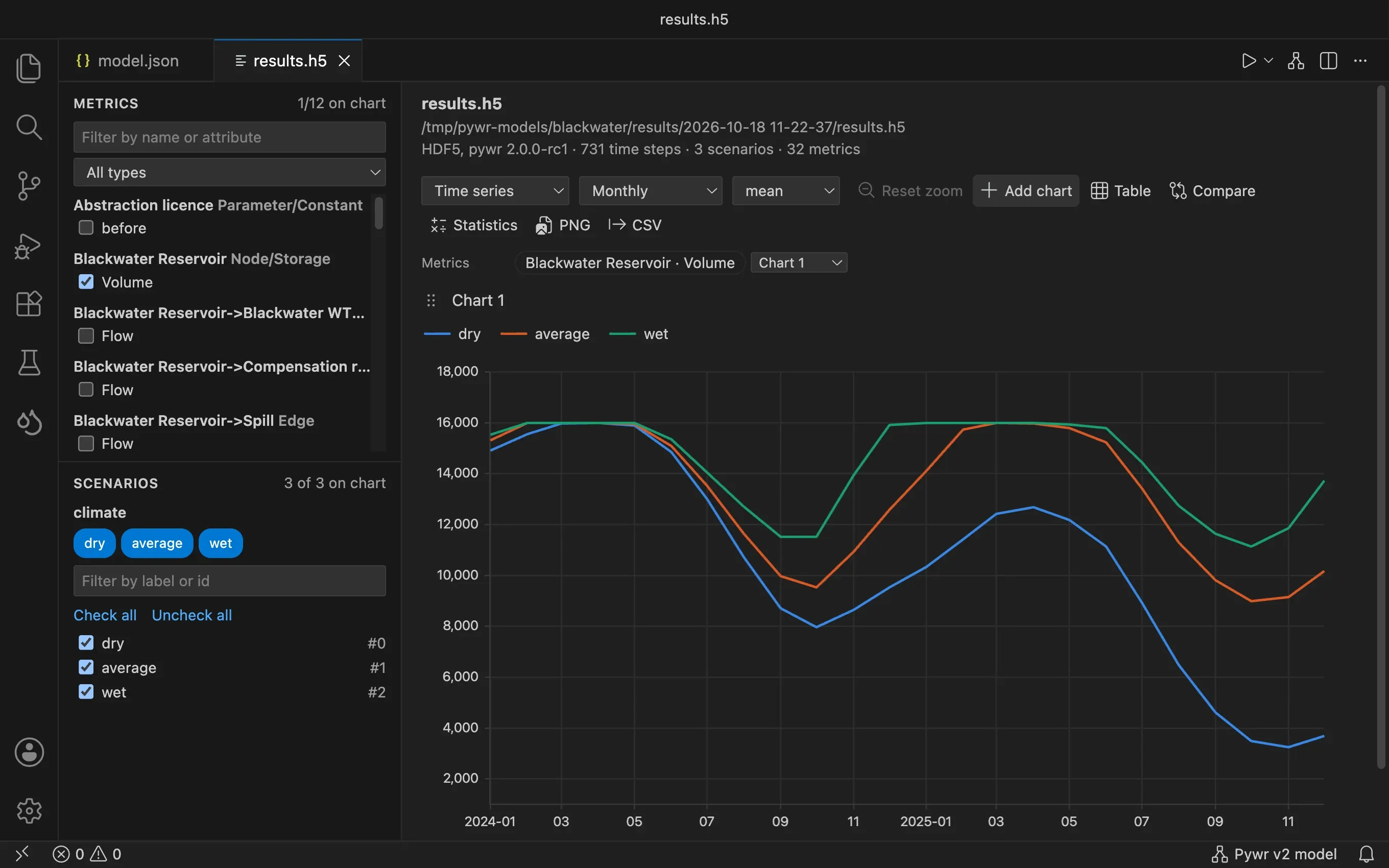
Section titled “Aggregate by month or year”Pick Monthly or Annual from the second list of the toolbar, instead of Each time step, then pick how the values of each period are combined: mean, total, minimum or maximum.
Several charts
Section titled “Several charts”Flows and volumes have different sizes and do not read well on one axis. All the metrics start on one chart, and you can move each of them to another. For example, draw the flow of two nodes on one chart and the flow of a third node on another.
- Each metric above the charts has a list with the charts. Pick a chart to move the metric to it, or New chart to draw the metric on its own.
- Press Add chart in the toolbar to add an empty chart. The metrics you tick next are drawn on the last chart.
- Click the title of a chart to rename it. Drag a chart by its handle, on the left of its title, to change the order.
- Press Remove on a chart to remove it with its metrics.
A file of percentiles written by a risk analysis always has one chart for each metric, with the percentile bands of each day. The viewer hides the chart type and the monthly or yearly aggregation for these files.
Read the numbers
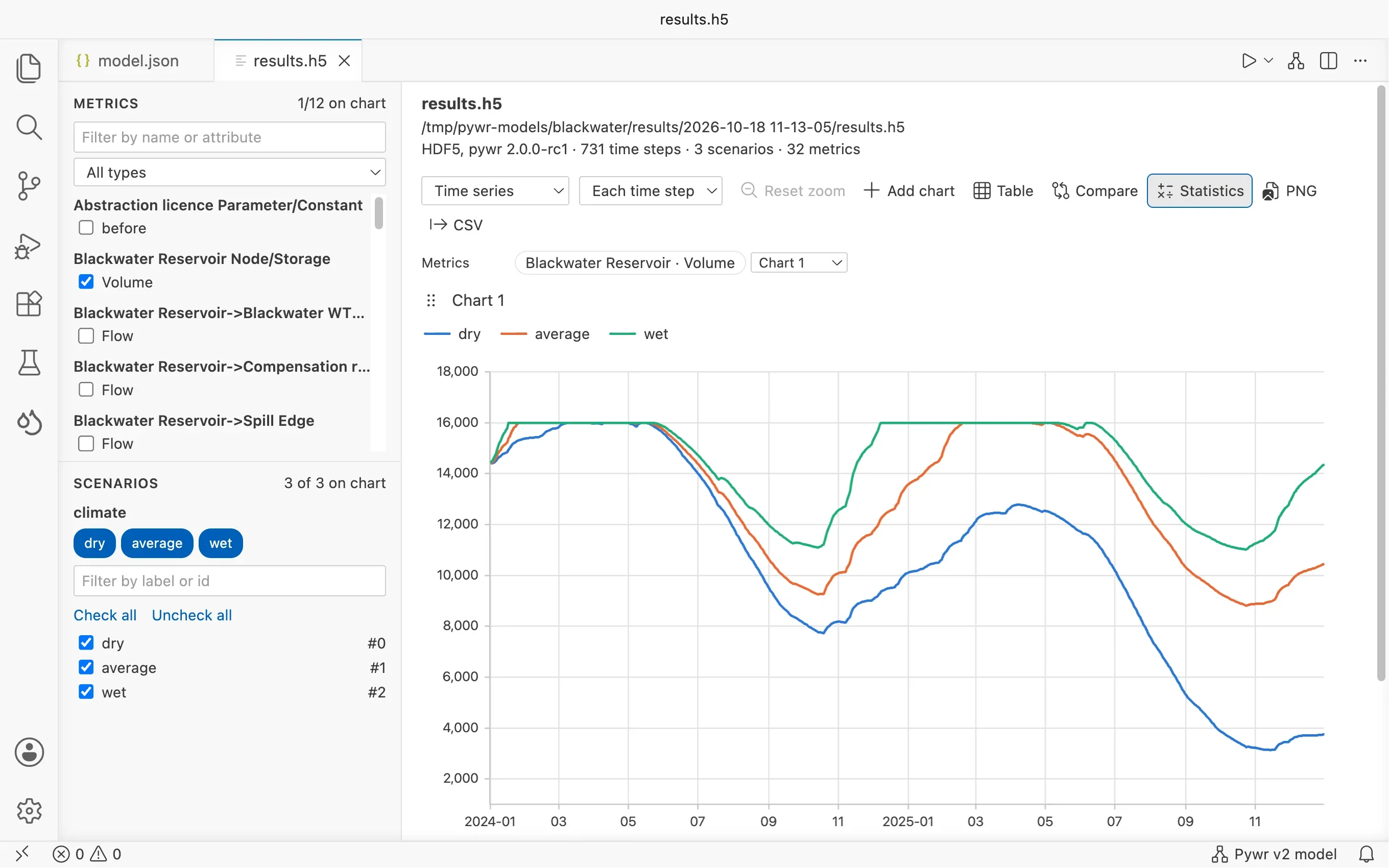
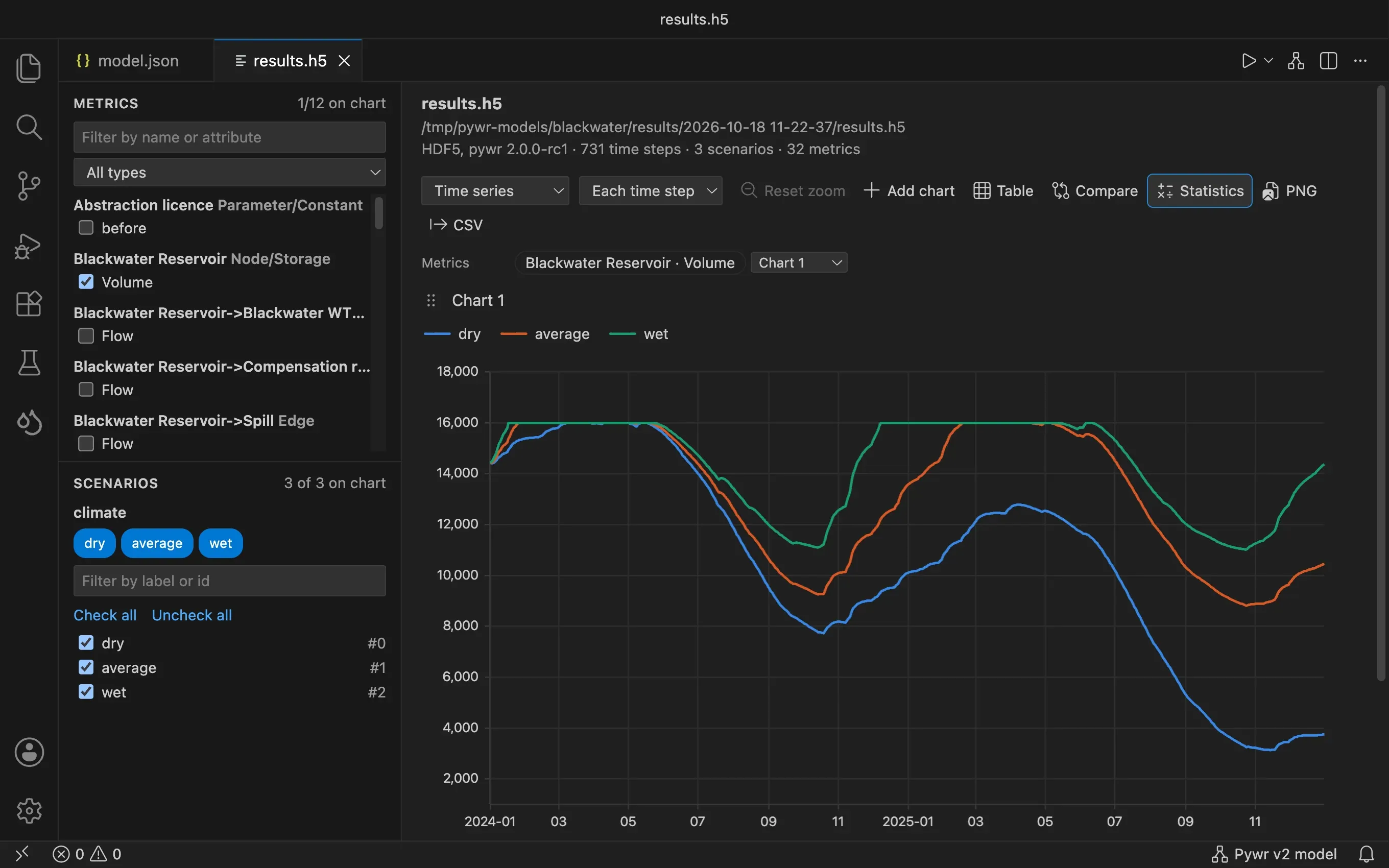
Section titled “Read the numbers”- Show the statistics adds a table with the minimum, the mean, the maximum, the 5th percentile, the median and the 95th percentile of each line.
- Show the table shows the values of the chart as a table, one row for each time step.
Compare two runs
Section titled “Compare two runs”-
Open the results of one run.
-
Press Compare with another results file in the toolbar and choose the results of the other run.
The lines of the second file are drawn dashed next to yours. Lines are matched by metric and by scenario label.
-
To plot the difference between the two instead, press Show the difference.
Each run of a Pywr v2 model is kept in its own folder, so a common use is to run, change the model, run again and compare the two folders.
Export
Section titled “Export”- Export the chart as PNG saves the chart as an image.
- Export the values as CSV saves the values of the chart, for the period you zoomed into. For a duration curve, the file has the percentage of exceedance.
Both suggest a file next to the results file.
Good to know
Section titled “Good to know”- The viewer follows the file: when a new run overwrites it, the charts reload.
- Pywr v1 Scenarios are labelled with the names of your model when the model is found next to the results file.
- What you ticked and the type of chart are kept while the tab is open.