
Run the model
You run a model with one button. This page covers what you need first, what happens during and after a run, and how to change the way a model runs without editing it.
Before the first run
Section titled “Before the first run”A run needs a Python environment selected in VS Code. If you have not done it yet, follow Set up Python to run models. In short:
- A virtual or conda environment with Python 3.10 or later.
- Pywr itself is built into the extension: there is nothing else to install, unless your model reads timeseries with pandas, polars or Python, or uses your own Python parameters.
- A virtual or conda environment with pywr 1 installed (
pip install pywr). - The model runs with pywr from that environment.
- If your own components are compiled with Cython, add the modules first. See Use Cython modules.
Then run Python: Select Interpreter from the Command Palette and pick the environment.
Your model must also say what to save, or the run leaves nothing to chart:
- Pywr v2 an output, of type HDF5, CSV or ArrowStream, that saves a metric set
- Pywr v1 a CSV recorder or a tables recorder
The templates already have one.
-
Open the model. The JSON file, its schematic or one of its forms can have the focus.
-
Press the Run button, the triangle at the top right of the editor. You can also press Ctrl Alt P, then R, or run Pywr: Run the model from the Command Palette.
The model is saved first, so the run always uses what you see.
-
Follow the progress in the notification at the bottom right. It shows the percentage and the time step the run has reached. Press Cancel to stop the run. Pywr v2 keeps the results of the time steps already run and the notification offers to open them or delete them.
-
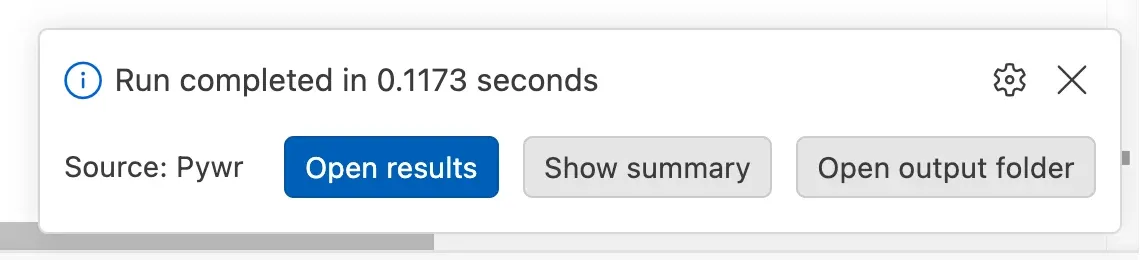
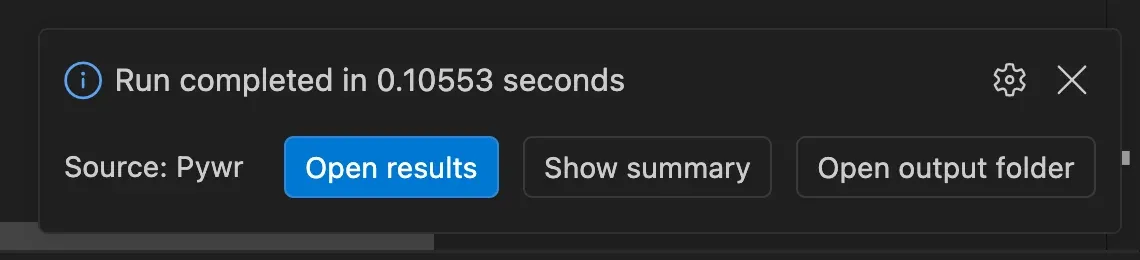
When the run completes, the notification shows how long it took and offers what to do next.
After the run
Section titled “After the run”| Button | What it does |
|---|---|
| Open results | Opens the results in the results viewer. It is there when the run wrote an HDF5, CSV or Arrow stream file. |
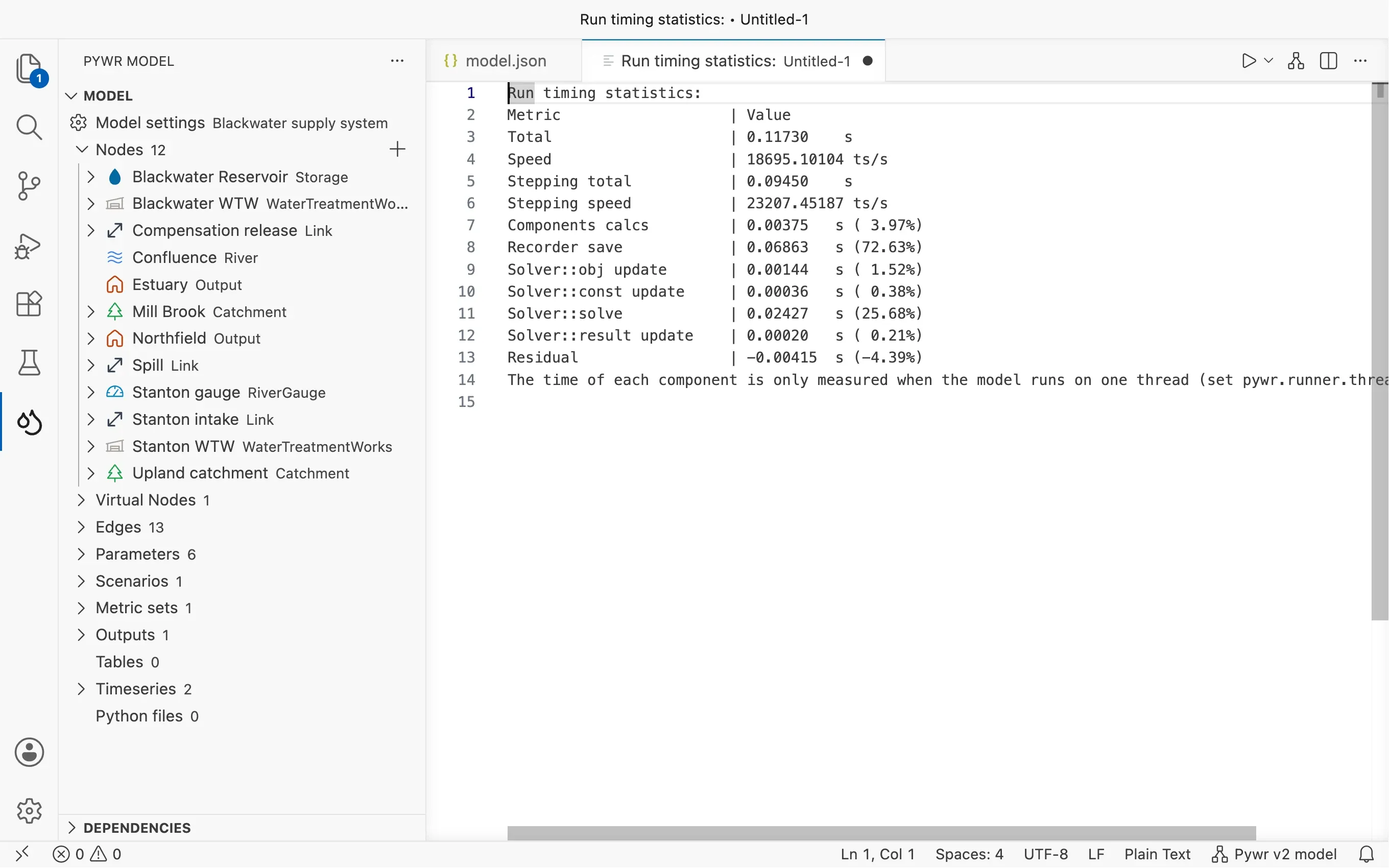
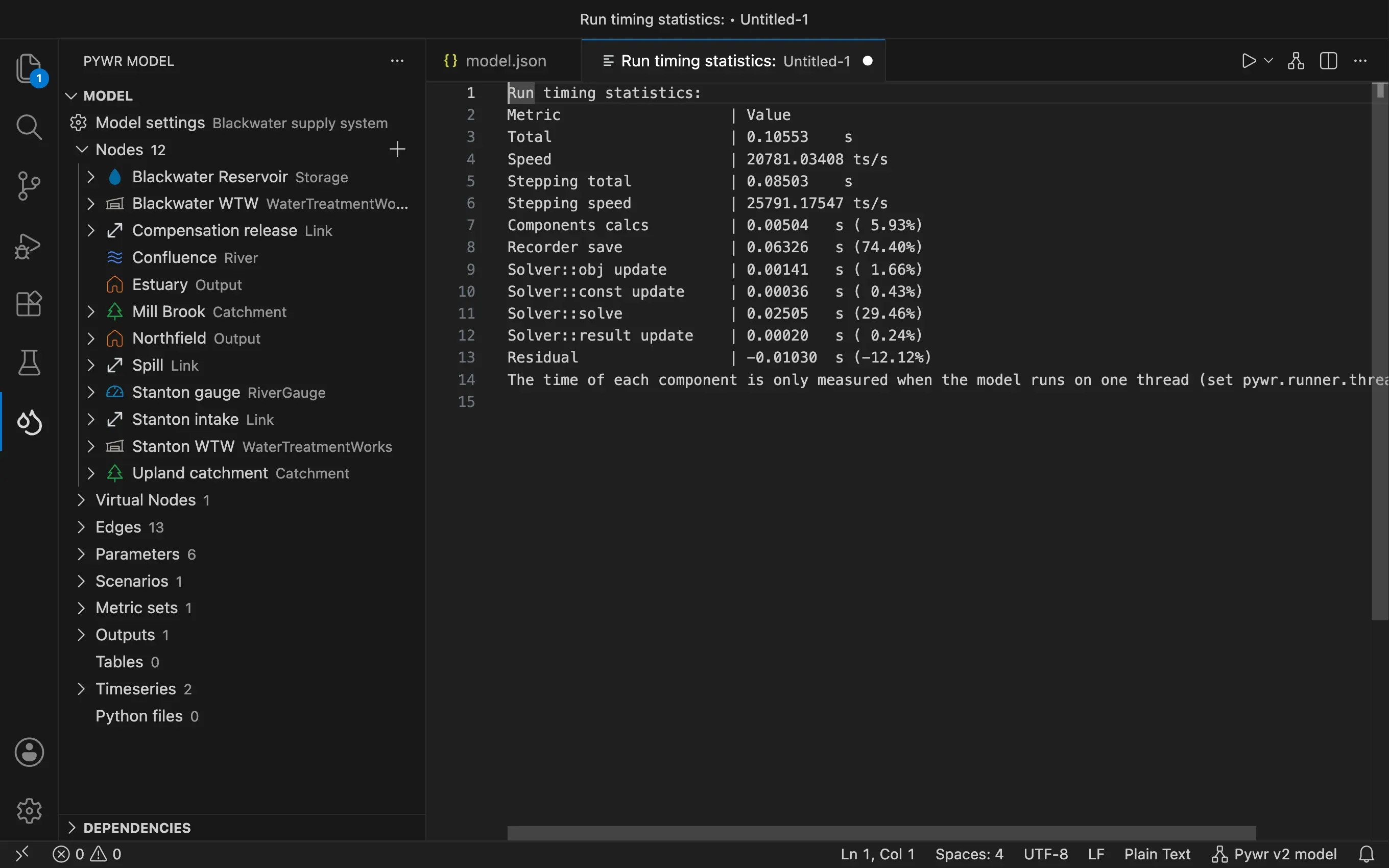
| Show summary | Opens a table with how long each part of the run took. |
| Open output folder | Opens the folder with the files of the run. |
Where the results are saved
Section titled “Where the results are saved”Each run saves its files in a new folder named after the date and the time of the
run, inside a results folder next to the model:
my-model/├── model.json└── results/ ├── 2026-10-05 08:56:04/ │ └── results.h5 └── 2026-10-05 09:12:40/ └── results.h5Earlier runs are kept, so you can compare two runs.
Pywr v1 saves the results where the CSV and the tables recorders of your model say,
in their url. Open output folder opens the folder of those files, and asks
which one when the recorders write to more than one folder.
The summary lists the version of pywr, the solver, the number of time steps and scenarios, the run time and the speed.
Run with options
Section titled “Run with options”To change how a model runs without editing it, use Run the model with options.
-
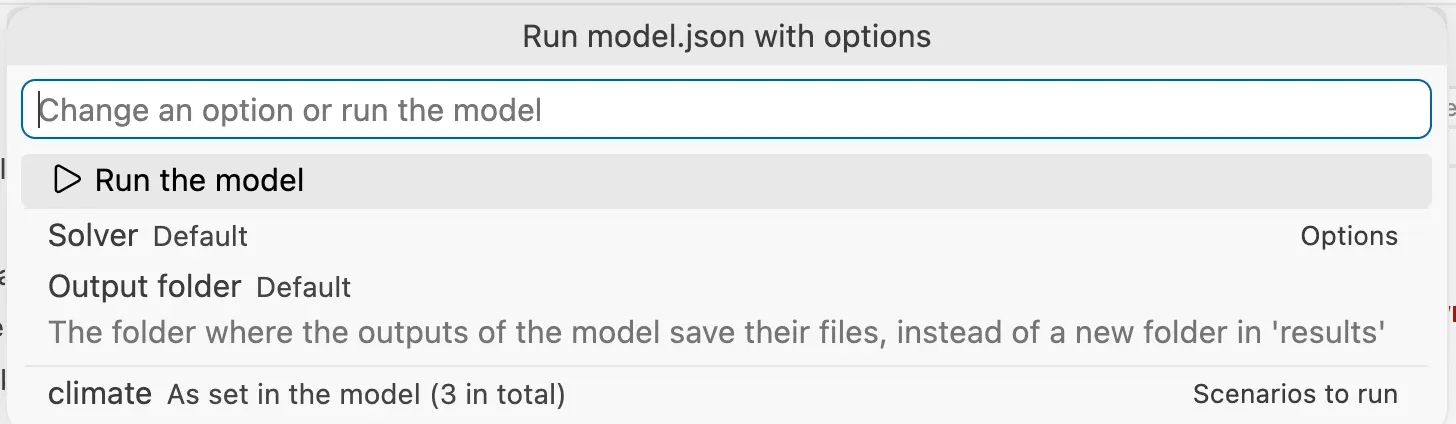
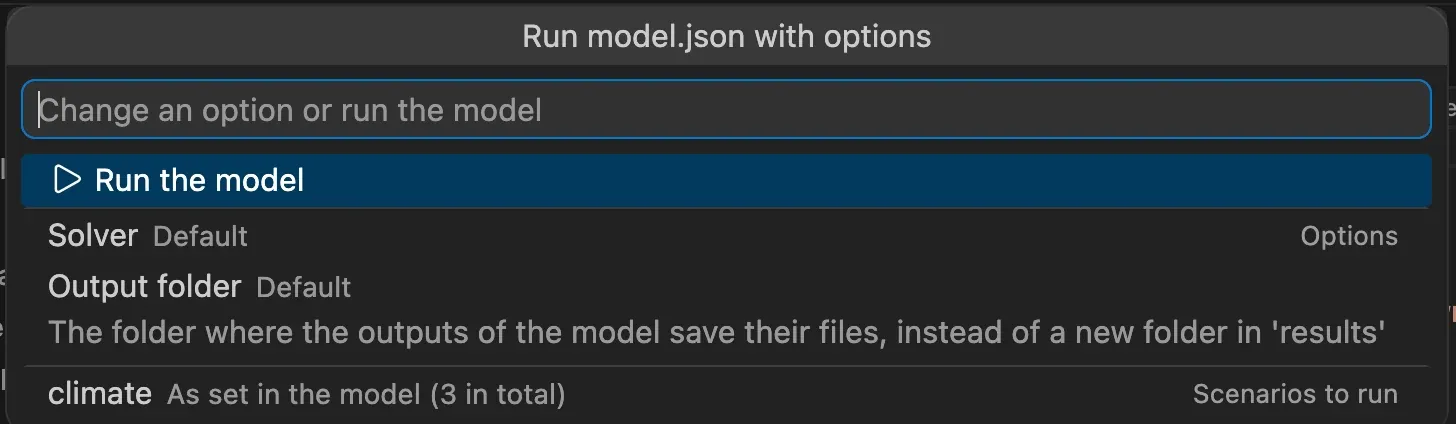
Press the gear button next to Run, or press Ctrl Alt P, then Shift R, or run Pywr: Run the model with options….
-
Change the options you need. The list stays open until you run or close it.
Option What you can set Solver The solver to use, or Default. Output folder The folder where the outputs are saved, instead of a new folder in results.Scenarios to run For each scenario group, the scenarios to run instead of all of them. -
Pick Run the model.
The options are remembered for each model, and used again the next time you run with options. Pick Reset the options to go back to the defaults. The model file is never changed.
Run only some scenarios
Section titled “Run only some scenarios”Pick a scenario group in the list and type the scenarios to run:
- a range, as
start:end, counting from 0 and leaving out the end.0:2runs the first two scenarios. - Pywr v2 a list of positions, such as
0, 2, 4.
Solvers
Section titled “Solvers”| Solvers | |
|---|---|
| Pywr v2 | CLP (the default), HiGHS, CBC and microlp |
| Pywr v1 | GLPK, GLPK edge and lp_solve. The solver must be available in your installation of pywr. |
Pywr v1 You can also save the solver and the scenario combinations in the model itself, from the model settings.
Run a project
Section titled “Run a project”Pywr v2 A pywr project builds a model from several
files. Its manifest file names a base model, folders of network files (nodes,
edges and parameters), and definitions. Each definition picks the network files
to add to the base model, and can also change its time period and scenarios. The
pywr run-project command reads the same manifest.
To build the model of a definition, open the manifest and press Run in the
editor title, or run Pywr: Run project definition…. If the project has more than
one definition, pick one from the list. The extension saves the model next to the
manifest as <definition>.composed.json and opens it in the editor. You can run it
like any other model, open its schematic or run it live. The file is replaced each
time you build the definition, so make your changes in the project files.
On the schematic of the base model, Run live asks which definition to run, or whether to run the base model alone. A definition is built as above, then its schematic opens with a live run.
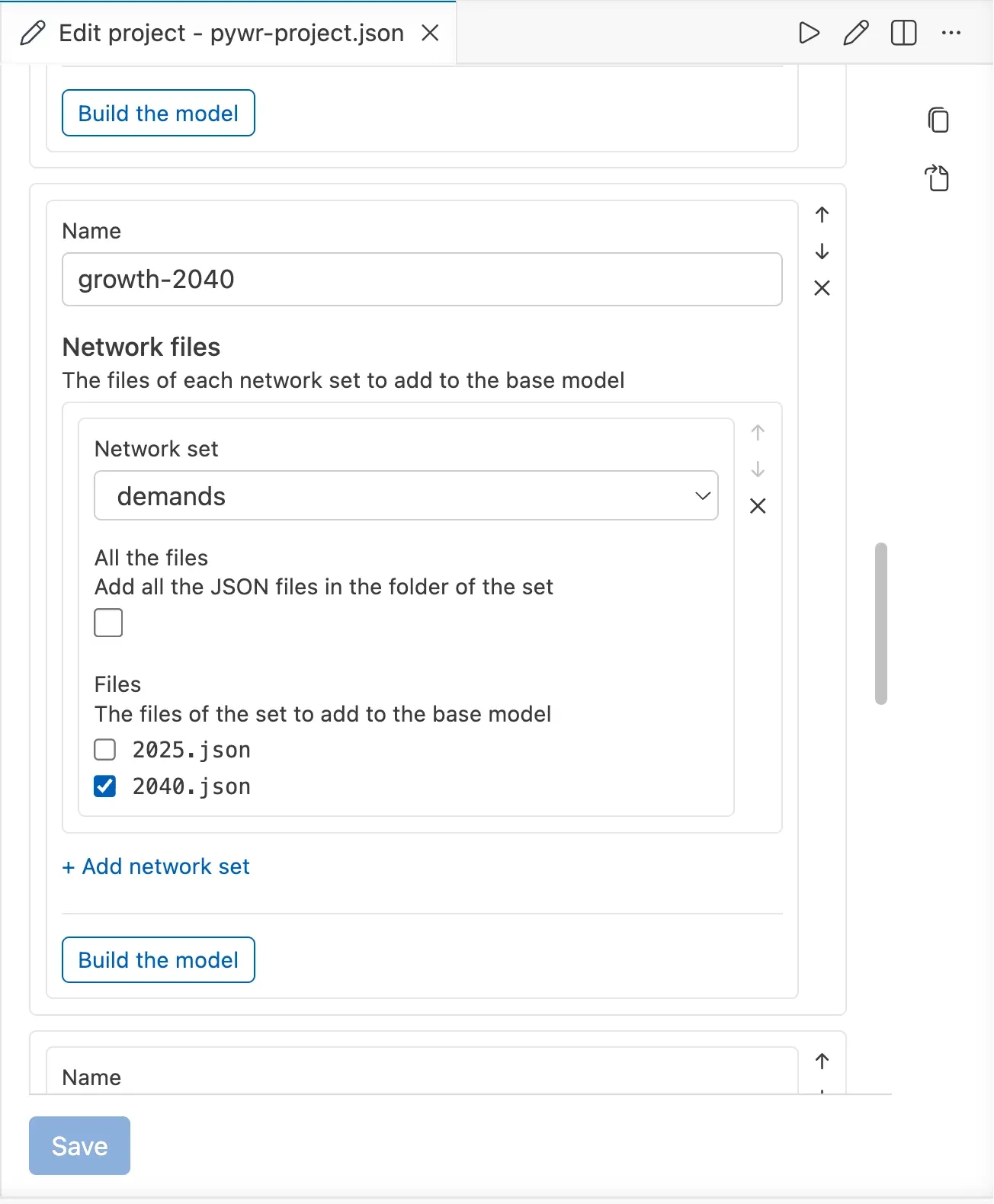
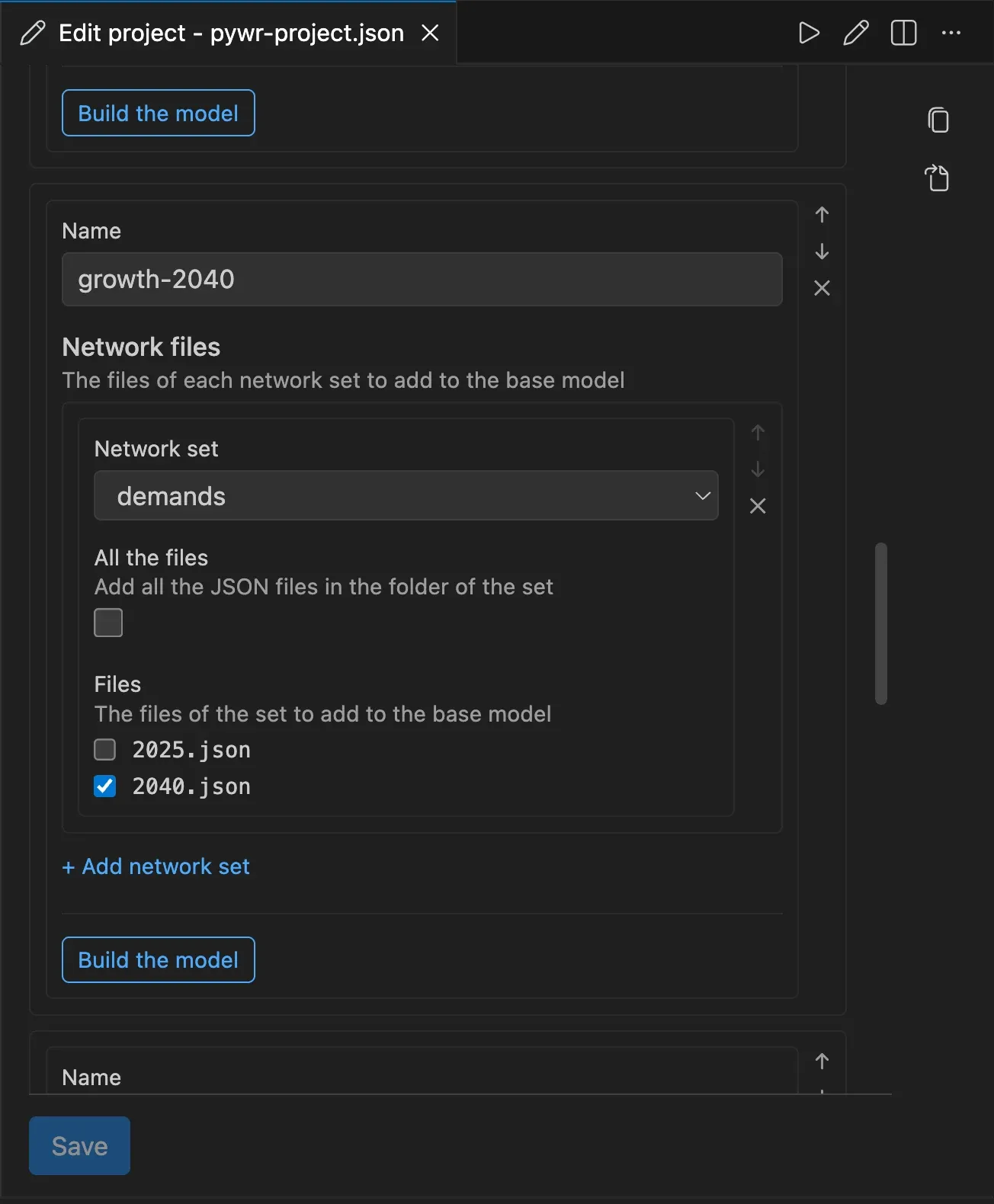
To edit the manifest in a form, press Edit the project in the editor title, or run
Pywr: Edit the project. The form suggests the base model and the folders of the
network sets from the files in the project. For each set, it lists the JSON files in
the folder so that you can tick the ones a definition adds. Save the form, then press
Build the model under a definition. The form cannot edit the time and scenario
defined in the overrides key of a definition, or the position offsets (file_meta) that
move the nodes of a network file on the schematic or the map. Edit them in the JSON document; saving the form leaves them unchanged.
Name the manifest pywr-project.json, or end its name with .pywr-project.json, to
get completion and validation while you edit it.
Use more or fewer threads
Section titled “Use more or fewer threads”Pywr v2 A model with scenarios runs them in
parallel. Set how many threads to use with the pywr.runner.threads
setting. The default is 3; the most you
can use depends on your machine.
The Show summary table lists the slowest components only when the model
runs on one thread, because Pywr does not time each component when the
scenarios run in parallel. Set pywr.runner.threads to 1 to see them.
When a run fails
Section titled “When a run fails”A failed run shows an error notification. For a Pywr v1 model, Show details opens the
full message from Python. When the error names a node, parameter or recorder of the
model, that name is underlined in the editor and the error is listed in the
Problems panel. The error in the panel also gives a hint when the model is
infeasible, a node is not on any route, components reference each other in a loop, or
a component references a name that is not in the model. For an infeasible model, check
that no node has a min_flow greater than its max_flow, and that every demand with a
min_flow has a supply path. Errors naming no components are shown at the
start of the file.
For a Pywr v2 model, the message says what the run was doing when it failed (for example building the model or running it), and the date of the time step that failed. When the error names a node, virtual node, parameter, metric set or output of the model, the name of that component is underlined in the editor and the error is listed in the Problems panel. The error goes away when you edit the model or run it again.
The most common causes are about the Python environment. See Troubleshooting for each message and its fix.